
Crop
Crop for any platform with ready presets, or drag the frame freely. Rotate, flip, straighten and fix perspective.
What is Crop?
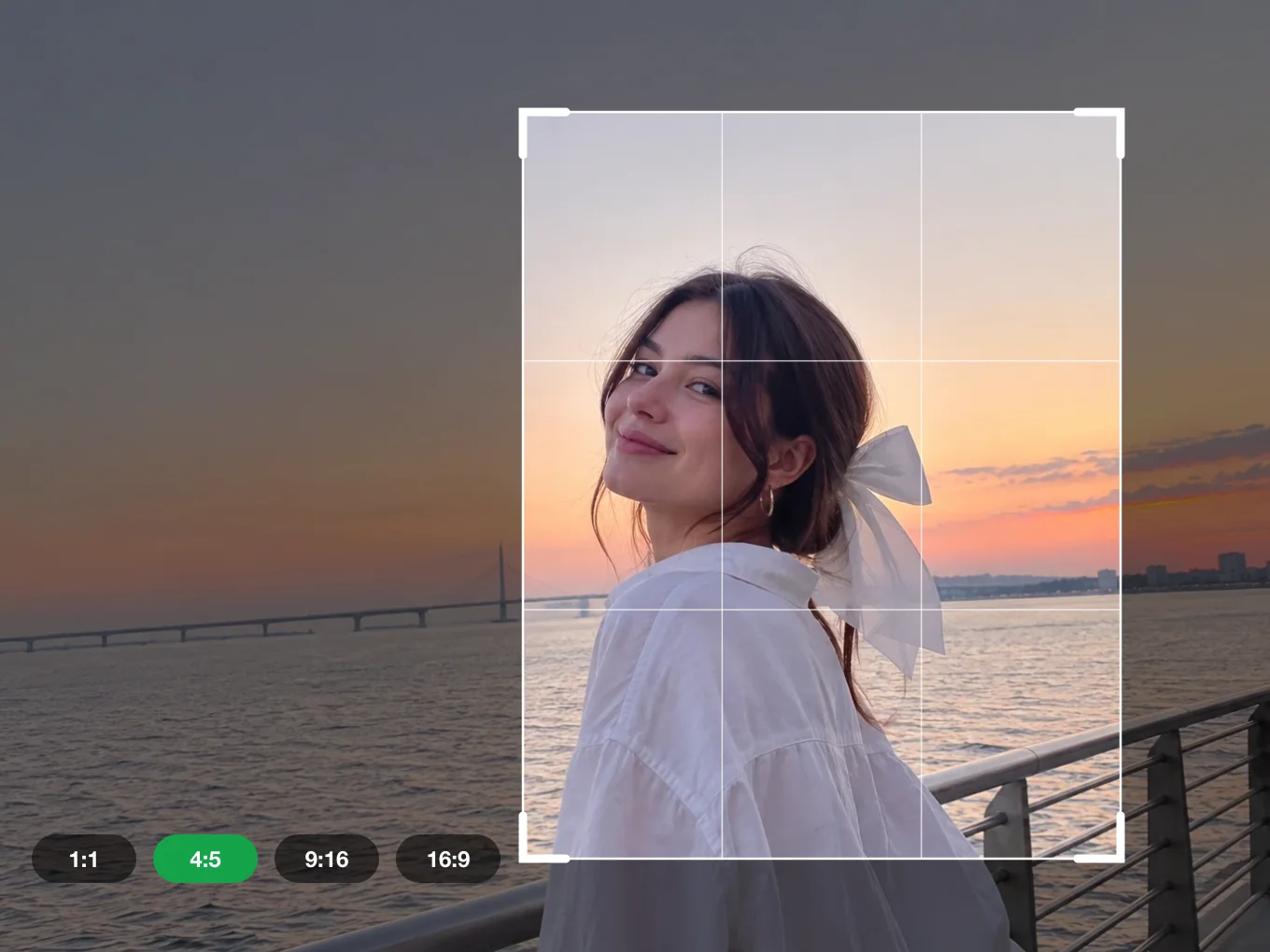
Crop sets the size and angle of the photo. Pick a ready size for a post, a story, a video or a print, or drag the frame by hand.
The frame on the photo has four green handles. Drag a handle to resize the frame and drag inside to move it over the picture. In Correct you straighten a tilted horizon and fix walls that lean toward each other.
Everything in Crop
Presets
Ready sizes for posts, stories, videos and print.
- 1:1 Square
- 4:5 Post
- 9:16 Story
- 16:9 Video
- 4:3 Classic
- 3:4 Portrait
- 3:2 Photo
- 2:3 Poster
- 5:4 Frame
- 7:5 Album
- 3:1 Banner
- 2:1 Wide
- 21:9 Cinema
- 1.91:1 Link
- 5:7 Card
- A4 Print
Correct
Fix the angle and perspective.
- Straighten
- Vertical
- Horizontal
- Straighten
- Turn the photo by exact degrees to level the horizon.
- Vertical
- Fix buildings and walls that lean back.
- Horizontal
- Fix a photo taken from the side.
Rotate
Quick turns and mirrors.
- Rotate 90°
- Flip horizontal
- Flip vertical
- Restore
Frame
The crop frame on the photo.
- Green handles
- Move the frame
- Green handles
- Four handles in the corners resize the frame.
- Move the frame
- Drag inside the frame to choose the part of the photo you keep.
How to use Crop in Pichype
- 1Open Crop
Pick a photo and tap Crop.
- 2Pick a size
Choose a preset, or drag the green handles for a free crop.
- 3Fix the angle
In Correct, level the horizon and fix perspective. In Rotate, turn or flip the photo.
- 4Save
Move the frame to the best part of the photo and save.
Crop FAQ
Which size is best for Instagram?
4:5 for feed posts and 9:16 for stories and reels.
How do I straighten a tilted horizon?
Open Correct and move Straighten until the horizon is level.
Can I go back to the original?
Yes. Tap Restore to reset rotation and flips.
Crop tutorials
All tutorials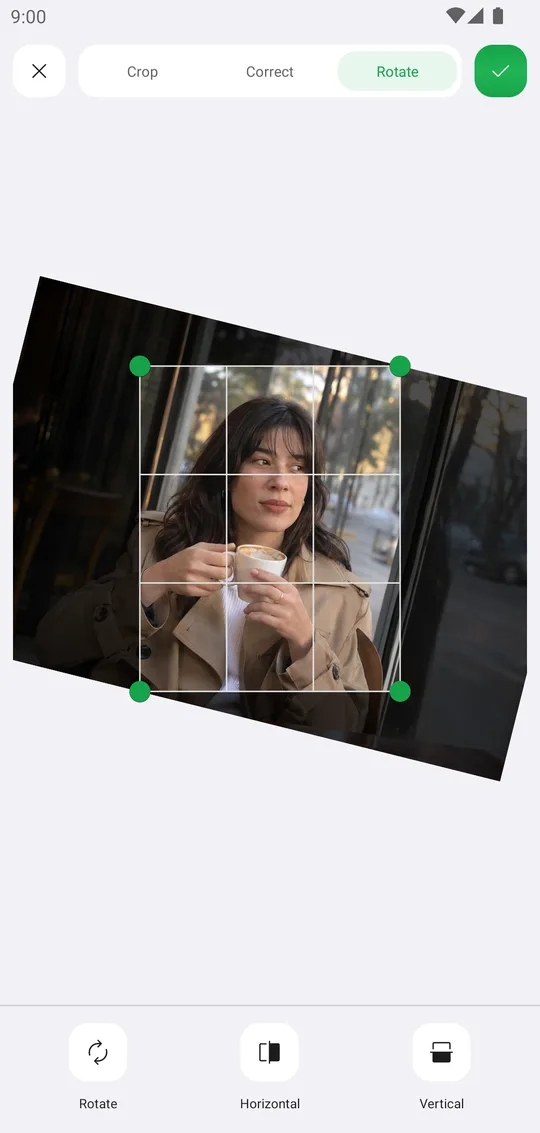
Works well with
Try Crop for free
Free on Google Play. iOS coming soon.