
Learn to edit like a pro
Step-by-step guides for every Pichype tool — from first edits to advanced color grading.
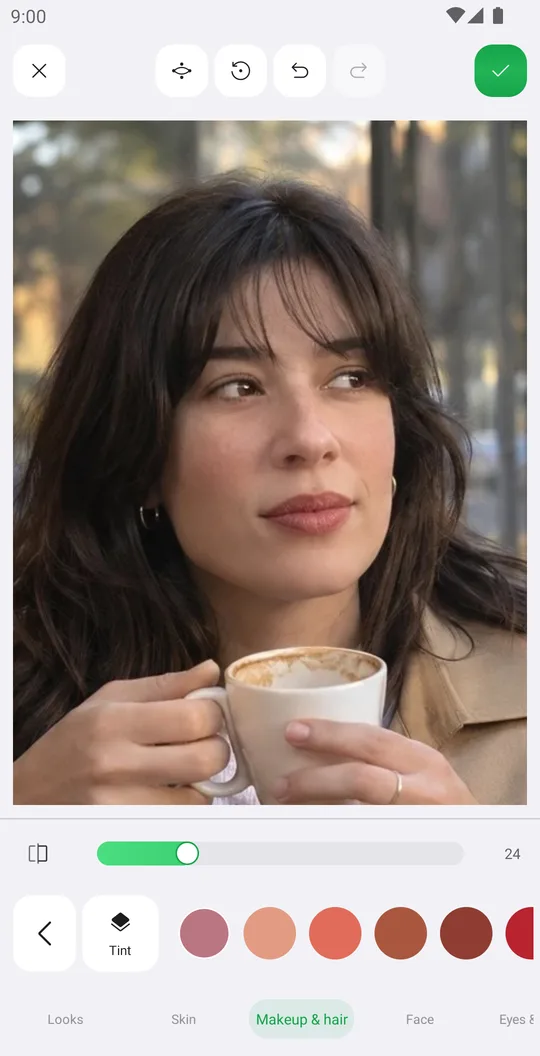
How to retouch a selfie naturally
Smooth skin, add a ready makeup look and fix single details in Retouch while keeping your real face.
1 min read · Beginner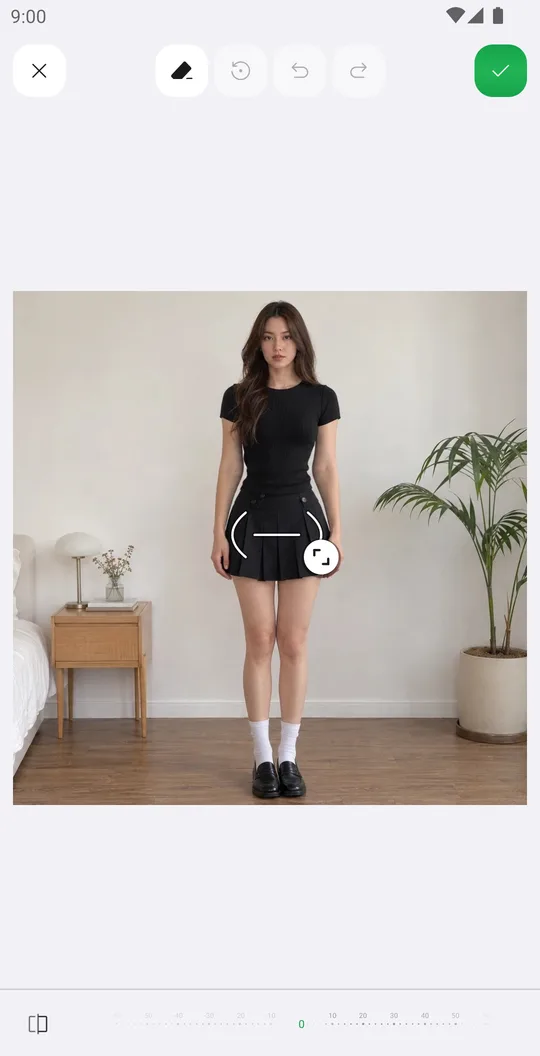
How to reshape your body in a photo
Slim the waist, shape the hips or make legs longer with Body tools that place their guides for you.
1 min read · Beginner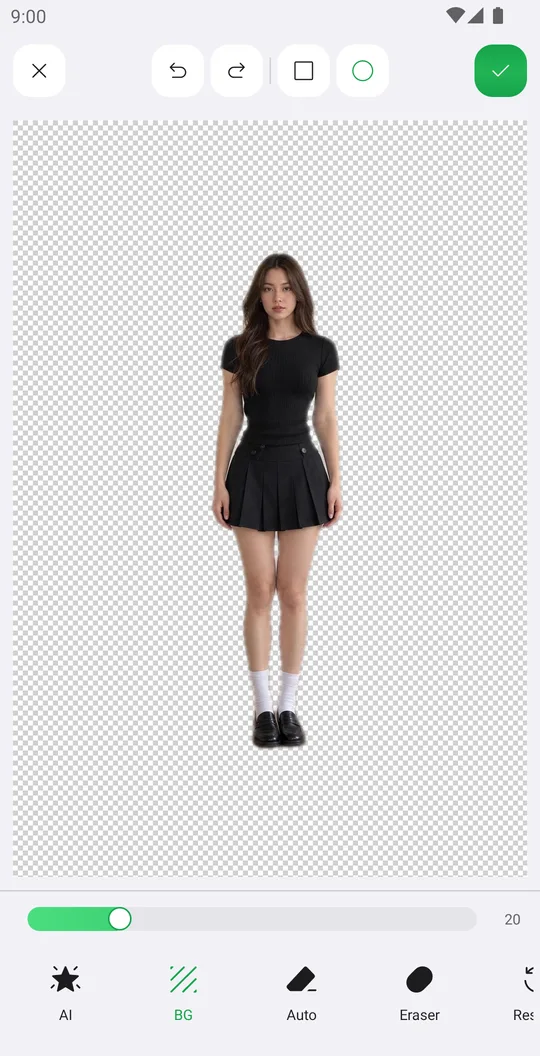
How to remove the background from a photo
Cut out a person or object with AI in one tap, clean the edges by hand and save it with a transparent background.
1 min read · Beginner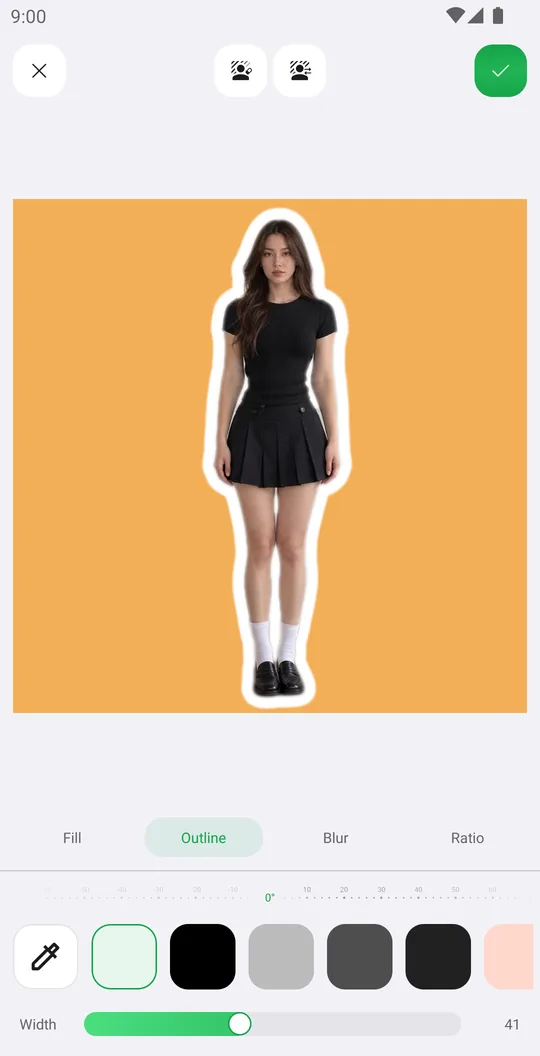
How to change the background of a photo
Put yourself on a new color, a Library background or your own picture, add an outline and fit the frame.
1 min read · Beginner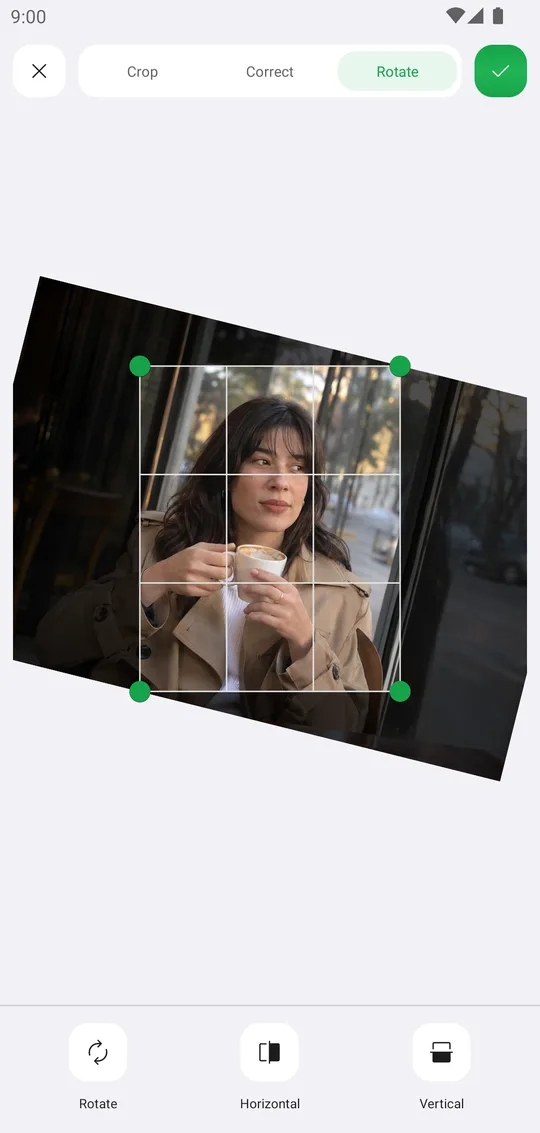
How to crop, rotate and straighten a photo
Crop for any post size, level a tilted horizon and fix leaning walls with Crop.
1 min read · Beginner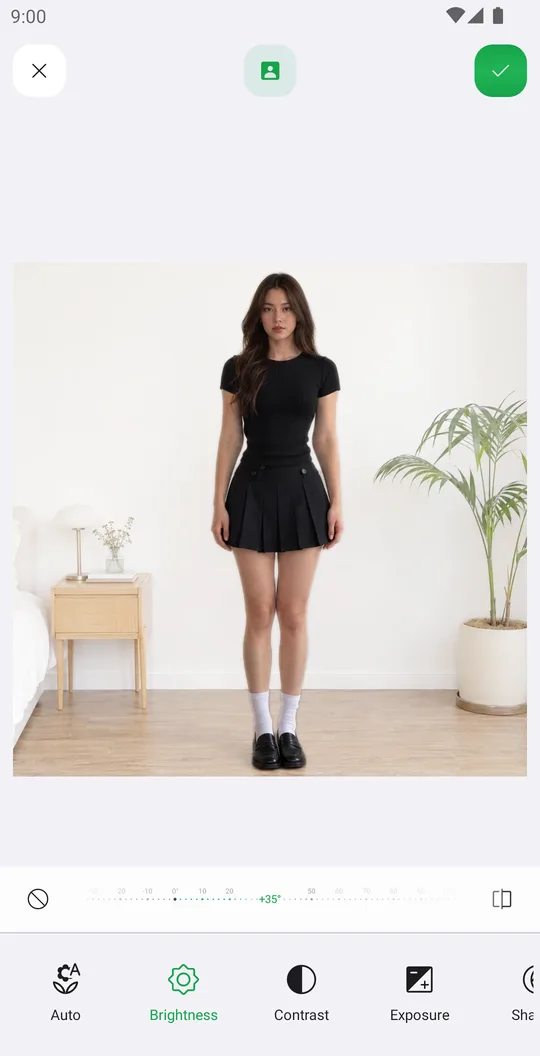
How to fix light and color with Tune
Brighten a dark photo, warm up the colors and darken only the background with Tune and layers.
1 min read · Beginner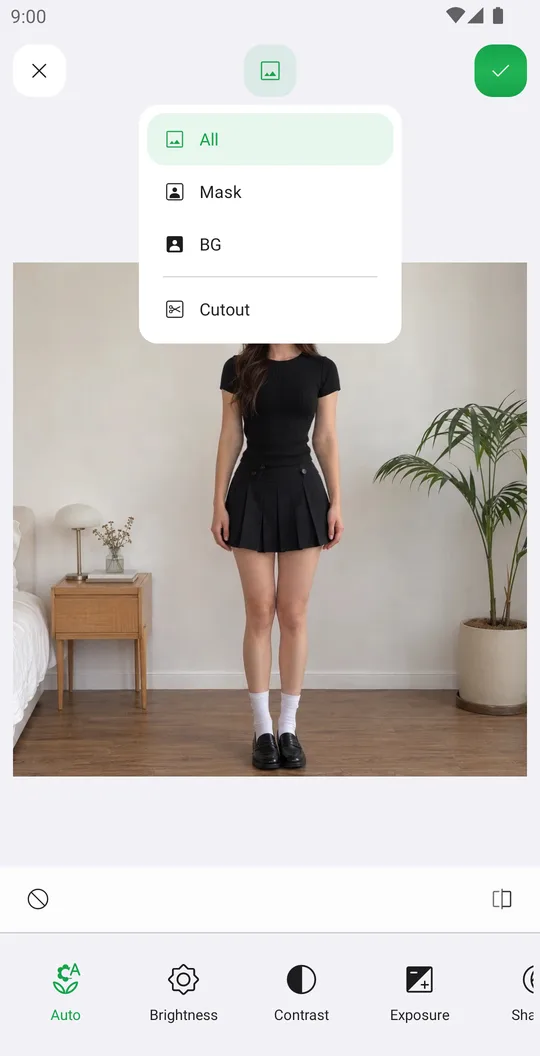
How to use Curves for tone and color
Add contrast with a preset or your own points, and grade colors channel by channel.
1 min read · IntermediateHow to change single colors with Hues, Balance, Selective and Tint
Turn green grass golden, fix a color cast or tint the whole photo with the four color tools.
1 min read · IntermediateHow to use filters and add your own
Pick a filter from the categories, set its strength, apply it only to the person or the background, and make your own filter from a picture.
1 min read · Beginner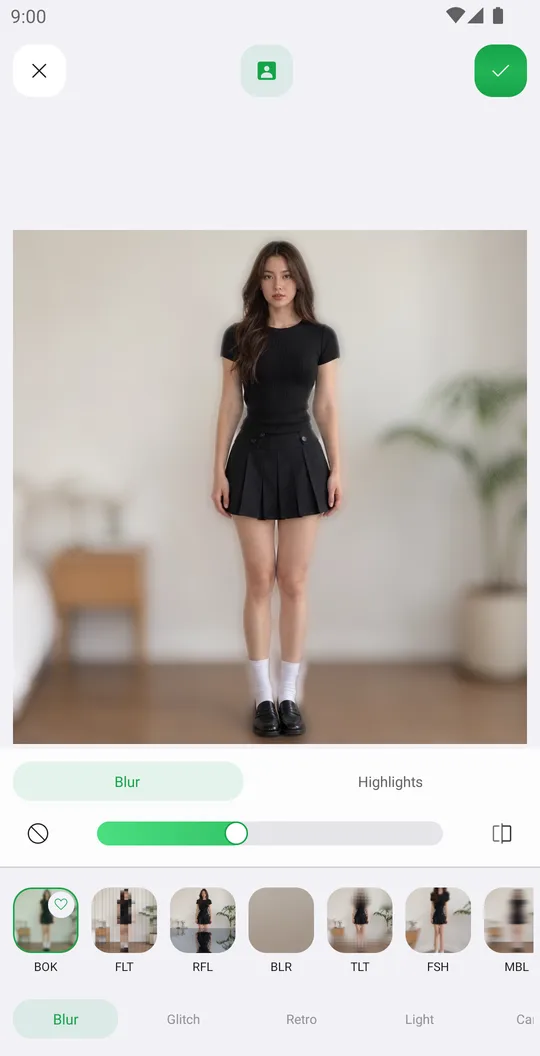
How to add effects like blur, glitch, VHS and bloom
Use 72 effects in Blur, Glitch, Retro, Light and Canvas, with their own settings, on the whole photo or only the background.
1 min read · Beginner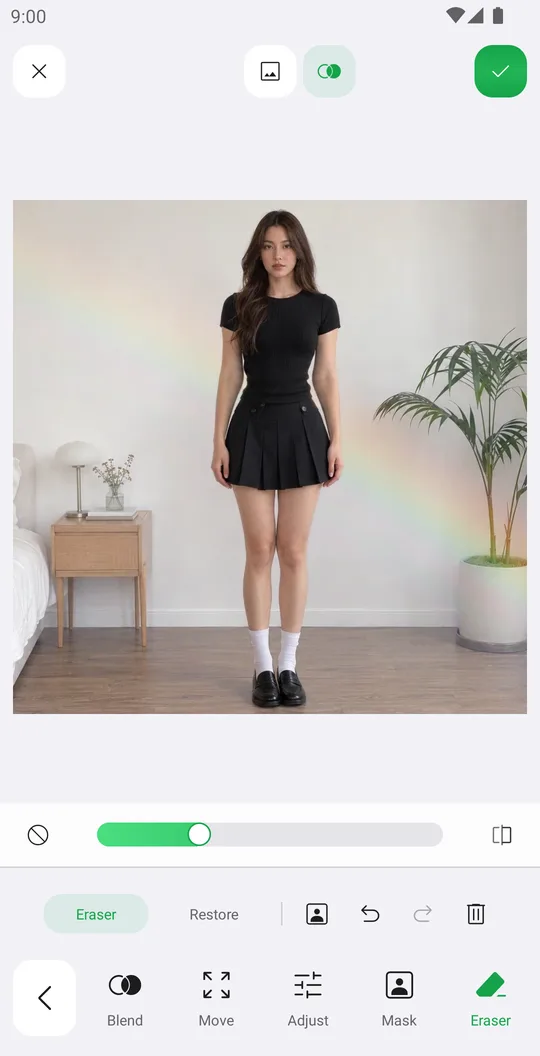
How to add overlays with blend modes
Add a light leak or texture, blend it with the photo, fade it with a mask and erase it from the person.
1 min read · Intermediate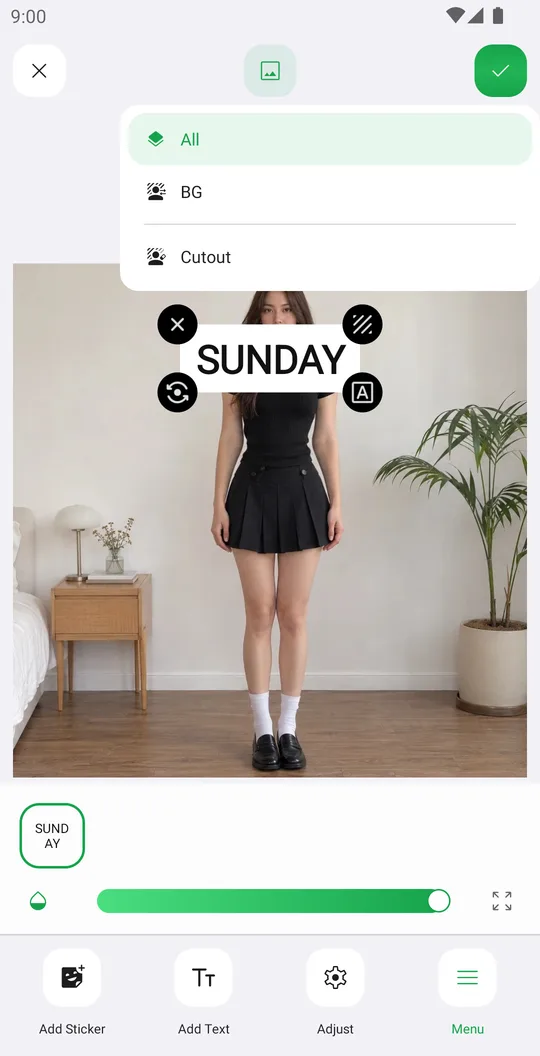
How to add stickers, even behind you
Add stickers from packs and the Library, arrange them precisely and put them behind the person.
1 min read · BeginnerHow to add text to photos, even behind you
Write a caption, style it with fonts, outline, shadow and background, and put it behind the person.
1 min read · Beginner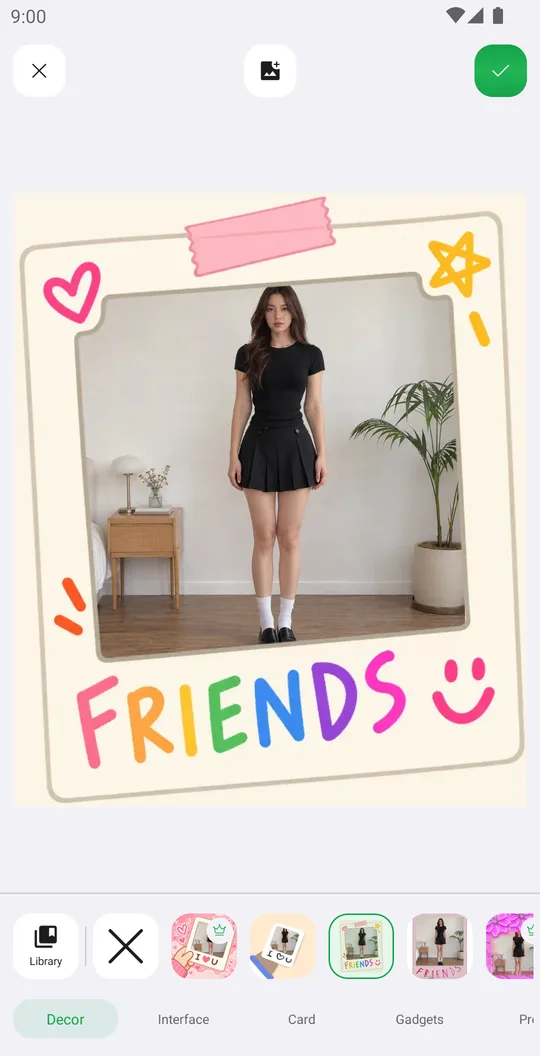
How to add a frame to a photo
Pick a frame from the categories or the Library, fit your photo inside and add your own frames.
1 min read · Beginner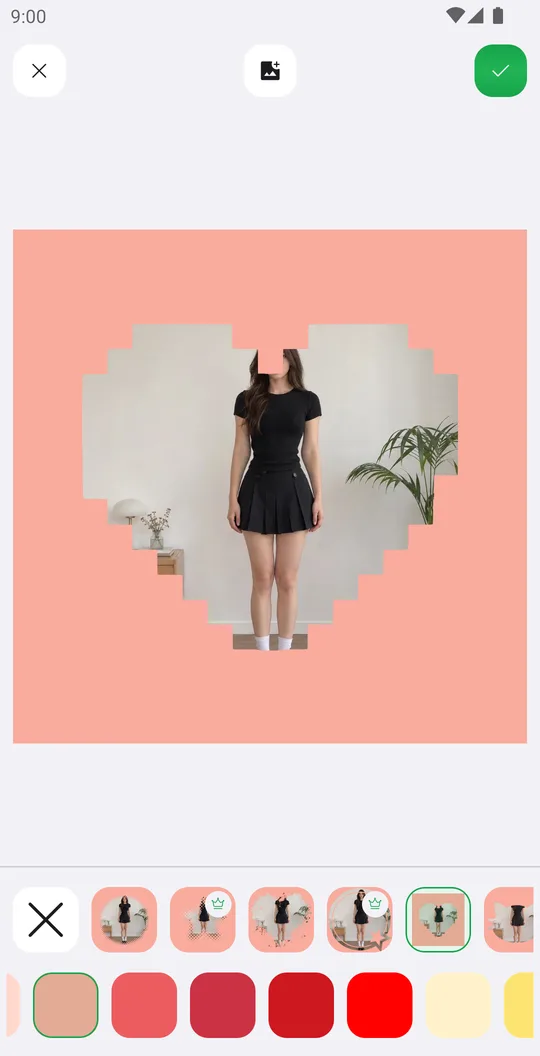
How to use Pix mini frames
Put your photo in a minimal frame shape and color it with any shade.
1 min read · Beginner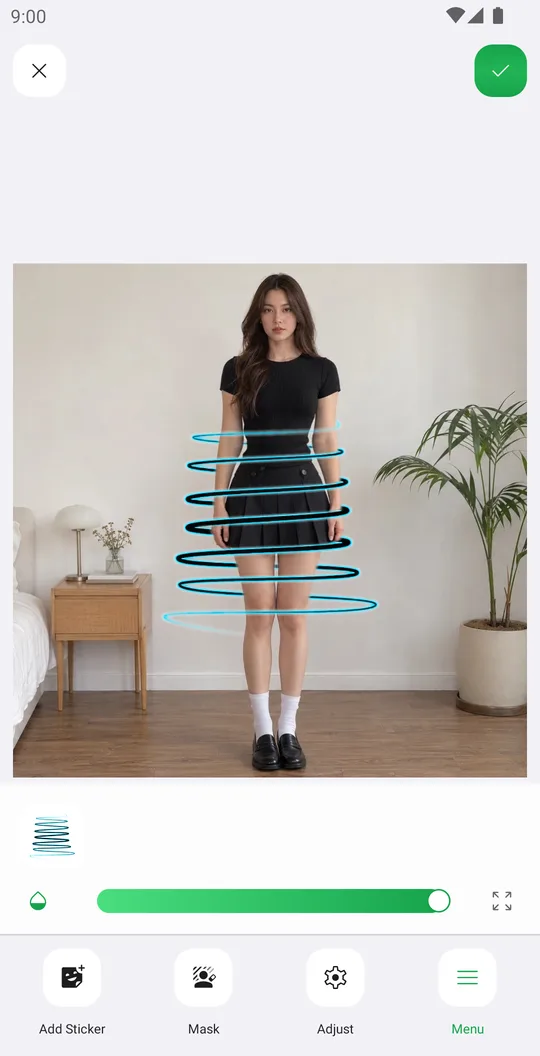
How to wrap a sticker around you
Use Wrap stickers that go around you, half in front and half behind.
1 min read · Beginner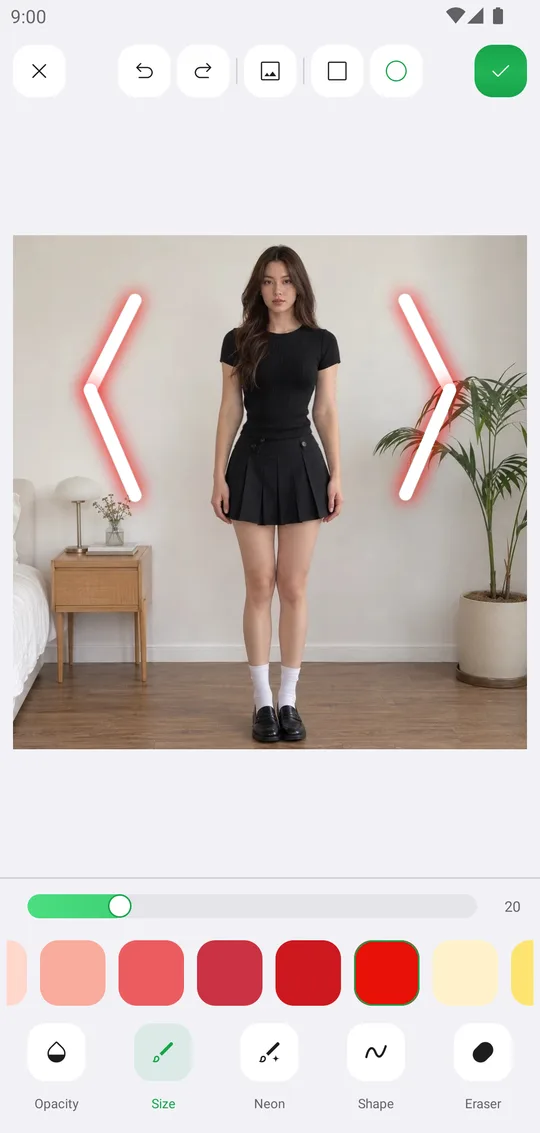
How to draw on photos with brushes
Keep color only where you paint, hide details with blur or mosaic and draw glowing neon lines.
1 min read · Beginner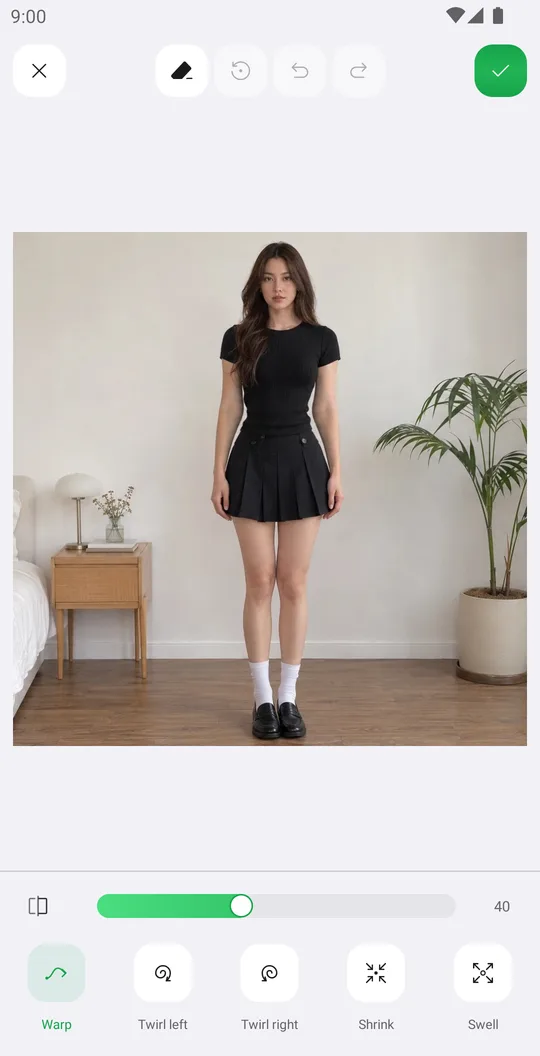
How to reshape anything with Liquify
Push, twirl, shrink and swell any part of a photo by hand.
1 min read · Intermediate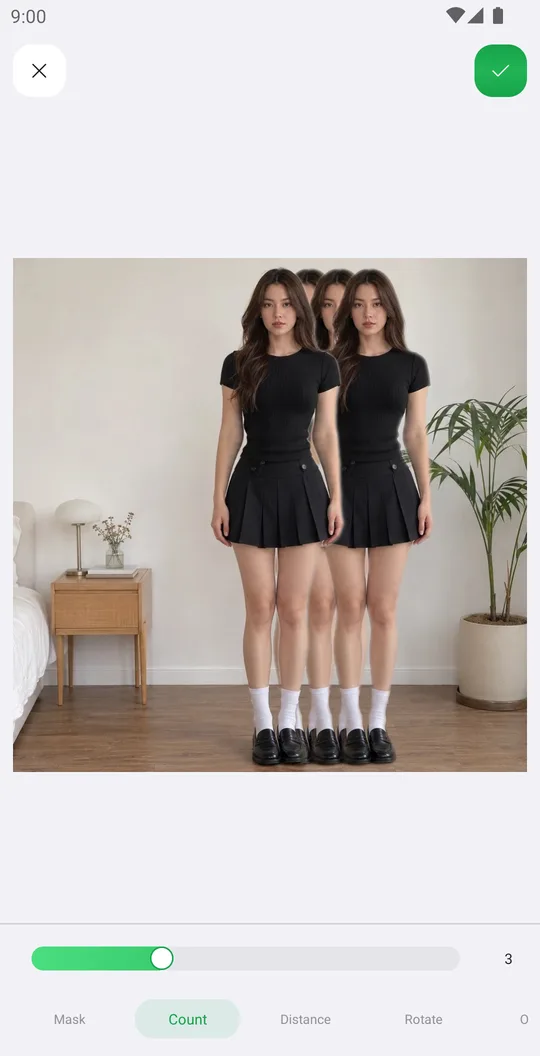
How to add a motion effect with copies of you
Add copies of yourself behind you for a sense of speed and movement.
1 min read · Beginner
How to make a photo collage
Pick 2 to 8 photos, choose a layout, even a heart or a word, and style the collage.
1 min read · Beginner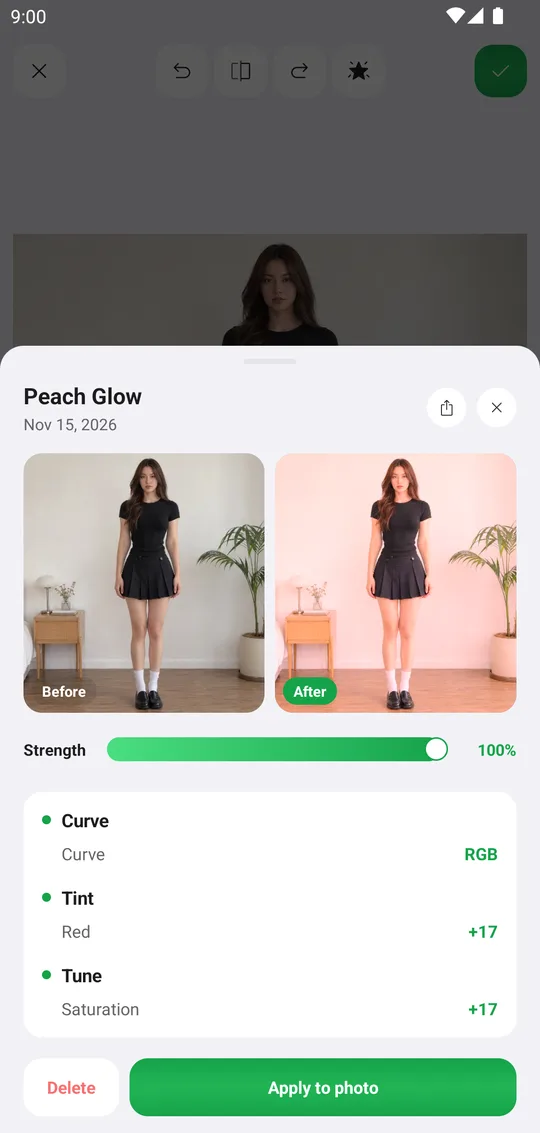
How to save and share your own styles
Save your color edits as a style, apply it to any photo and share it with a QR code.
1 min read · Beginner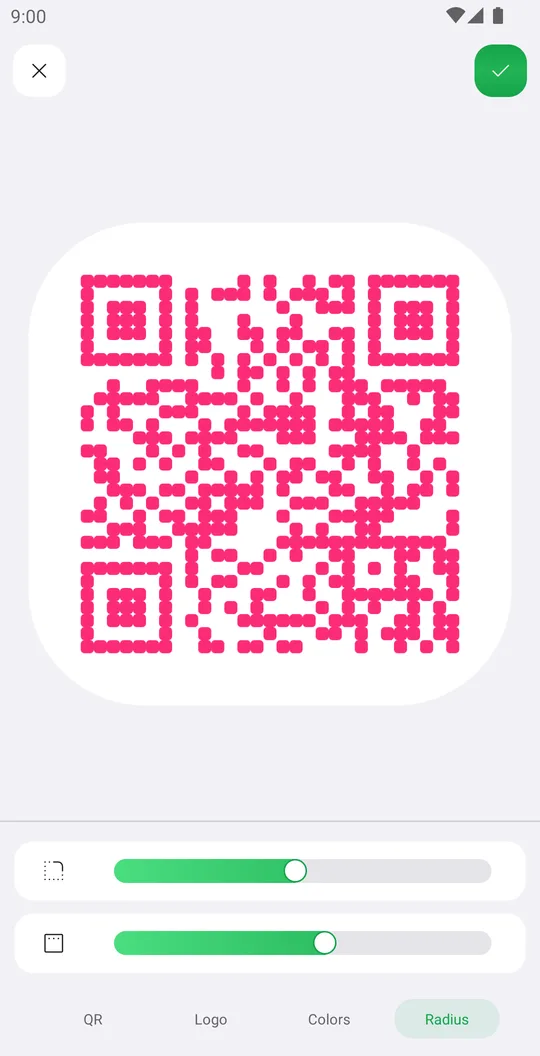
How to create a custom QR code
Make a QR code for a link, text, Wi-Fi, an event or a place, with your colors, logo and rounded corners.
1 min read · Beginner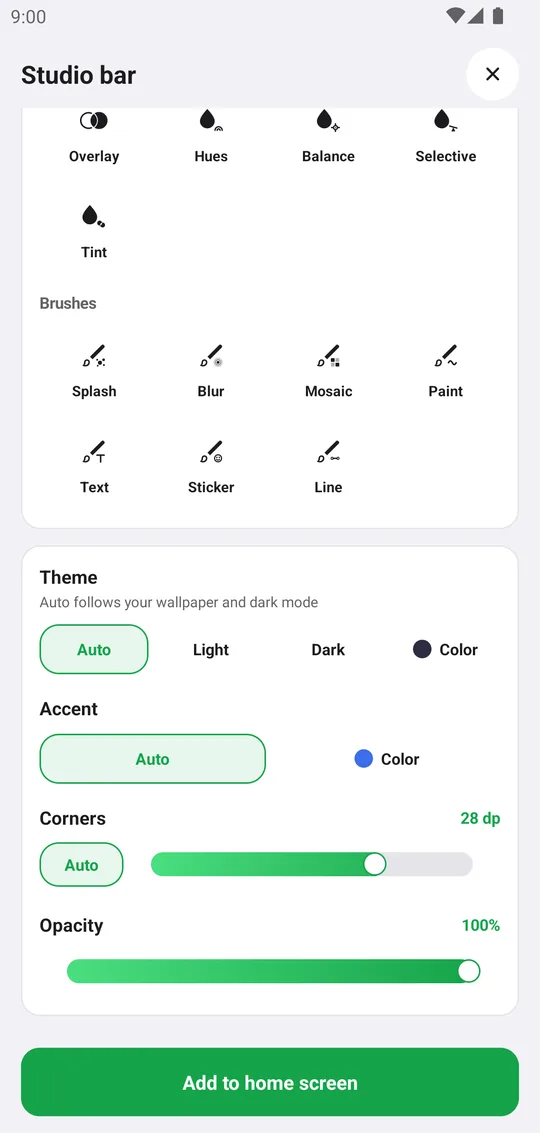
How to add Pichype widgets to your home screen
Add photo, note, streak, challenge and tool widgets and style them to match your home screen.
1 min read · Beginner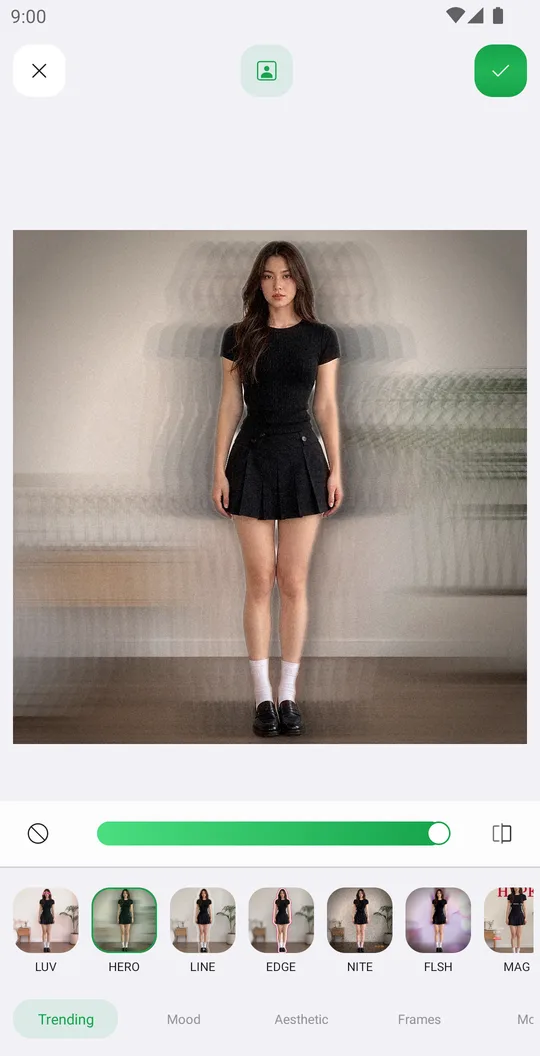
How to edit a photo with templates
Apply a ready design in one tap, set its strength and fix the mask or add photos.
1 min read · Beginner
Nothing matches your filters.
Make every photo yours
Free on Google Play. iOS coming soon.