
How to crop, rotate and straighten a photo
Crop for any post size, level a tilted horizon and fix leaning walls with Crop.
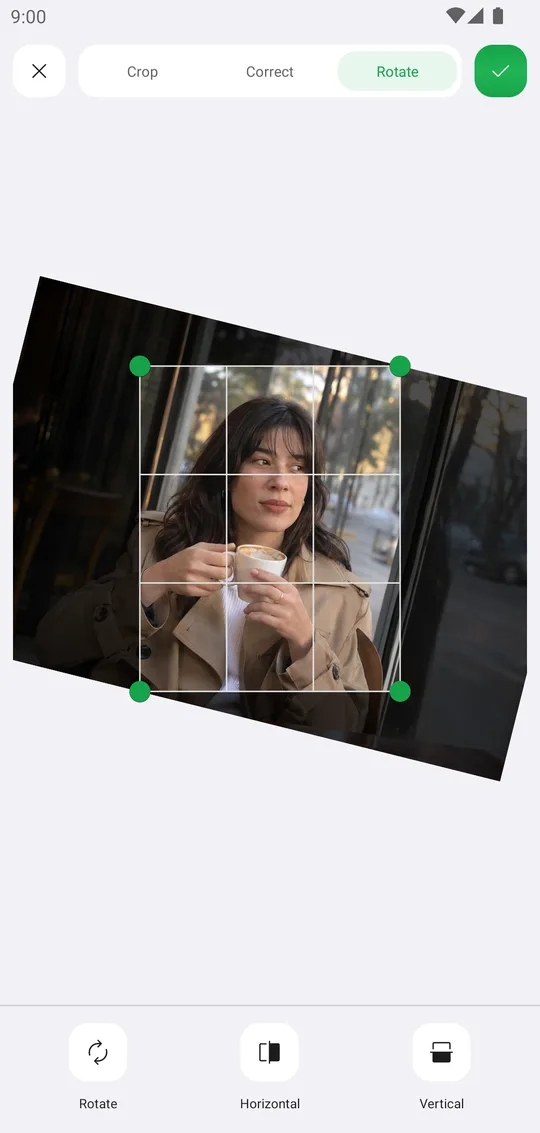
Crop sets the size and the angle of your photo. Use a ready size for the platform you post to, then straighten the photo so nothing looks tilted.
Open the photo
On the home screen tap Select a Photo and pick a photo. In the editor open the Editor tab at the bottom and tap Crop.
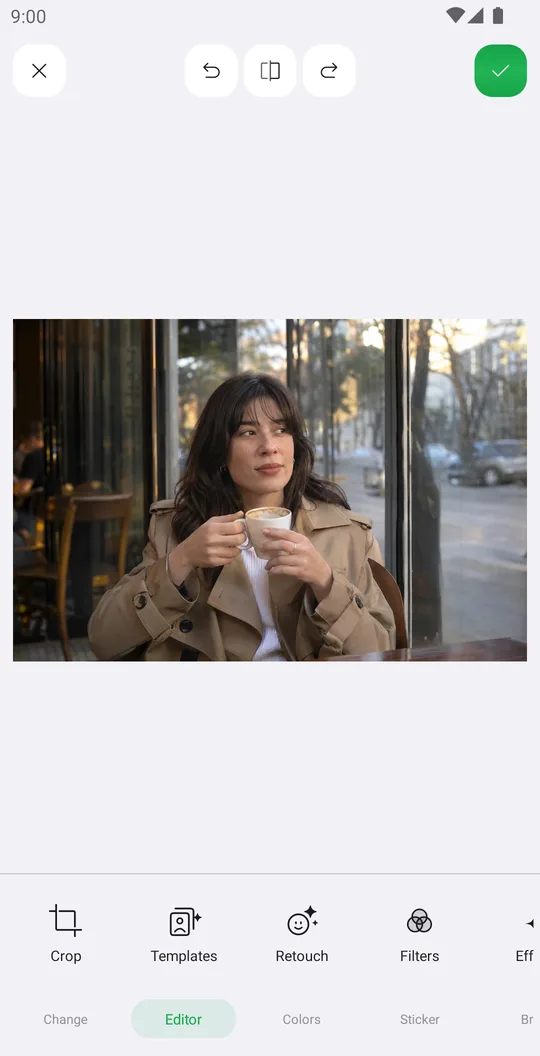
Pick a size
Tap a preset: Free, 1:1 Square, 4:5 Post, 9:16 Story, 16:9 Video and more. Drag the green corner handles to resize the frame and drag inside it to move it.
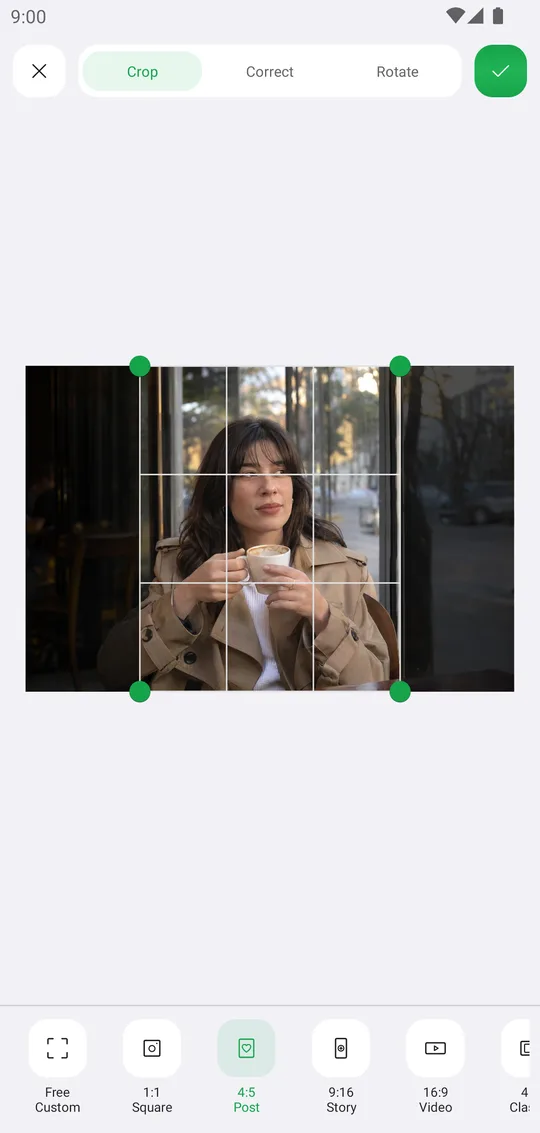
Straighten
Open Correct and move the dial until the horizon is level. A grid helps you see straight lines.
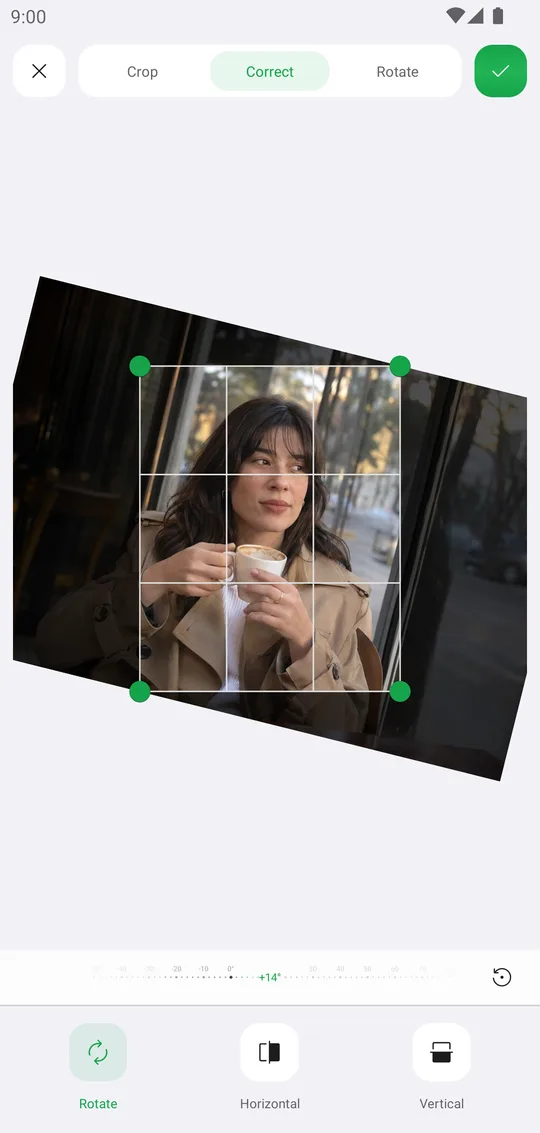
Fix perspective
Use Horizontal and Vertical to fix walls and buildings that lean. Rotate turns the photo by 90 degrees.
Save
Tap the check mark. You can crop again later, the editor keeps every step.
Popular sizes
- 4:5
- Instagram feed posts.
- 9:16
- Stories, Reels and TikTok.
- 16:9
- YouTube thumbnails and wide screens.
- 1:1
- Profile pictures and square posts.
Tools used in this tutorial
Related tutorials
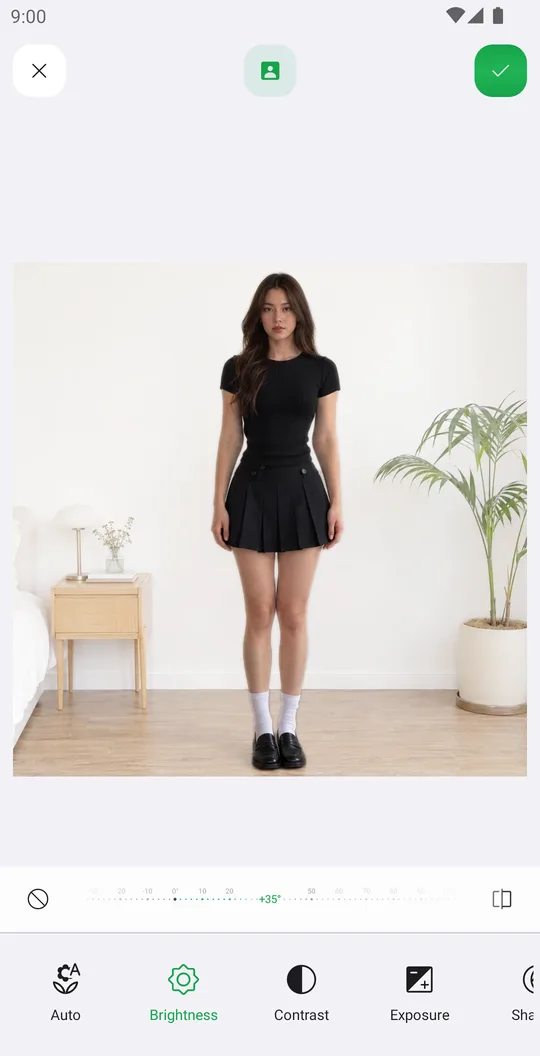
How to fix light and color with Tune
Brighten a dark photo, warm up the colors and darken only the background with Tune and layers.
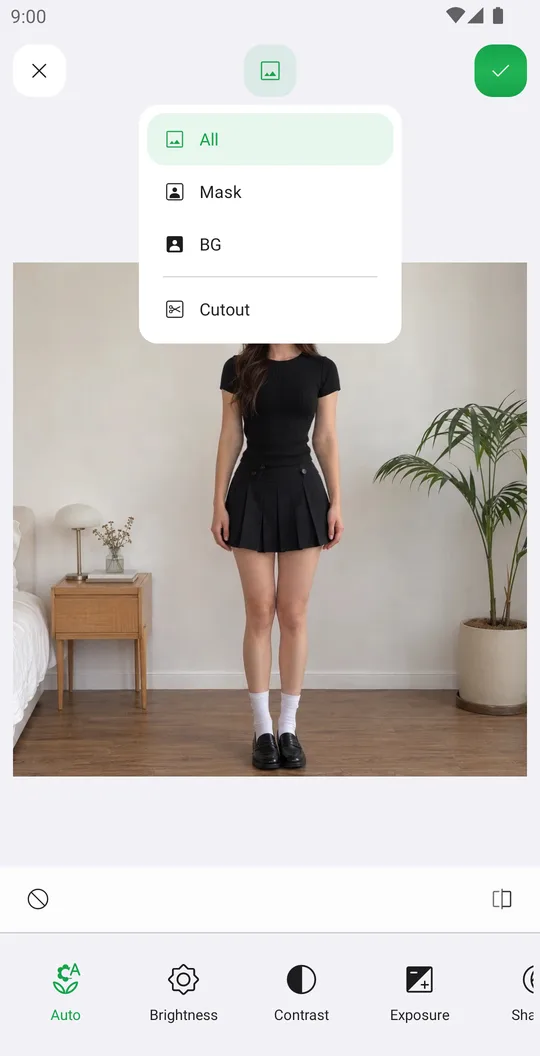
How to use Curves for tone and color
Add contrast with a preset or your own points, and grade colors channel by channel.
How to change single colors with Hues, Balance, Selective and Tint
Turn green grass golden, fix a color cast or tint the whole photo with the four color tools.