
Tune
All the essential adjustments with fine control, for the whole photo, the person or the background.
What is Tune?
Tune is the base of every edit: light, color and detail. Start with Auto for a quick fix, then move single sliders.
With Layers, you can make the background darker and keep the person bright, or warm up only the skin. Save the result as a style to repeat it on other photos.
Everything in Tune
Light
Fix exposure and bring back detail.
- Auto
- Brightness
- Contrast
- Exposure
- Shadows
- Highlights
- Levels
- Auto
- A one-tap fix for light and color.
- Shadows, Highlights
- Open up dark areas or bring back a bright sky.
- Levels
- Set the dark point, the light point and the gamma between them.
Color
Balance and shape color.
- Saturation
- HSL
- Temperature
- Tint
- HSL
- Hue, saturation and luminance controls for precise color.
- Temperature, Tint
- White balance: make the photo warmer or cooler, greener or more magenta.
Detail
Finish the photo.
- Sharpen
- Vignette
- Vignette
- Darken or lighten the corners to lead the eye to the center.
Layers
Choose where the edit goes. AI finds the person, so you can change the whole photo, only the person or only the background.
- All
- Mask
- BG
- Cutout
- Compare
- Discard
- All, Mask, BG
- Tap the layers button at the top. All changes the whole photo, Mask only the person, BG only the background behind them.
- Cutout
- If the AI mask missed a spot, tap Cutout and fix it in Remove BG. The background layer follows your new mask by itself.
- Compare
- Hold to see the original photo, release to see your edit.
- Discard
- Reset everything you changed in this tool and start again.
How to use Tune in Pichype
- 1Open Tune
Pick a photo and open Colors, then Tune.
- 2Choose the layer
Tap the layers button at the top: All, Mask for the person, or BG for the background.
- 3Adjust
Try Auto first, then fine-tune light, color and detail.
- 4Compare and save
Hold Compare to see the original and save, or keep the settings as a style.
Tune FAQ
Can I edit only the person or only the background?
Yes. Tap the layers button at the top and choose Mask for the person or BG for the background. If the edge is not perfect, tap Cutout, fix the mask in Remove BG and the edit follows the new edge.
What is the difference between Brightness and Exposure?
Exposure works like the camera setting and changes highlights more. Brightness lifts the middle tones.
Can I reuse my settings?
Yes. Save them in My Styles and apply them to any photo, or share them with a QR code.
Tune tutorials
All tutorials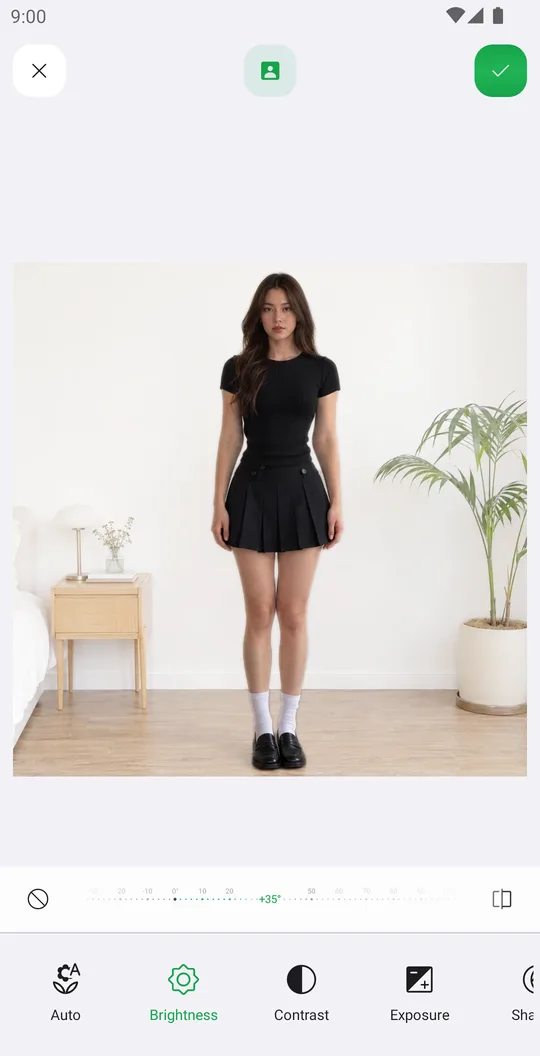
Works well with
Try Tune for free
Free on Google Play. iOS coming soon.