
Custom Widgets
Put your photos, notes and favorite tools on the home screen with seven Pichype widgets you can style.
What is Custom Widgets?
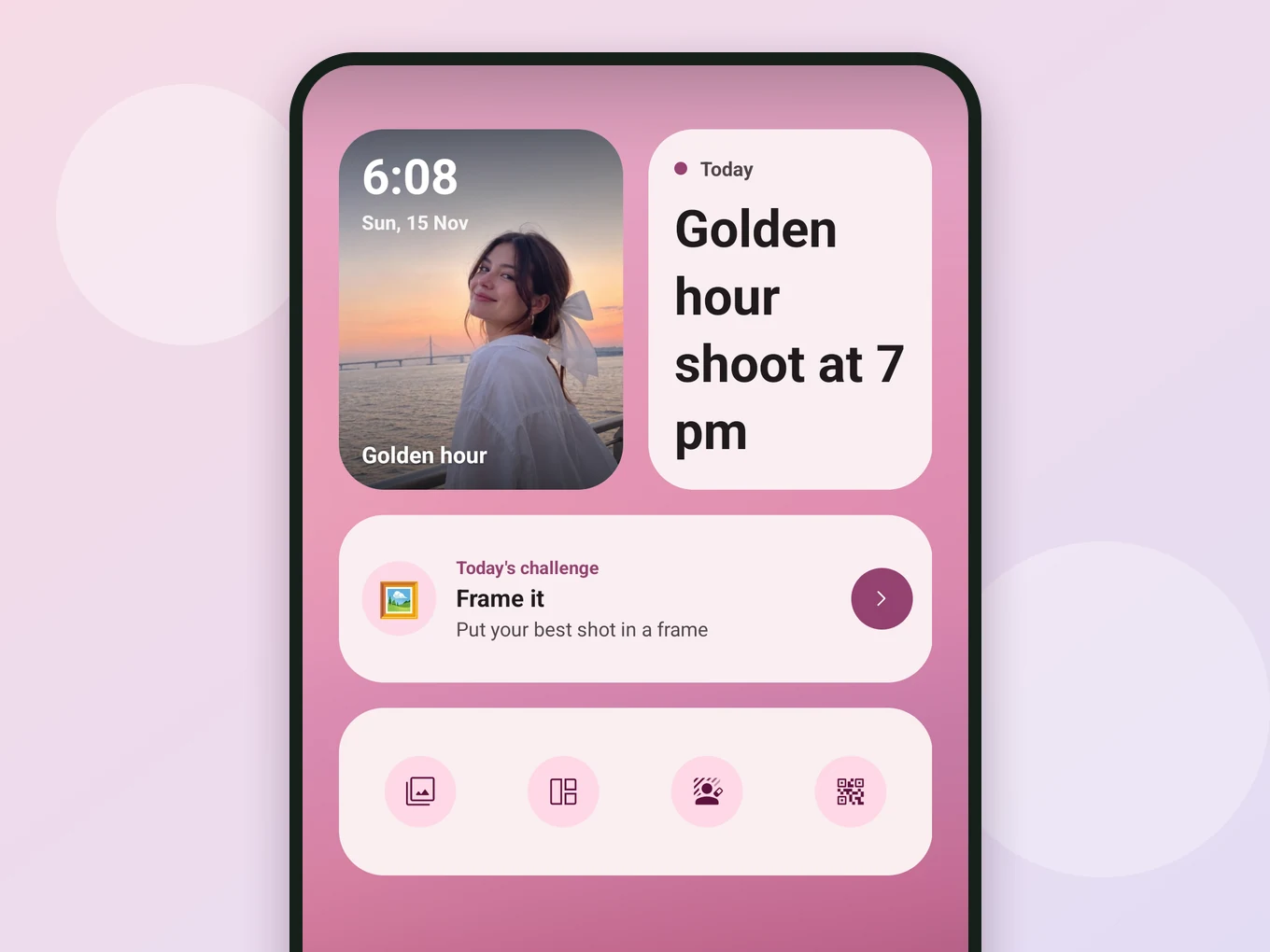
Pichype widgets live on your home screen. Show a photo with a clock and caption, pin a note, track your editing streak, or open your favorite tools in one tap.
Every widget follows your wallpaper colors, or you choose a theme, accent and corner shape yourself in the widget editor.
Everything in Custom Widgets
Widgets
Seven types.
- Photo
- Note
- Streak
- Profile
- Daily challenge
- Studio bar
- Quick tool
- Photo
- Your photo with a clock and a caption.
- Note
- A short note on the home screen.
- Streak
- Days in a row you edited.
- Profile
- Your stats in Pichype.
- Daily challenge
- A new creative task every day.
- Studio bar
- Up to four tools of your choice.
- Quick tool
- One tool in one tap.
Style
Make them match your home screen.
- Auto
- Light
- Dark
- Color
- Accent
- Corners
- Auto
- Follows your wallpaper colors.
- Accent, Corners
- Pick the accent color and how round the corners are.
How to use Custom Widgets in Pichype
- 1Open Widgets
Open the widget gallery in Pichype.
- 2Pick and set up
Choose a widget, add a photo, a note or tools.
- 3Style it
Choose a theme, accent and corners.
- 4Add to home screen
Place the widget on your home screen.
Custom Widgets FAQ
Do widgets match my wallpaper?
Yes. In Auto they take colors from your wallpaper.
How many tools fit in the Studio bar?
Up to four.
Custom Widgets tutorials
All tutorials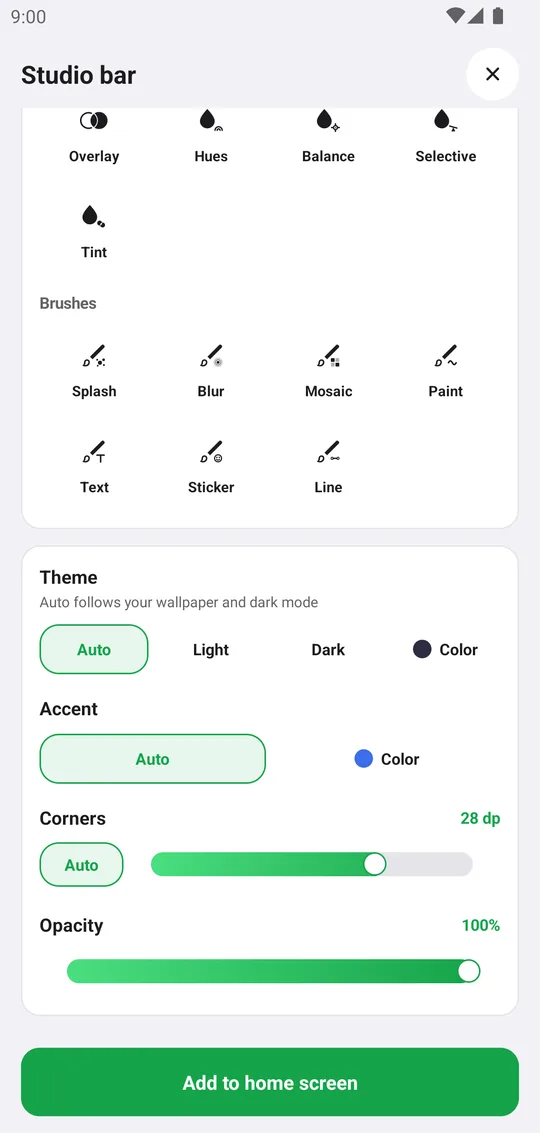
Works well with
Try Custom Widgets for free
Free on Google Play. iOS coming soon.