
My Styles
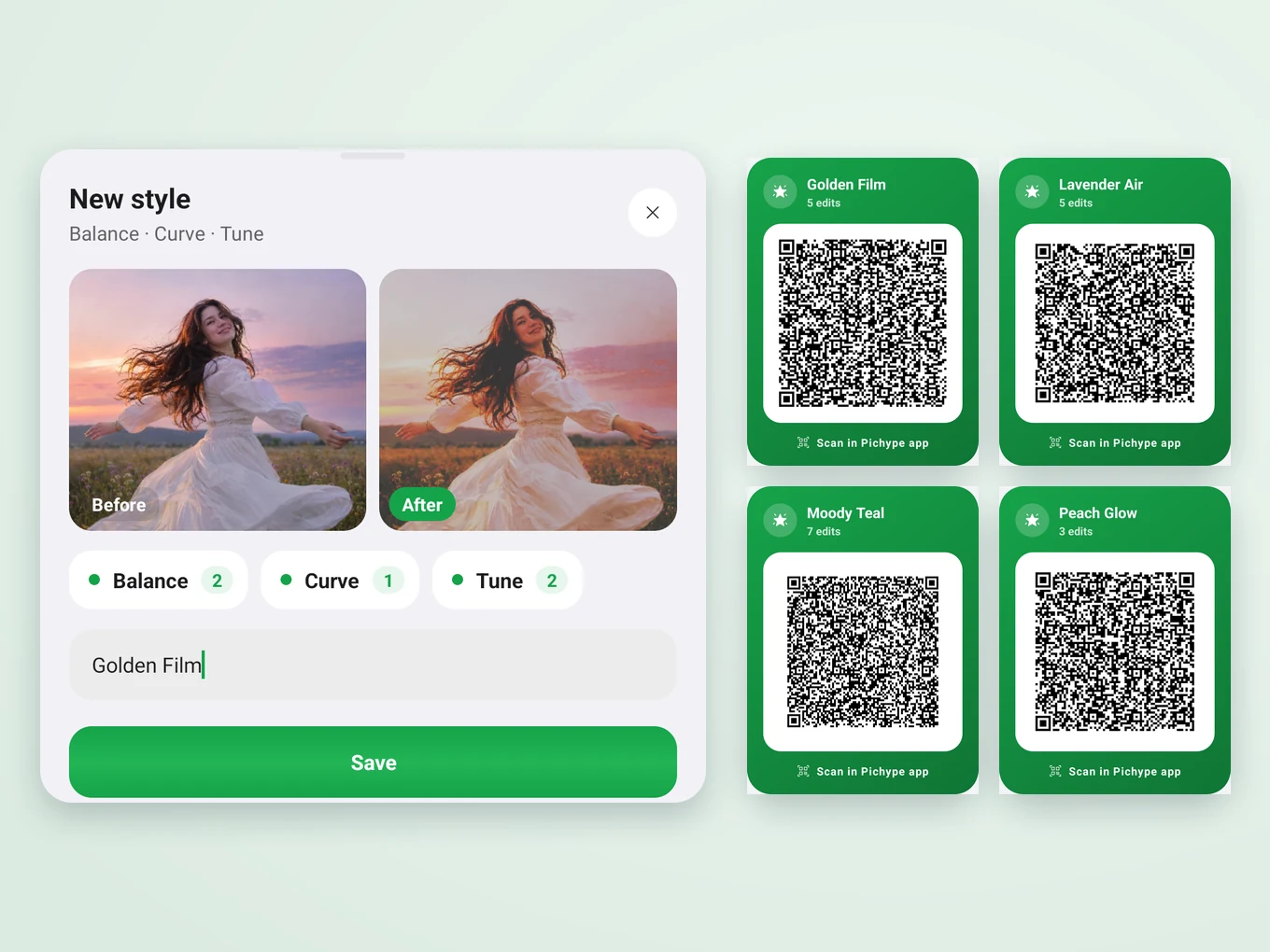
Save your exact settings as a style and apply the same look to any photo. Share a style as a QR code, or scan a friend's.
What is My Styles?
A style keeps your edits in order: Tune, Curve, Hues, Balance, Selective, Tint and Effects, plus built-in Filters and Overlays. The strongest styles combine several tools, for example a curve for contrast, Balance for the grade and Tune for the final light.
Apply a style to any photo in one tap, or share it as a QR code. A friend scans it in Pichype and gets exactly your look.
Everything in My Styles
Tools in a style
Tools you can combine in one style.
- Tune
- Curve
- Hues
- Balance
- Selective
- Tint
- Effects
- Filters
- Overlay
- Filters, Overlay
- Built-in presets work. A filter or overlay made from your own picture or from the Library is not saved in a style, because the picture is not part of it.
What you can do
One look for a whole series.
- Save
- Apply
- Share as QR
- Scan a QR
- Share as QR
- Every style has its own QR code with a preview.
- Scan a QR
- Scan a friend's code and the style is added to your list.
How to use My Styles in Pichype
- 1Edit the photo
Grade it with Tune, Curve and the color tools, and add an effect, filter or overlay if you like.
- 2Save the style
Save your settings to My Styles and give it a name.
- 3Apply it
Open another photo and tap the style.
- 4Share
Show or send its QR code to a friend.
My Styles FAQ
What makes a good style?
Combine at least two tools, for example Curve and Balance, then finish with Tune.
Does a style change my photo's crop or retouch?
No. A style keeps color, effect, filter and overlay settings only.
Why is my overlay missing from the style?
Overlays and filters made from your own picture or from the Library are not saved in styles. Use a built-in one.
My Styles tutorials
All tutorials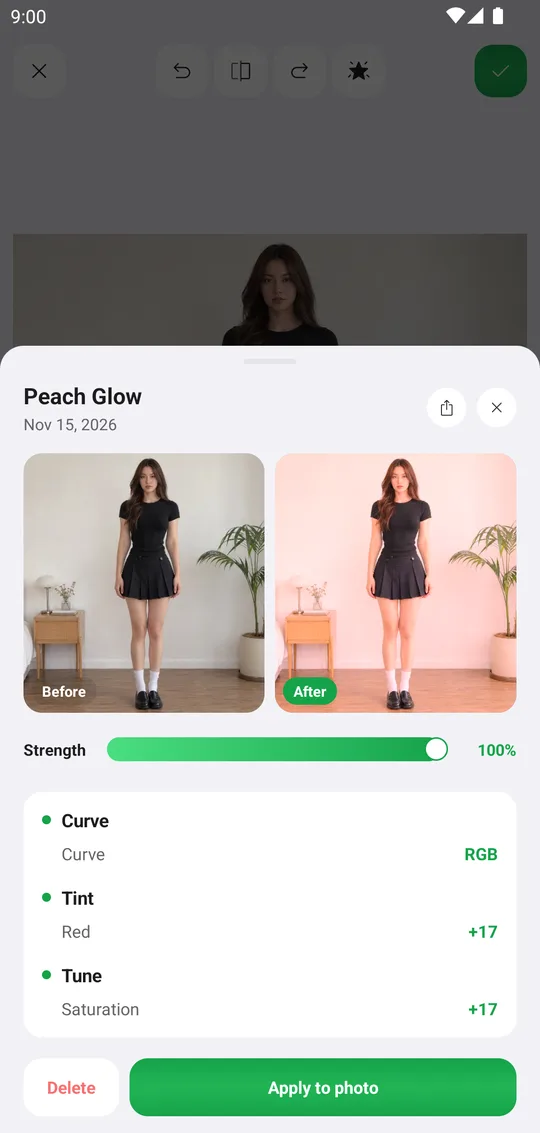
Works well with
Try My Styles for free
Free on Google Play. iOS coming soon.