
How to add Pichype widgets to your home screen
Add photo, note, streak, challenge and tool widgets and style them to match your home screen.
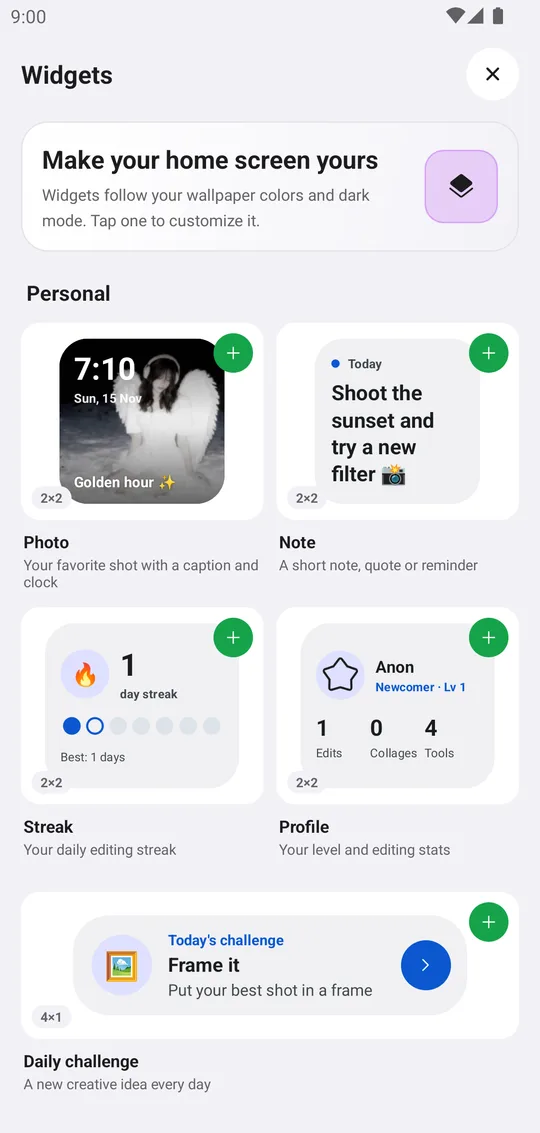
Pichype has seven widgets: Photo, Note, Streak, Profile, Daily challenge, Studio bar and Quick tool. Each one can follow your wallpaper colors or use your own theme.
Open the widget gallery
Open the widgets from the Pichype home screen. Every widget has a live preview.
Set it up
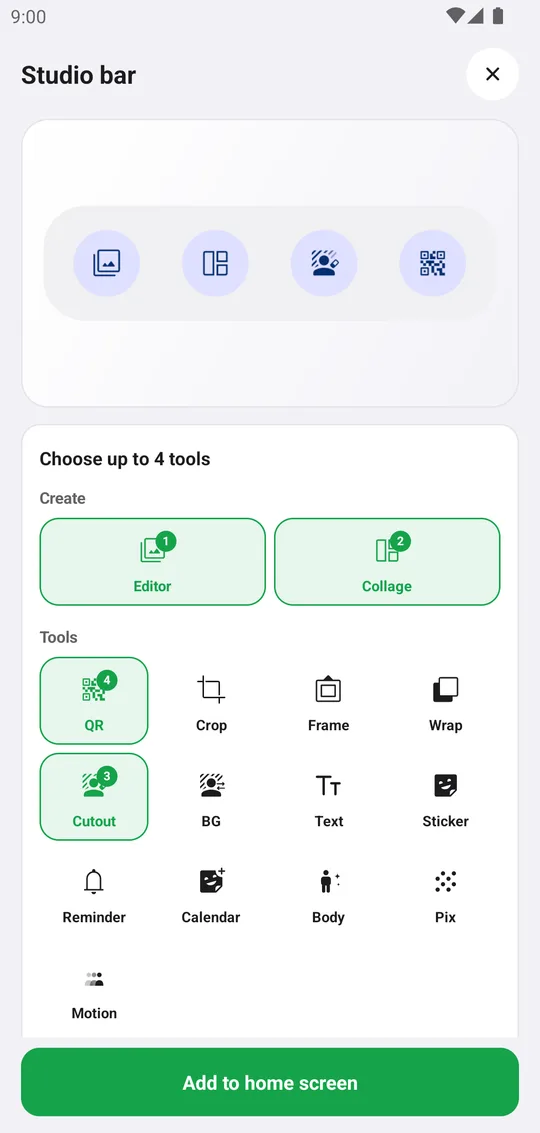
Tap a widget to set it up: pick a photo and a caption, write a note, or choose up to four tools for the Studio bar.
Style it
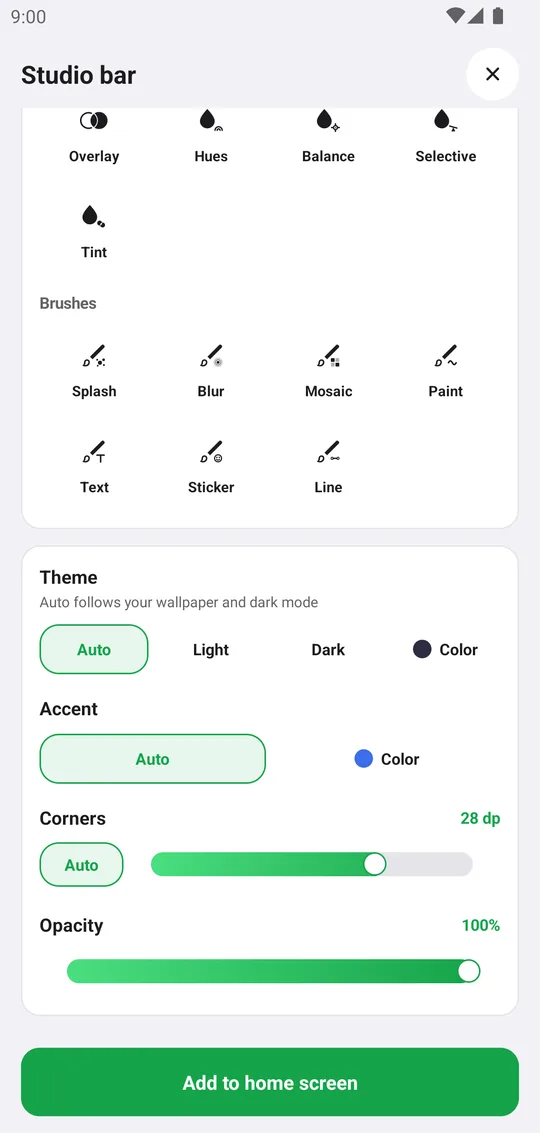
Choose Auto to follow the wallpaper, or Light, Dark or Color, then the accent, the corners and the opacity.
Add it
Tap Add to home screen and place the widget.
Widgets
- Photo
- Your photo with a clock and a caption.
- Note
- A short note.
- Streak, Profile
- Your editing streak and your stats.
- Daily challenge
- A new creative idea every day.
- Studio bar, Quick tool
- Up to four tools, or one tool in one tap.
Tools used in this tutorial
Related tutorials
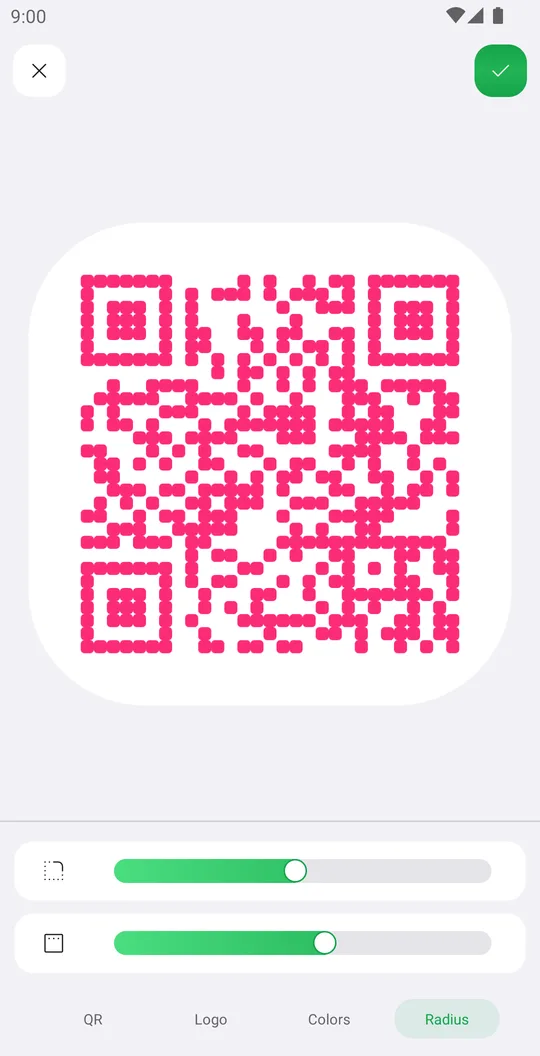
How to create a custom QR code
Make a QR code for a link, text, Wi-Fi, an event or a place, with your colors, logo and rounded corners.
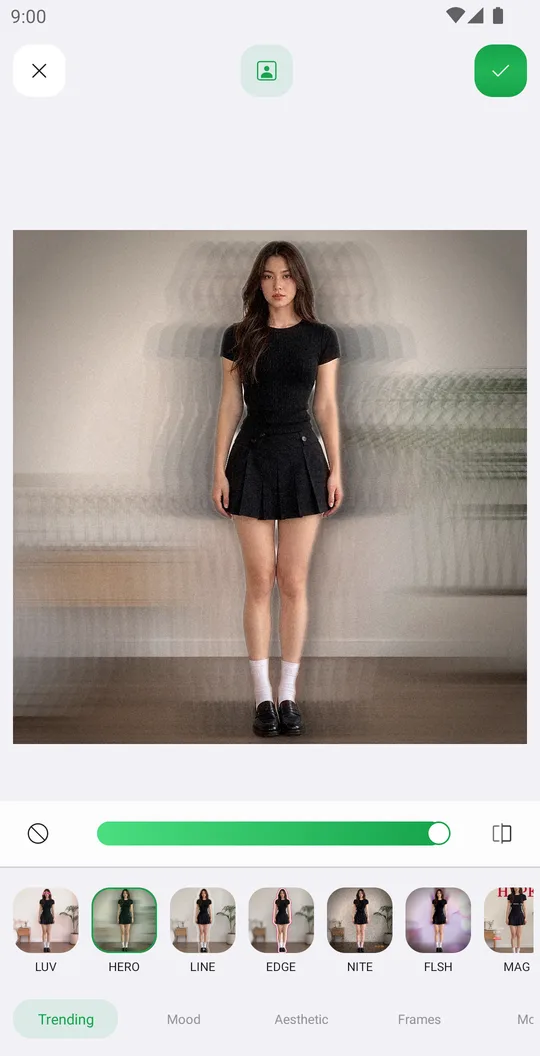
How to edit a photo with templates
Apply a ready design in one tap, set its strength and fix the mask or add photos.

How to retouch a selfie naturally
Smooth skin, add a ready makeup look and fix single details in Retouch while keeping your real face.