
How to make a photo collage
Pick 2 to 8 photos, choose a layout, even a heart or a word, and style the collage.
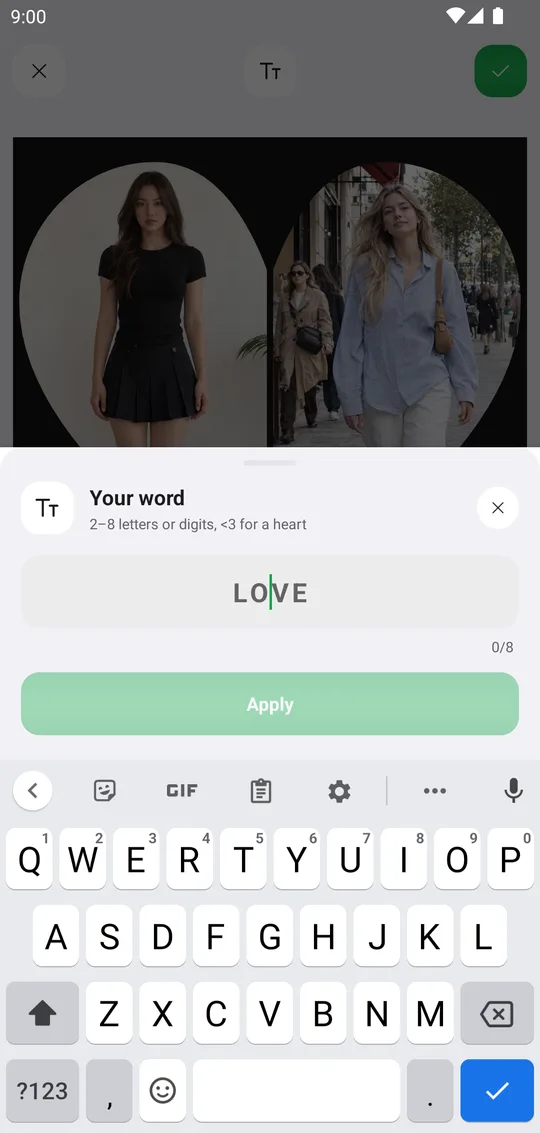
Collage takes 2 to 8 photos and has a big layout library: Grid, Bento, Diagonal, Silhouette, Shapes, Cards, Words and Art.
Pick your photos
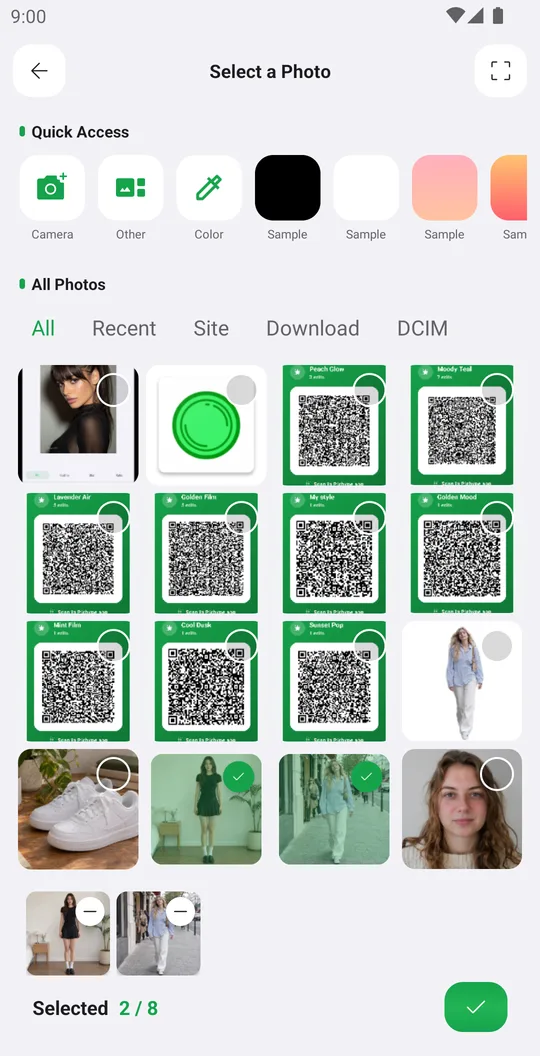
On the home screen tap Collage and select 2 to 8 photos. The counter at the bottom shows how many you picked.
Choose a layout
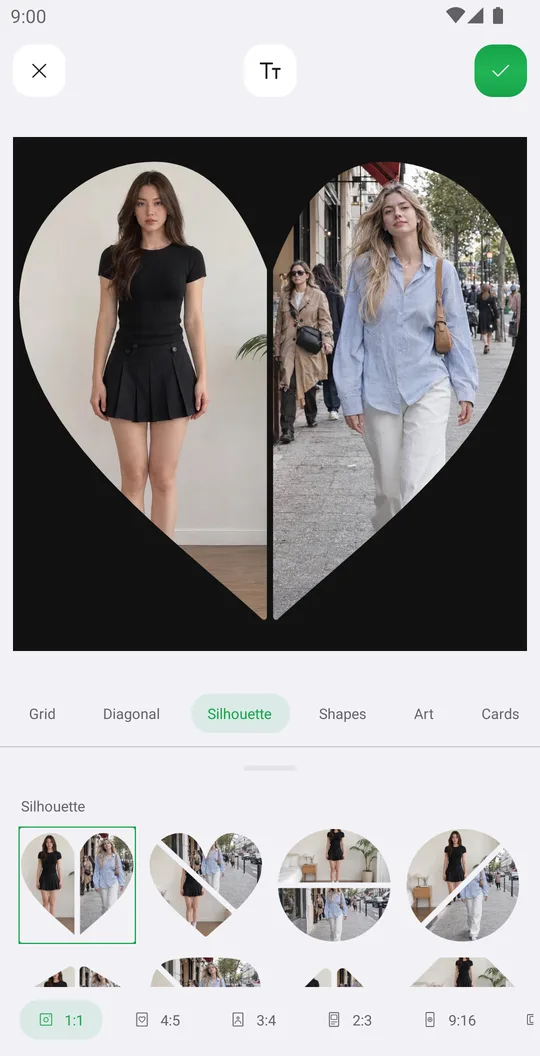
Tap Collage and browse the categories. Pick a frame size at the bottom: 1:1, 4:5, 3:4, 2:3 or 9:16.
Make a word collage
Tap the Tt button at the top and type a word of 2 to 8 letters or digits, or <3 for a heart.
Arrange the photos
Tap a photo to edit or replace only that one. Drag the lines between photos to give one more space.
Style and save
Padding sets the space and the rounding. BG works like BG Change. Add filters, stickers and text, then tap the save button at the top.
Tools
- Add
- Add more photos without starting again.
- Collage
- Layouts, frame size and words.
- Padding
- Space between photos and rounded corners.
- BG
- Color, gradient, blur, Library or your own picture.
Tools used in this tutorial
Related tutorials
How to retouch a selfie naturally
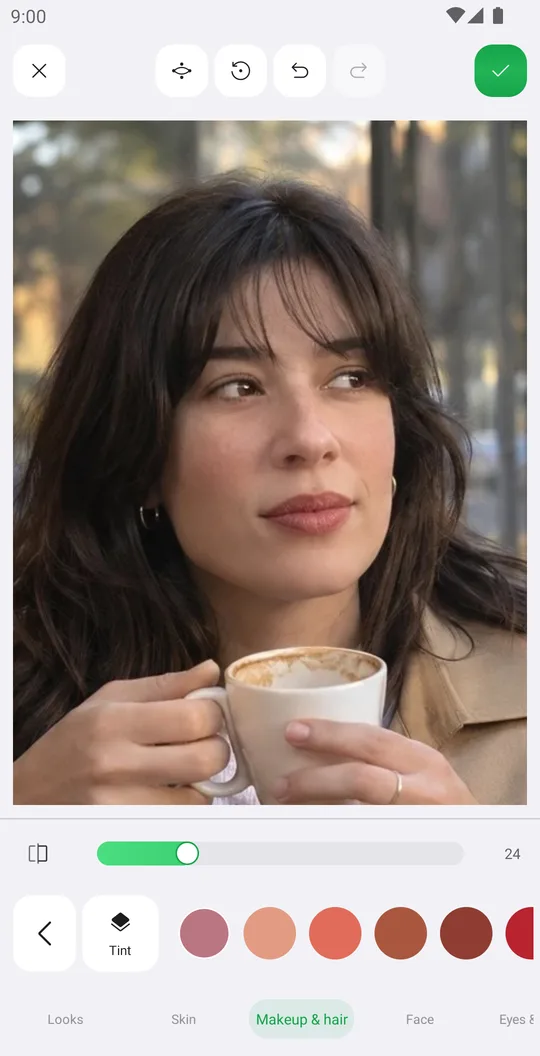
Smooth skin, add a ready makeup look and fix single details in Retouch while keeping your real face.
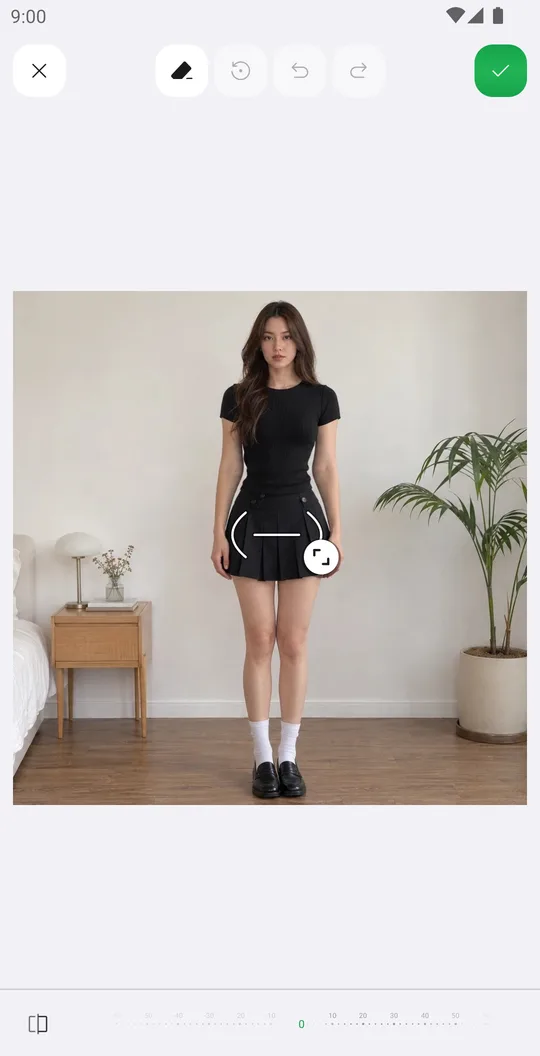
How to reshape your body in a photo
Slim the waist, shape the hips or make legs longer with Body tools that place their guides for you.
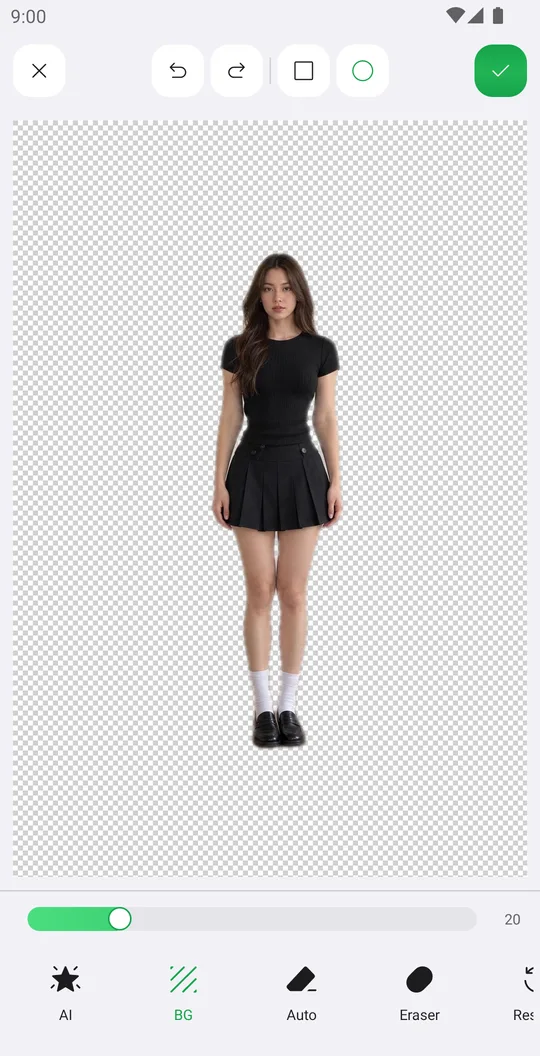
How to remove the background from a photo
Cut out a person or object with AI in one tap, clean the edges by hand and save it with a transparent background.