
How to retouch a selfie naturally
Smooth skin, add a ready makeup look and fix single details in Retouch while keeping your real face.
A natural retouch is a few small steps, not one strong slider. In this guide you clean up the skin first, then try a ready look, then fix single details. Every change can be compared with the original at any moment.
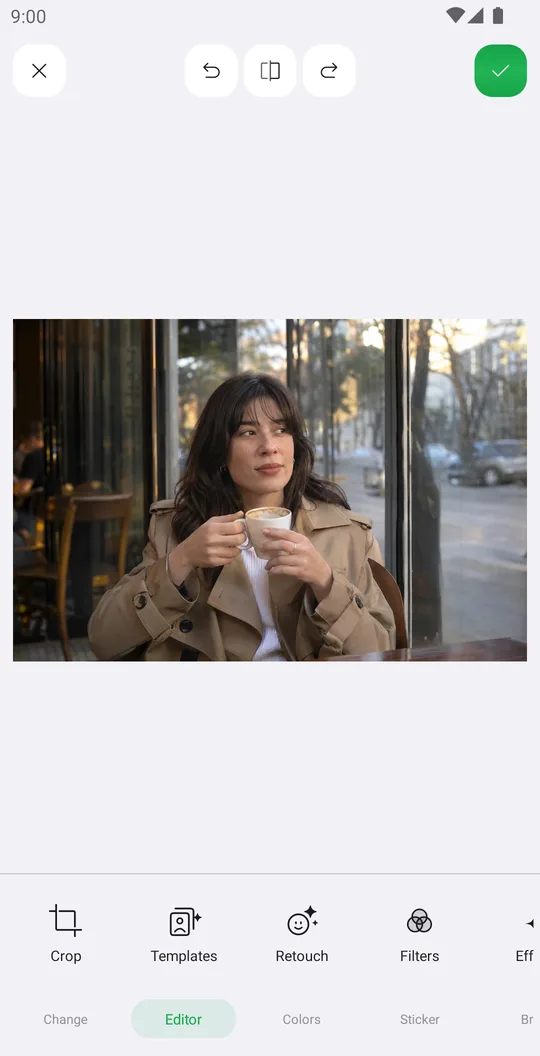
Open Retouch
Pick a portrait from the home screen. In the editor open the Editor tab and tap Retouch. Wait a moment while the app finds the face and its features.
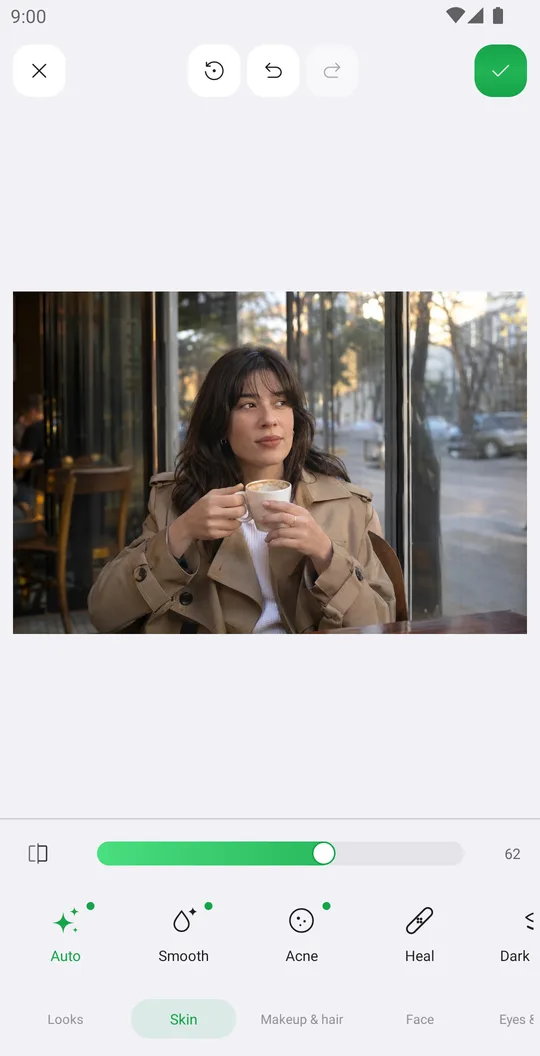
Start with the skin
Open the Skin tab and tap Auto. Move the slider until the skin looks fresh but you still see pores. Then add Acne, Dark circles or Eye bags only if you need them.
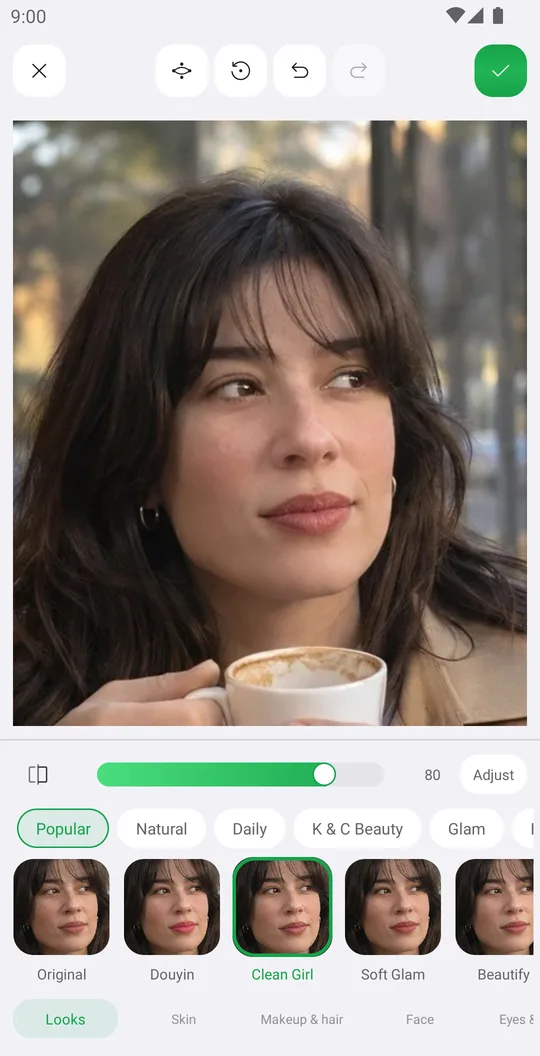
Try a look
Open Looks. Looks are sorted in Popular, Natural, Daily, K & C Beauty and Glam. Tap one, for example Clean Girl, and lower the strength if it is too much.
Fix single details
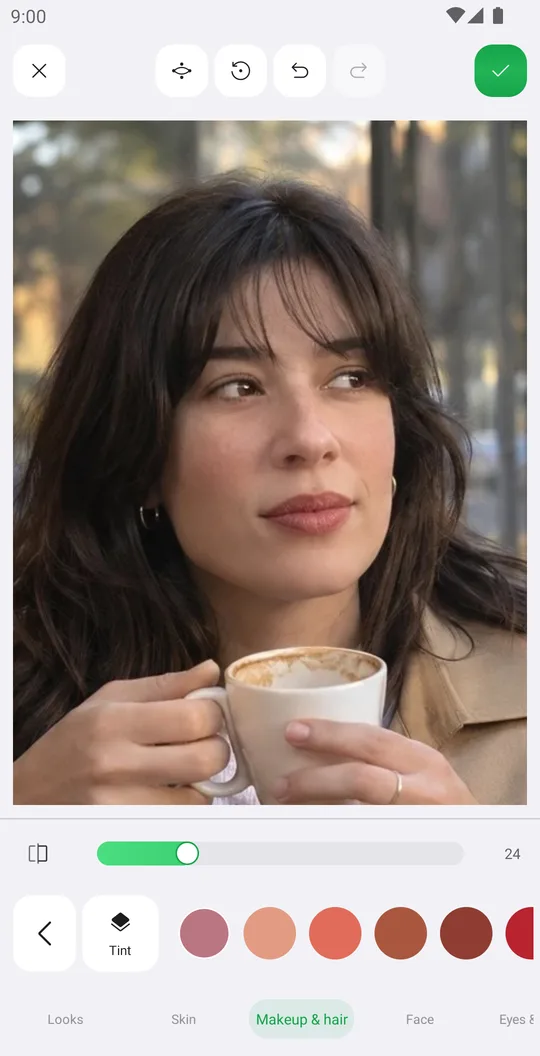
Open Makeup & hair, Face, Eyes, Nose or Lips. Tap a control, like Lipstick, and pick the color and strength. Small values look the most real.
Check and save
Hold the compare button at the top to see the original. If lipstick or eyeliner sits in the wrong place, tap the points icon and move the face points onto your real lips and eyes. Then tap the check mark.
Good to know
- Points
- Some controls show a points icon. Makeup follows these points, so moving them fixes makeup that sits wrong.
- Reset all
- Removes every retouch change and starts again.
- Undo, Redo
- The arrows at the top step through every change.
- Brushes
- Smooth brush and Hair brush let you paint an effect only where you need it, and their erasers take it away.
Tools used in this tutorial
Related tutorials
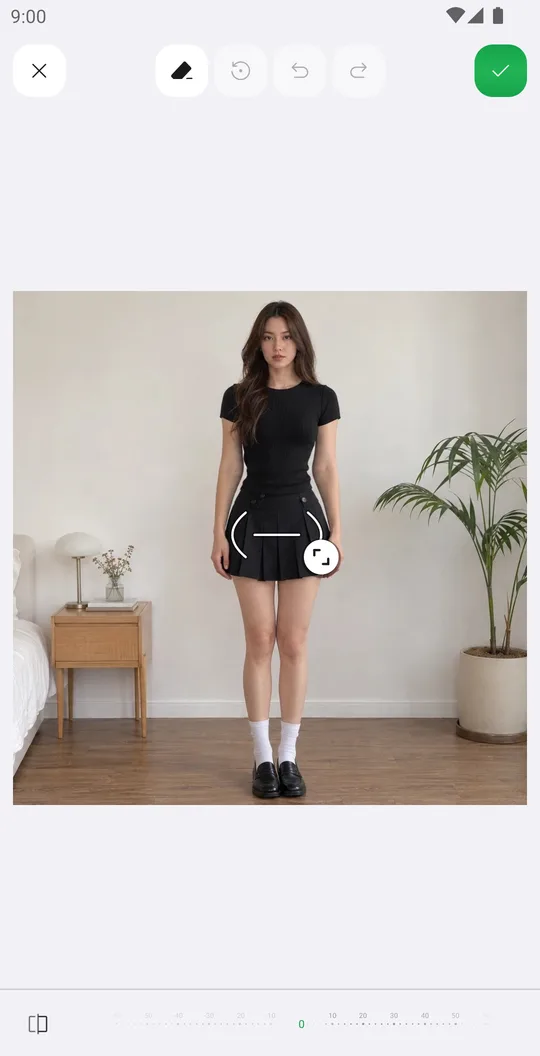
How to reshape your body in a photo
Slim the waist, shape the hips or make legs longer with Body tools that place their guides for you.
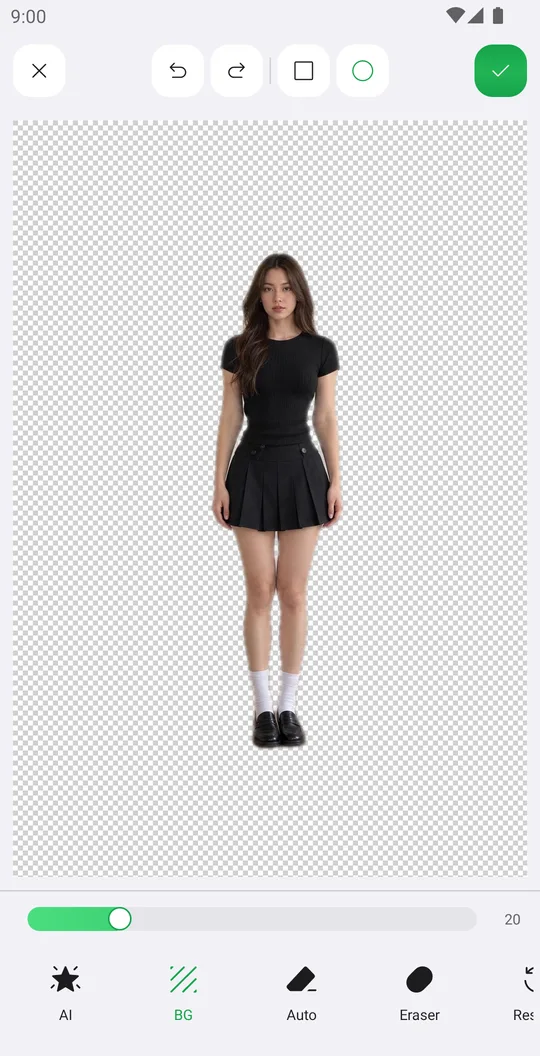
How to remove the background from a photo
Cut out a person or object with AI in one tap, clean the edges by hand and save it with a transparent background.
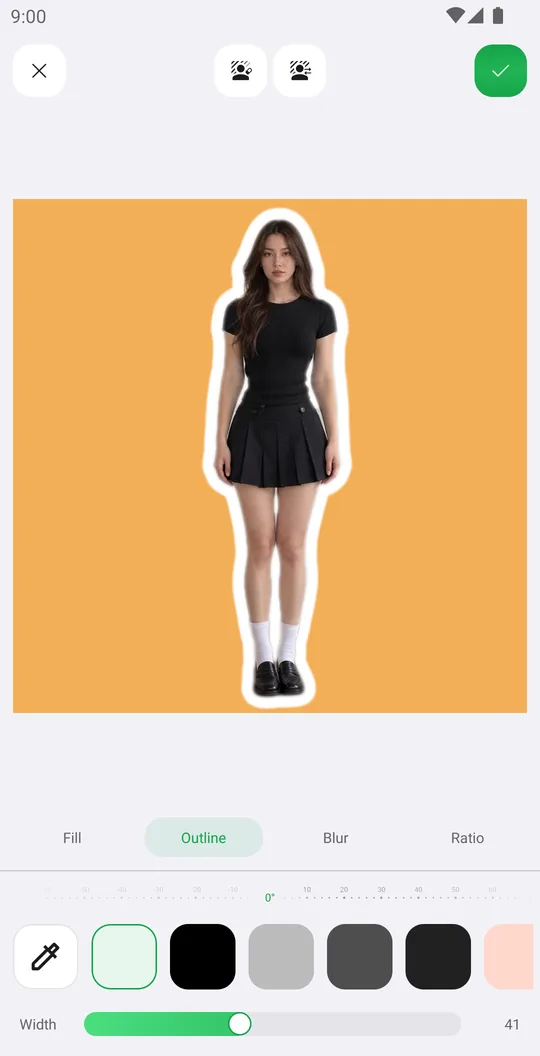
How to change the background of a photo
Put yourself on a new color, a Library background or your own picture, add an outline and fit the frame.