
How to remove the background from a photo
Cut out a person or object with AI in one tap, clean the edges by hand and save it with a transparent background.
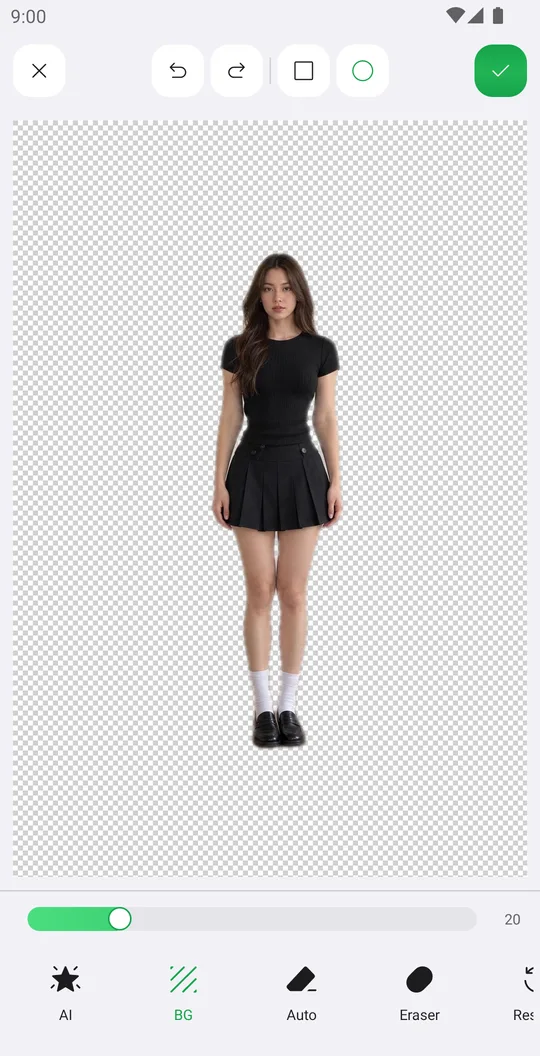
Remove BG is where every cutout in Pichype is made. AI does most of the work in one tap, and three erasers help you finish the edges.
Open the photo
On the home screen tap Select a Photo and pick a photo. In the editor open the Editor tab at the bottom and tap Remove BG.

Let AI cut it out
Tap AI. The background around the person or object disappears and you see a checkerboard behind the cutout.
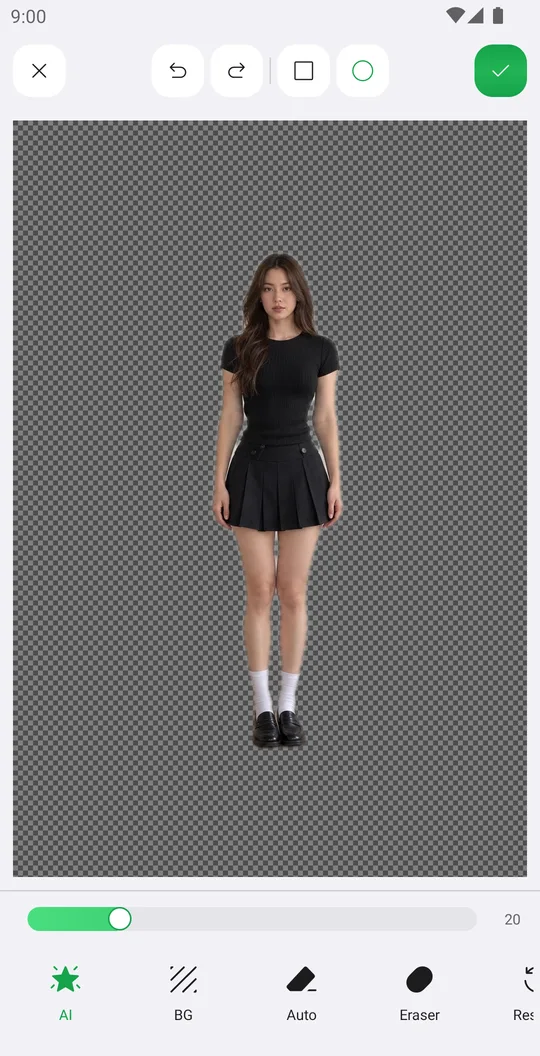
Check the edges
Tap BG to switch the color behind the cutout. On a light and a dark background you see right away if something is left around the hair or the arms.
Clean up by hand
Auto is a magic eraser: touch an area and it removes similar colors, its slider sets the tolerance. Eraser removes by hand, Restore brings back what was erased by mistake. The square and circle at the top change the brush shape.
Save
Tap the check mark. The cutout keeps a transparent background, and you can go on to BG Change or Crop.
Tools
- AI
- Removes the whole background in one tap.
- BG
- Changes the color behind the cutout so you can check the edges.
- Auto
- Magic eraser. The slider sets how similar a color must be to get erased.
- Eraser, Restore
- Erase by hand or paint parts back. The slider sets the size.
- Undo, Redo
- Step back or forward through every stroke.
Tools used in this tutorial
Related tutorials
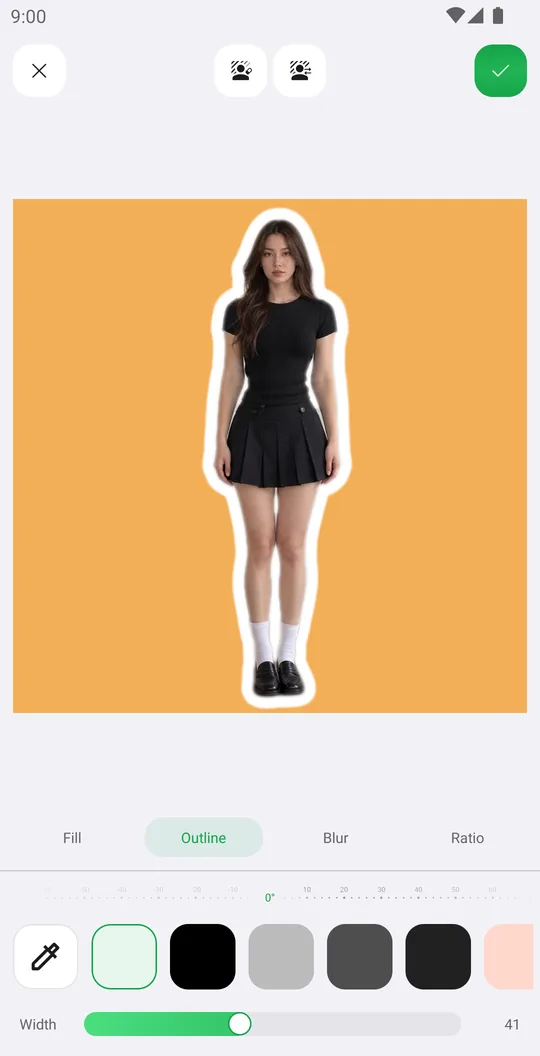
How to change the background of a photo
Put yourself on a new color, a Library background or your own picture, add an outline and fit the frame.
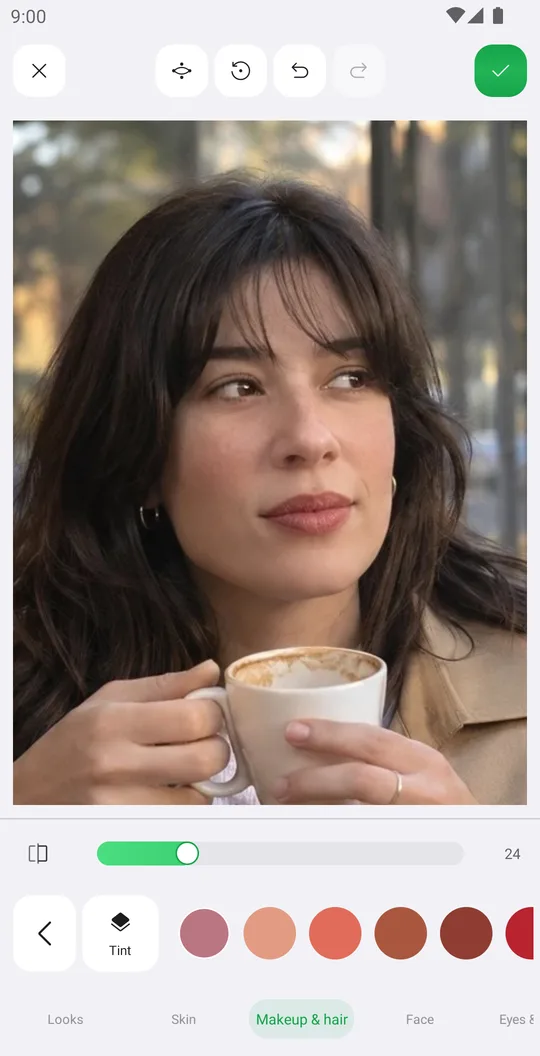
How to retouch a selfie naturally
Smooth skin, add a ready makeup look and fix single details in Retouch while keeping your real face.
How to reshape your body in a photo
Slim the waist, shape the hips or make legs longer with Body tools that place their guides for you.