
Filters
Find a mood in one tap and set the strength. Add your own filters to build a personal collection.


What is Filters?
Filters are complete color grades made by hand, sorted in categories: Premium, Natural, Color, Duotone and more. One tap applies a filter, and the slider sets how strong it is.
You can make your own filter from any picture. The filter takes its colors from it, so soft pictures work best: gradients, blurred photos, color washes. With Layers, put one filter on the person and keep the background natural, or the other way round.
Everything in Filters
Categories
Many categories of quality filters.
- Premium
- Natural
- Color
- Duotone
- More +
Controls
One tap, then fine control.
- Strength
- Your own filters
- Strength
- Make the filter softer or stronger.
- Your own filters
- Add a picture and the filter takes its colors. Gradients and soft, blurry images give the cleanest result.
Layers
Choose where the edit goes. AI finds the person, so you can change the whole photo, only the person or only the background.
- All
- Mask
- BG
- Cutout
- Compare
- Discard
- All, Mask, BG
- Tap the layers button at the top. All changes the whole photo, Mask only the person, BG only the background behind them.
- Cutout
- If the AI mask missed a spot, tap Cutout and fix it in Remove BG. The background layer follows your new mask by itself.
- Compare
- Hold to see the original photo, release to see your edit.
- Discard
- Reset everything you changed in this tool and start again.
How to use Filters in Pichype
- 1Open Filters
Pick a photo and tap Filters.
- 2Pick a filter
Browse the categories and tap one you like.
- 3Set strength and layer
Move the slider, then pick All, Mask for the person or BG for the background.
- 4Compare and save
Hold Compare, then save.
Filters FAQ
Can I edit only the person or only the background?
Yes. Tap the layers button at the top and choose Mask for the person or BG for the background. If the edge is not perfect, tap Cutout, fix the mask in Remove BG and the edit follows the new edge.
Can I add my own filter?
Yes. Add a picture and the filter takes its colors. Use a gradient or a soft, blurry image, not a busy photo.
Can I use a filter in My Styles?
Yes, built-in filters work in styles. Your own filters made from a picture do not.
Filters tutorials
All tutorials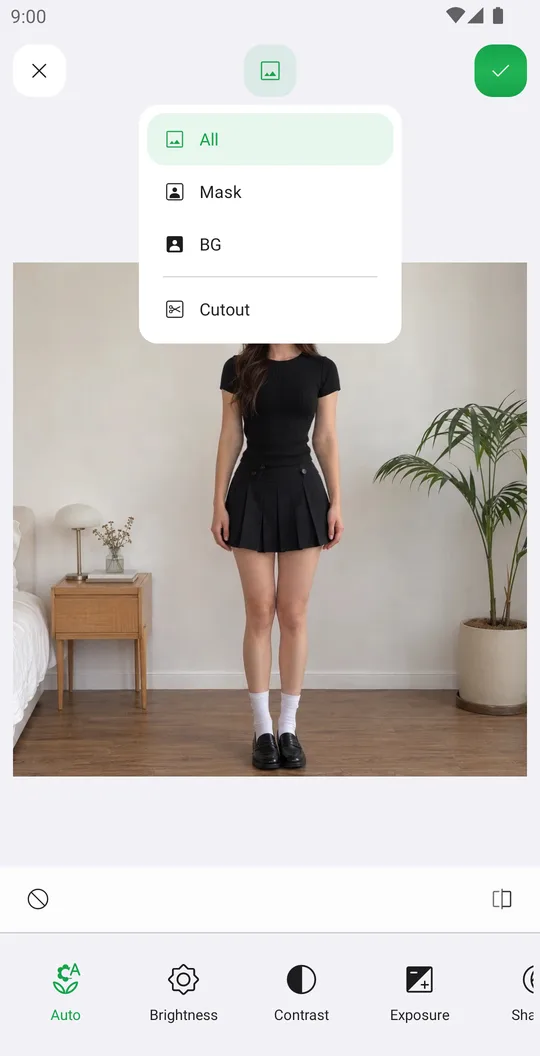
Works well with
Try Filters for free
Free on Google Play. iOS coming soon.