
What is Liquify?
Liquify moves pixels under your finger. Fix a stray strand of hair, smooth a wrinkle in clothes, or make a fun distorted photo.
Pick a tool, set the brush size and strength, and work in small strokes. Restore paints back the original.
Everything in Liquify
Tools
Push, twirl and resize pixels by hand.
- Warp
- Twirl left
- Twirl right
- Shrink
- Swell
- Warp
- Push pixels in the direction you drag.
- Twirl left, Twirl right
- Spin the area under the brush.
- Shrink, Swell
- Make the area under the brush smaller or bigger.
Controls
While you edit.
- Brush size
- Strength
- Restore
- Undo
- Redo
- Compare
How to use Liquify in Pichype
- 1Open Liquify
Pick a photo and open Body, then Liquify.
- 2Pick a tool
Choose Warp, Twirl, Shrink or Swell and set the brush size.
- 3Shape
Work in small strokes and zoom in for details.
- 4Clean up and save
Use Restore where you went too far, compare and save.
Liquify FAQ
The background bent. How do I fix it?
Use Restore and paint over the bent area.
What is the difference between Liquify and Body?
Body tools find the body and place guides for you. Liquify is free-hand for any part of the photo.
Liquify tutorials
All tutorials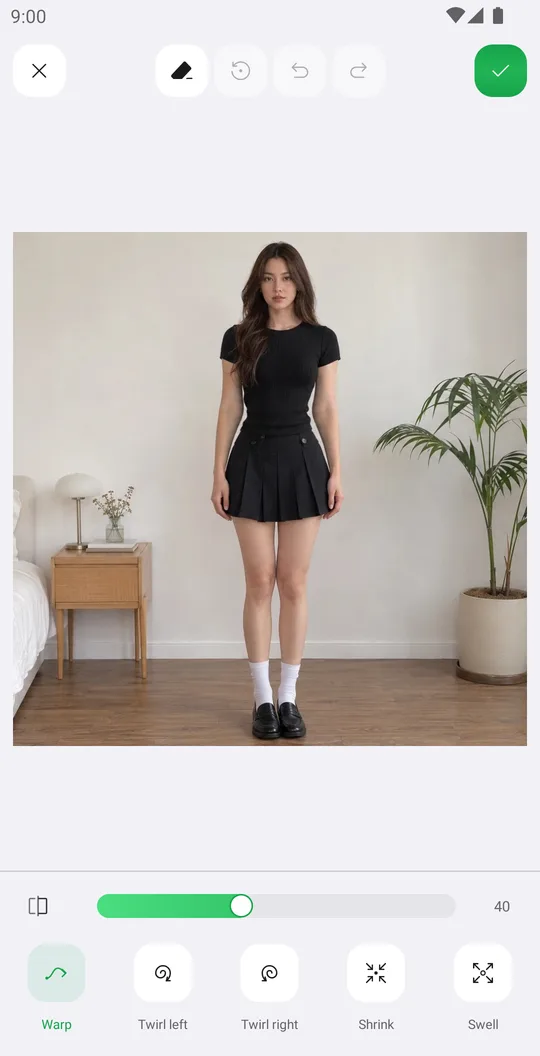
Works well with
Try Liquify for free
Free on Google Play. iOS coming soon.