
Retouch
Natural face and skin retouch. Start from a ready look, or fine-tune 65 controls in six groups.
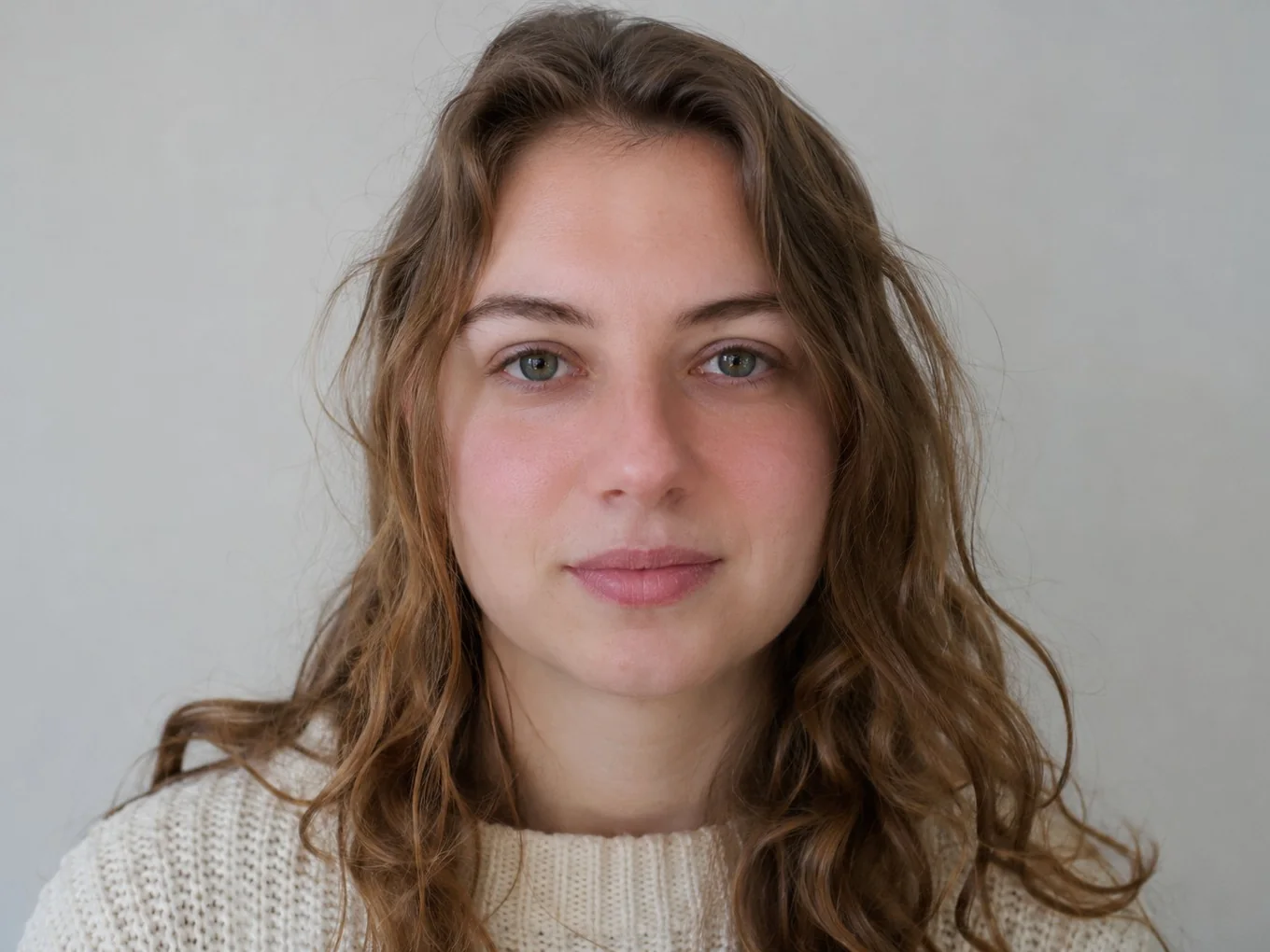
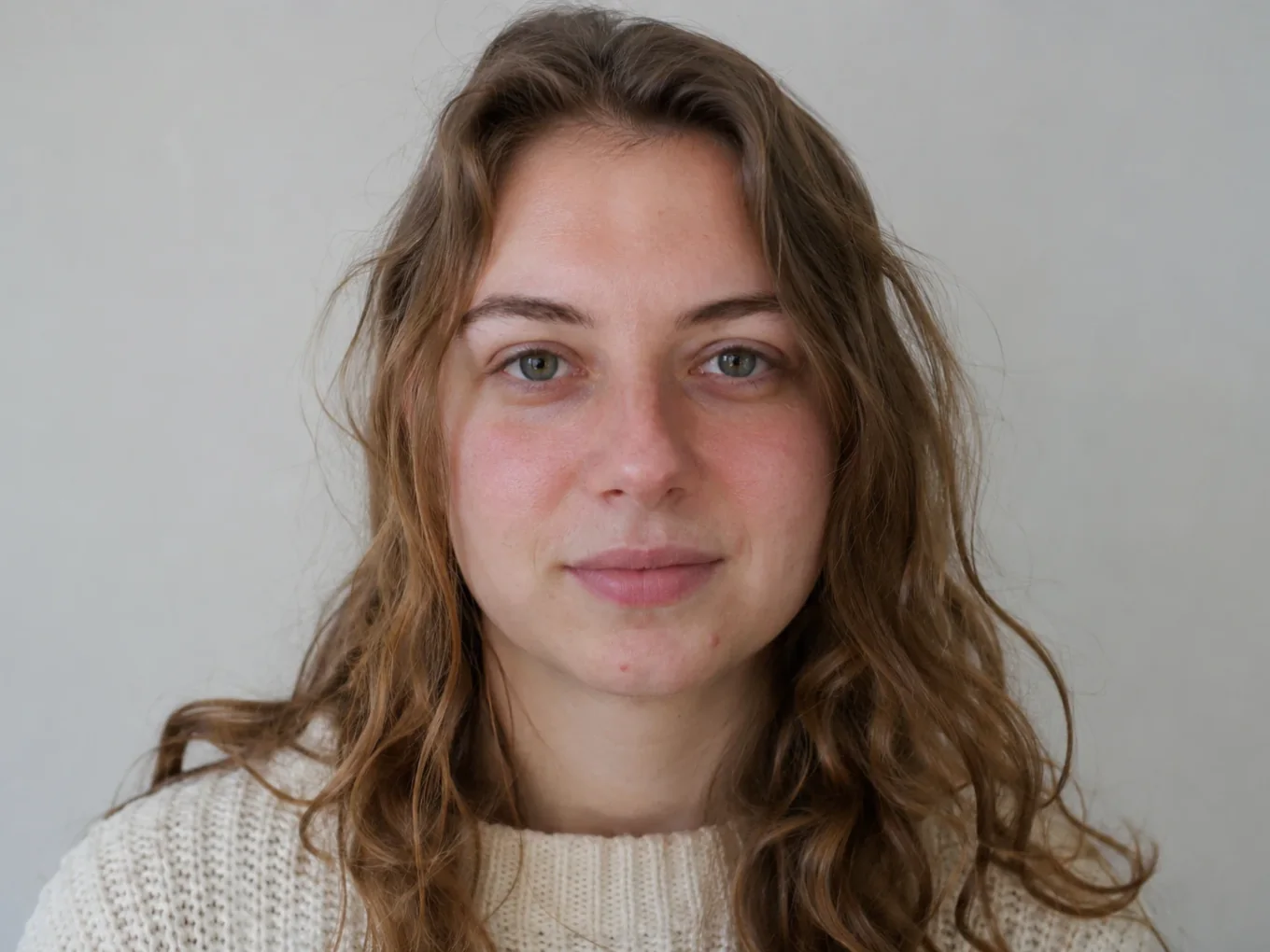
What is Retouch?
Retouch finds every face in the photo and maps its features: skin, eyes, brows, nose, lips and the face outline. That is why makeup sits exactly on the lips and eyelids, and face shaping moves only the part you choose.
Start from a ready look, like Clean girl or Beautify, and the app applies a whole set of controls at once. Then open any group and change single controls. Each control has its own strength slider, so you can keep the result subtle and real.
Everything in Retouch
Skin
Clean up skin and keep its real texture.
- Auto
- Smooth
- Acne
- Heal
- Dark circles
- Eye bags
- Wrinkles
- Skin tone
- Glow
- Matte
- Tan
- Face light
- Smooth brush
- Smooth eraser
- White teeth
Makeup & Hair
Makeup that follows your face, and hair color with a brush and eraser for the edges.
- Lipstick
- Gloss
- Eyeshadow
- Eyeliner
- Lashes
- Brow color
- Blush
- Contour
- Highlight
- Freckles
- Hair color
- Hair brush
- Hair eraser
Face
Gentle face reshaping, from jaw and chin to cheekbones and symmetry.
- Slim
- V-shape
- Width
- Jaw
- Chin
- Chin width
- Double chin
- Cheekbones
- Cheeks
- Temples
- Forehead
- Lift
- Head size
- Symmetry
Eyes & Brows
Brighter eyes, any eye color, and brow height and thickness.
- Eye size
- Brighten
- Whiten
- Eye color
- Width
- Distance
- Height
- Tilt
- Pupil
- Details
- Brow height
- Brow thickness
Nose
Small, natural changes to the shape of the nose.
- Width
- Length
- Lift
- Wings
- Tip
- Bridge
Lips
Lip shape and a natural smile.
- Smile
- Upper lip
- Lower lip
- Width
- Position
Tools
Buttons that help with every control.
- Looks
- Points
- Reset all
- Undo
- Redo
- Compare
- Looks
- Ready sets of makeup and skin controls in one tap.
- Points
- Some controls show a points icon. If makeup or a face part looks off, the face points sit wrong: open them and move each point onto the right spot.
- Reset all
- Remove every retouch change and start again.
- Undo, Redo
- Step back or forward through your changes.
How to use Retouch in Pichype
- 1Open your photo
Pick a photo and tap Retouch. Faces are found automatically.
- 2Start from a look
Tap a look to apply a full set of controls at once, or skip it and start clean.
- 3Fine-tune the details
Open Skin, Makeup & Hair, Face, Eyes & Brows, Nose or Lips and move each slider until it looks natural.
- 4Check and save
Hold Compare to see the original, fix the face points if something is off, and save.
Retouch FAQ
Will my skin look plastic?
No. Skin controls keep pores and texture, and every control has its own strength. Keep sliders low for a natural result.
Lipstick or eyeliner sits in the wrong place. What do I do?
Tap the points icon and move the face points onto your real lips or eyes. Makeup follows the points.
Can I paint smoothing only on some areas?
Yes. Use Smooth brush to paint it where you need it and Smooth eraser to remove it.
Can I change hair color?
Yes. Hair color is found by AI. Use Hair brush and Hair eraser to fix the edges.
Retouch tutorials
All tutorials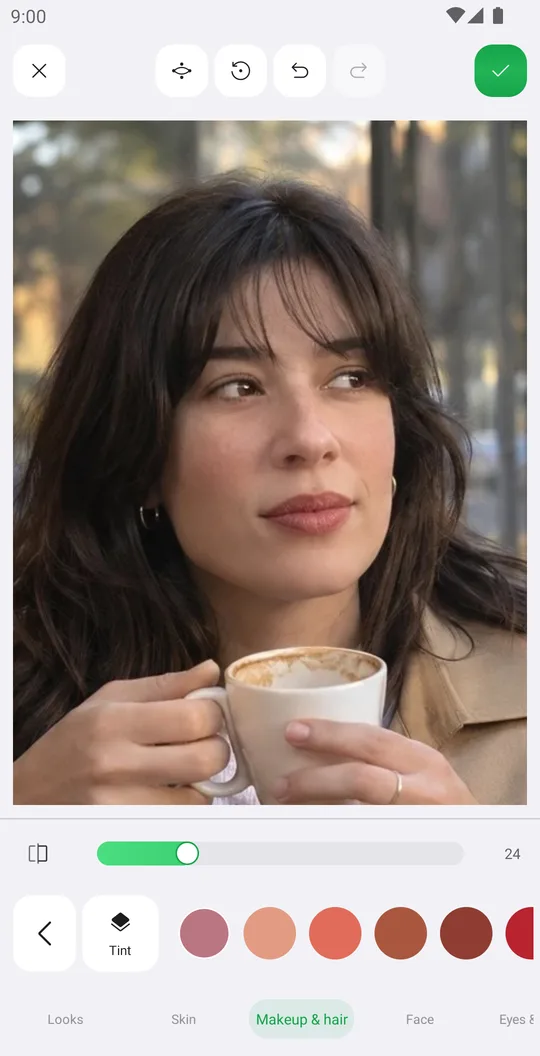
Works well with
Try Retouch for free
Free on Google Play. iOS coming soon.