
Motion
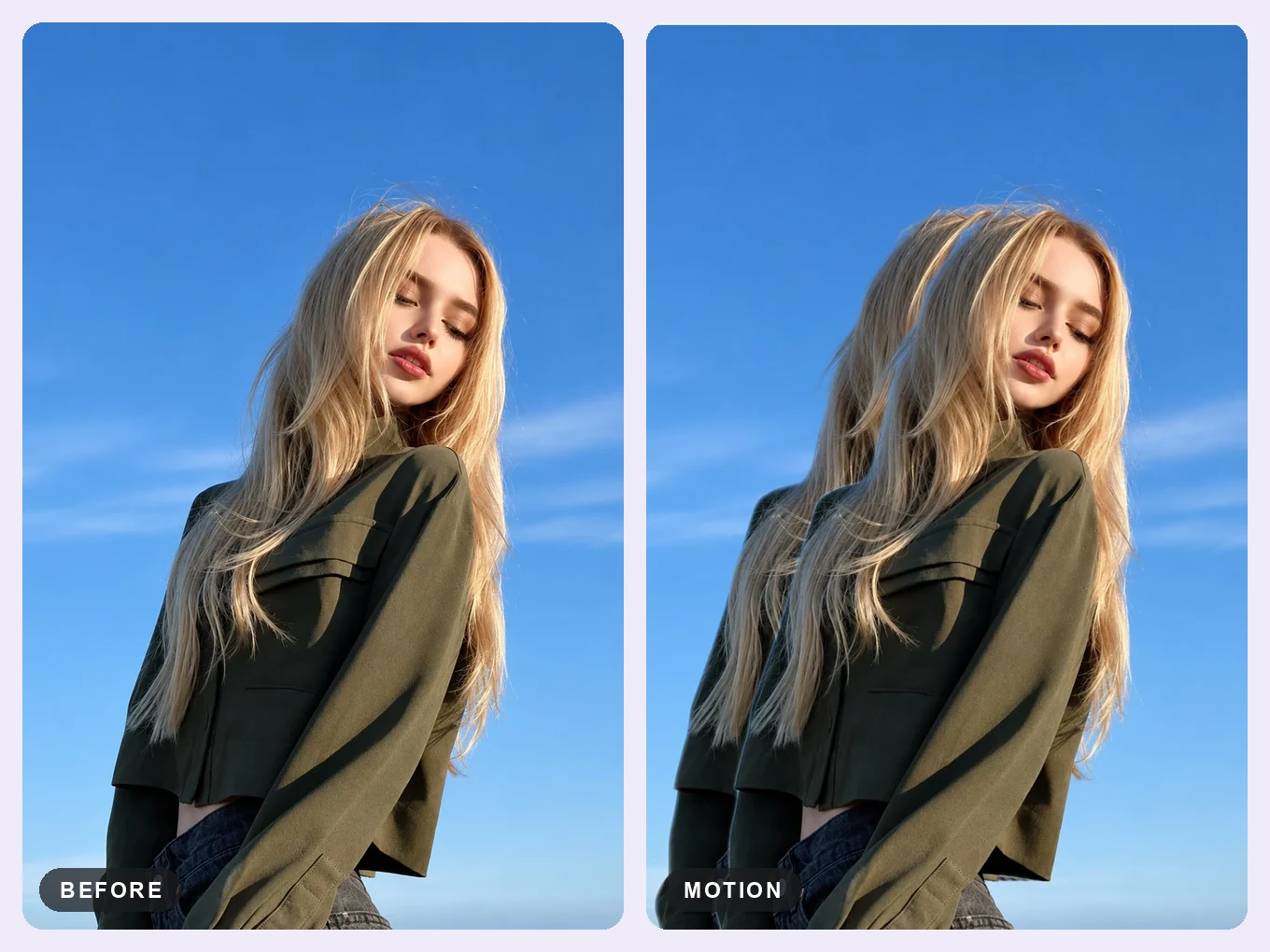
AI finds the person and adds fading copies behind them for a dynamic motion effect.
What is Motion?
Motion cuts out the person and puts copies of them behind, like a long exposure. It makes dance, sport and street photos feel alive.
Set how many copies, how far apart they go, their angle and how transparent they are. If the copies look cut wrong, fix the mask.
Everything in Motion
Controls
Shape the trail.
- Count
- Distance
- Rotate
- Opacity
- Mask
- Count
- How many copies.
- Distance
- How far apart the copies are.
- Rotate
- The direction the trail goes.
- Opacity
- How transparent the copies are.
- Mask
- Fix the person mask if the copies look cut wrong.
How to use Motion in Pichype
- 1Open Motion
Pick a photo and tap Motion. AI cuts out the person.
- 2Set the trail
Choose the count, distance and direction.
- 3Fade it
Lower the opacity so the copies look like motion.
- 4Fix and save
If the copies look wrong, tap Mask and fix it, then save.
Motion FAQ
The copies have pieces of background.
Tap Mask and clean the edge of the person.
Which photos work best?
A full-body photo with a clear outline and some free space on one side.
Motion tutorials
All tutorials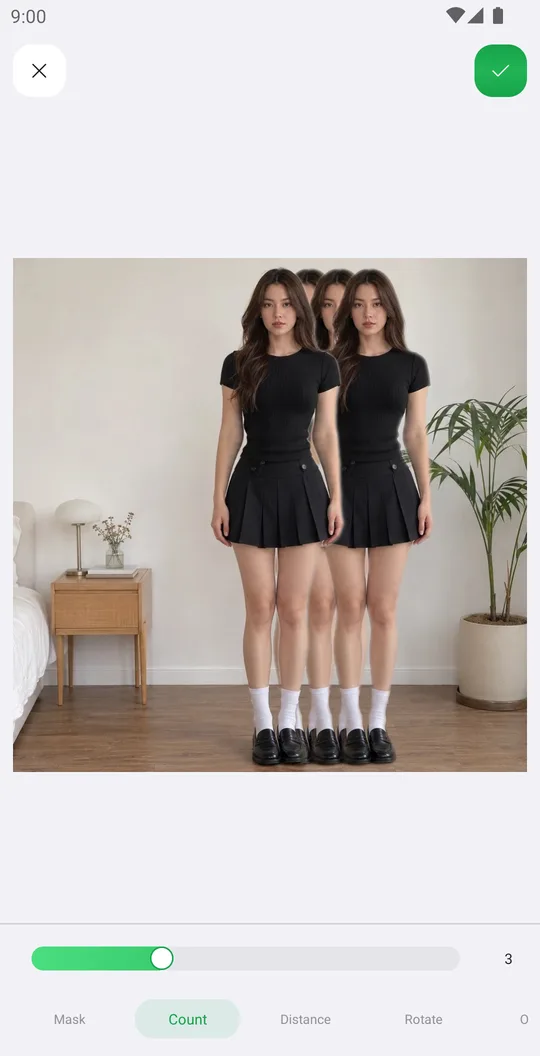
Works well with
Try Motion for free
Free on Google Play. iOS coming soon.