
QR Editor
Make a QR code for a link, text, Wi-Fi, an event or a location and style it with your colors, logo and rounded corners.
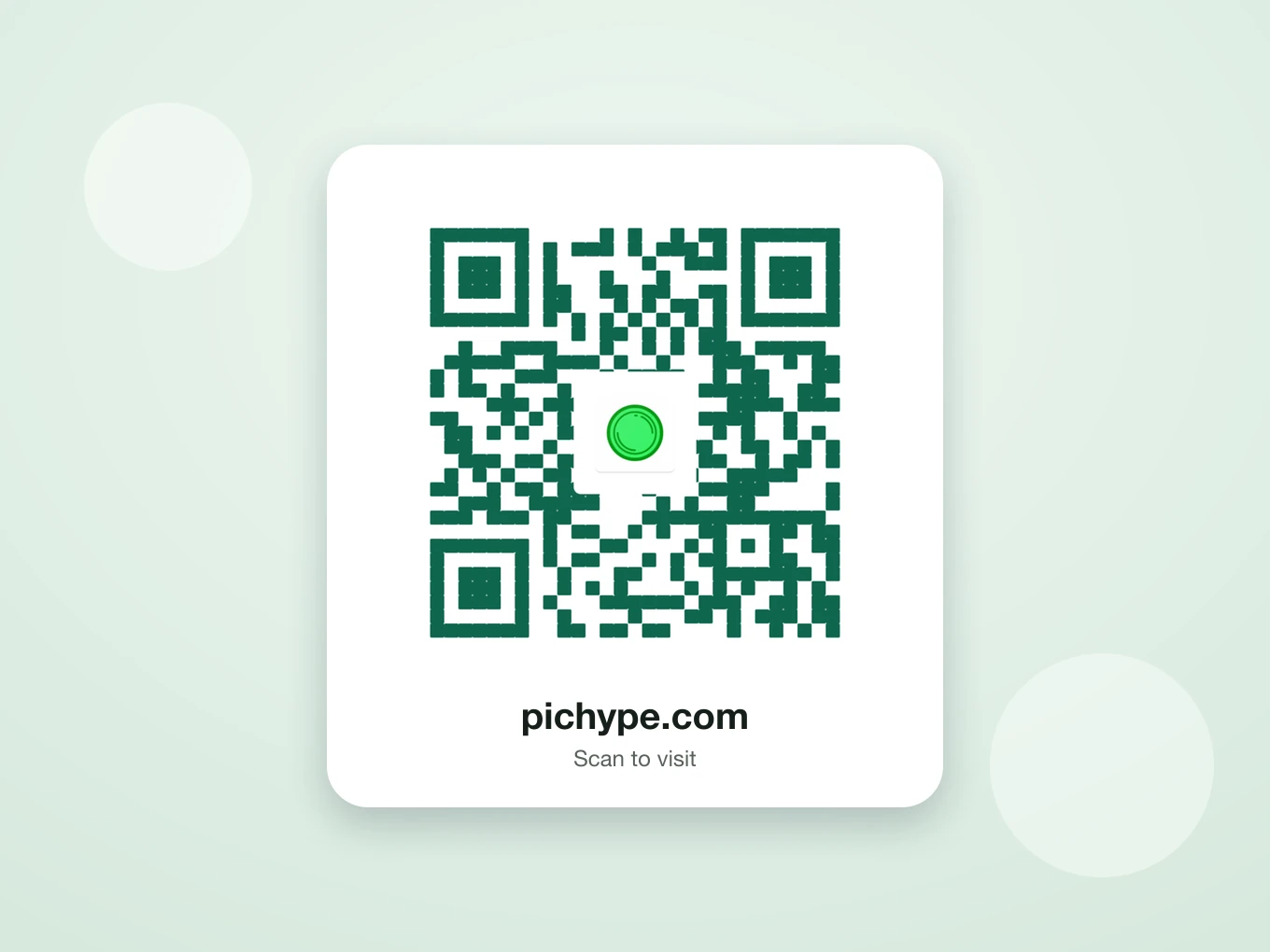
What is QR Editor?
Choose what the code opens: a link, plain text, a Wi-Fi network, an event or a place on the map. Then make it yours with a logo in the middle, your own colors and rounded modules.
The logo has its own mini cutout editor, so you can remove its background right there and choose a square or round shape.
Everything in QR Editor
Types
What the code opens.
- URL
- Text
- Wi-Fi
- Event
- Location
Style
Four tabs to design the code.
- QR
- Logo
- Colors
- Radius
- QR
- The content of the code.
- Logo
- Add a picture in the middle, cut out its background and pick a square or circle shape.
- Colors
- QR color and background color.
- Radius
- Round the corners and the small modules of the code.
How to use QR Editor in Pichype
- 1Open QR Editor
Tap QR Editor.
- 2Pick a type
Choose URL, Text, Wi-Fi, Event or Location and fill it in.
- 3Design it
Add a logo, pick colors and round the corners.
- 4Save
Save the QR code and share or print it.
QR Editor FAQ
Will a logo break the code?
No. A small logo in the middle still scans. Test it with your camera before printing.
Can guests join my Wi-Fi with it?
Yes. Choose Wi-Fi, enter the network name and password, and they scan to connect.
Which colors scan best?
A dark code on a light background.
QR Editor tutorials
All tutorials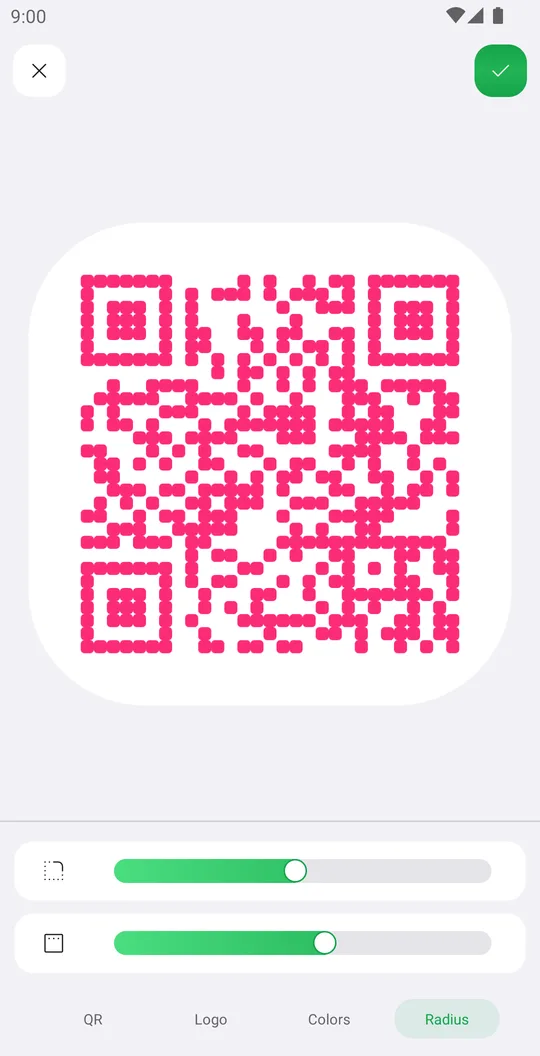
Works well with
Try QR Editor for free
Free on Google Play. iOS coming soon.