
How to add a frame to a photo
Pick a frame from the categories or the Library, fit your photo inside and add your own frames.

Frames finish a photo for a greeting, a holiday or a profile picture. Your photo always stays movable inside the frame.
Open the photo
On the home screen tap Select a Photo and pick a photo. In the editor open the Sticker tab at the bottom and tap Frame.

Pick a frame
Browse Decor, Interface, Card, Gadgets, Profile and more, or open Library. Tap a frame to try it.
Fit the photo
Drag and pinch the photo with your fingers until it sits right in the frame window.
Add your own frame
Tap the add button at the top and pick a picture. It needs a transparent window: open the frame picture in Remove BG, erase the middle and save it.
Save
Tap the check mark.
Tools used in this tutorial
Related tutorials
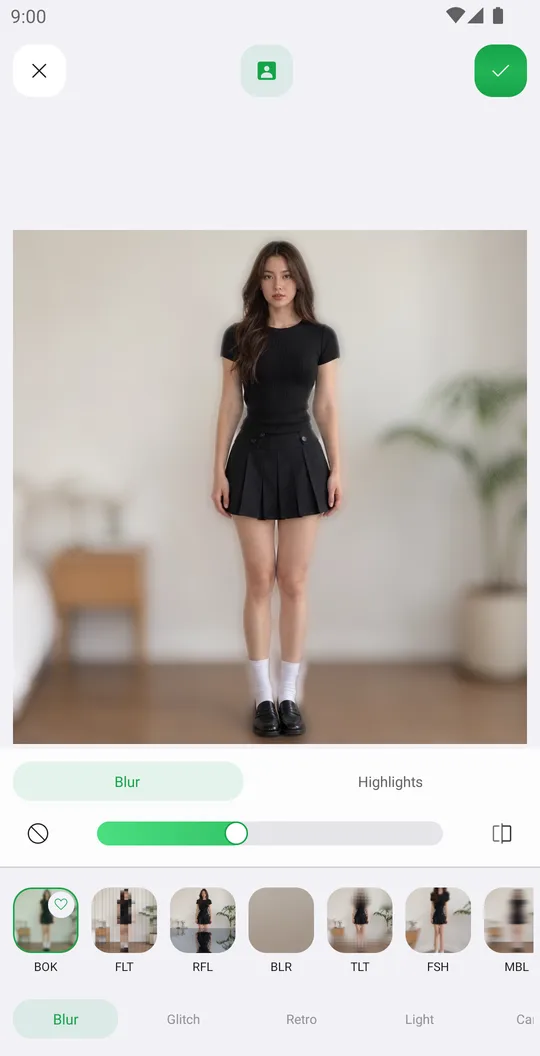
How to add effects like blur, glitch, VHS and bloom
Use 72 effects in Blur, Glitch, Retro, Light and Canvas, with their own settings, on the whole photo or only the background.
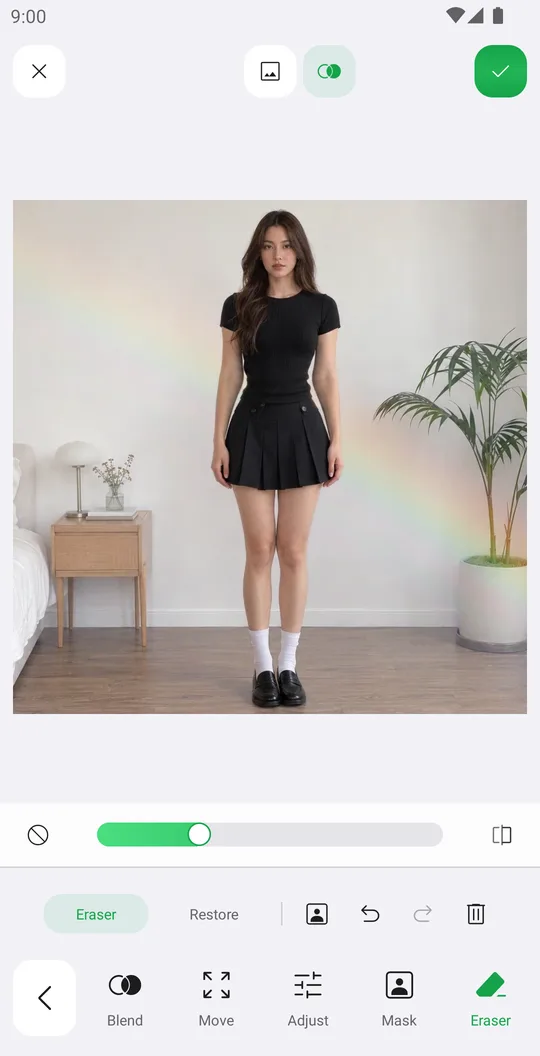
How to add overlays with blend modes
Add a light leak or texture, blend it with the photo, fade it with a mask and erase it from the person.
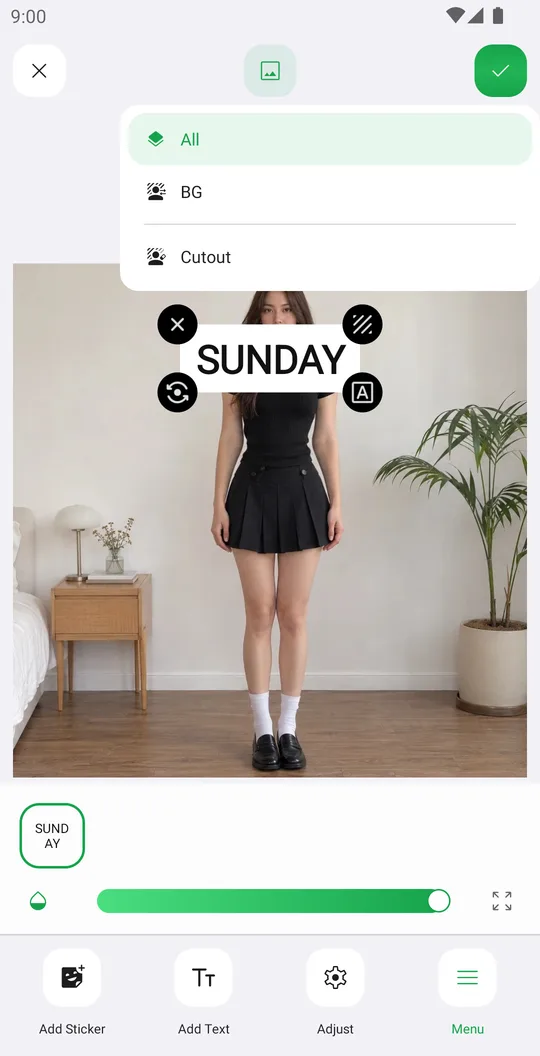
How to add stickers, even behind you
Add stickers from packs and the Library, arrange them precisely and put them behind the person.