
How to add overlays with blend modes
Add a light leak or texture, blend it with the photo, fade it with a mask and erase it from the person.
Overlays are pictures placed over your photo: light leaks, rainbows, bokeh, dust, textures. The blend editor decides how the overlay mixes with the photo and where it shows.
Open the photo
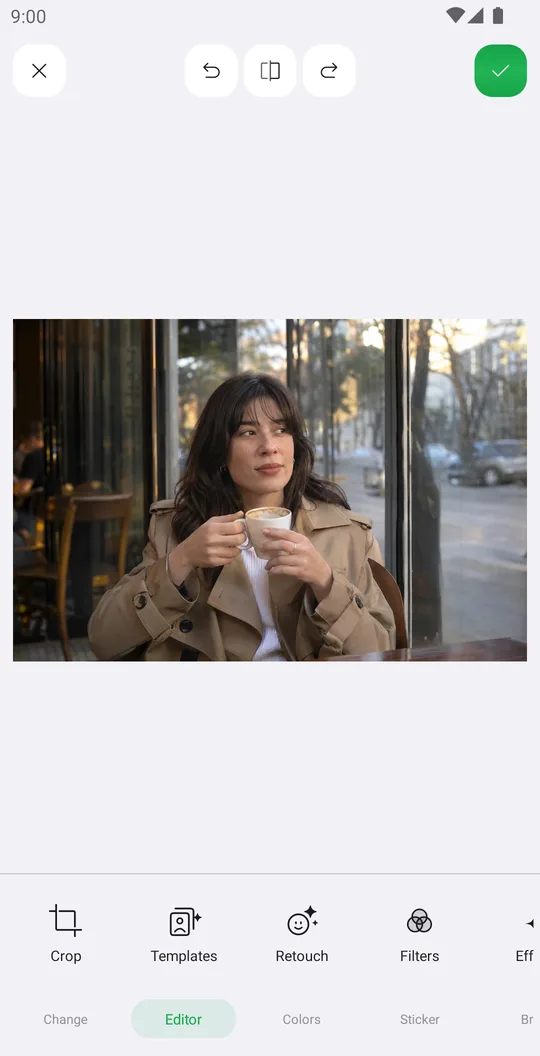
On the home screen tap Select a Photo and pick a photo. In the editor open the Editor tab at the bottom and tap Overlay.
Pick an overlay
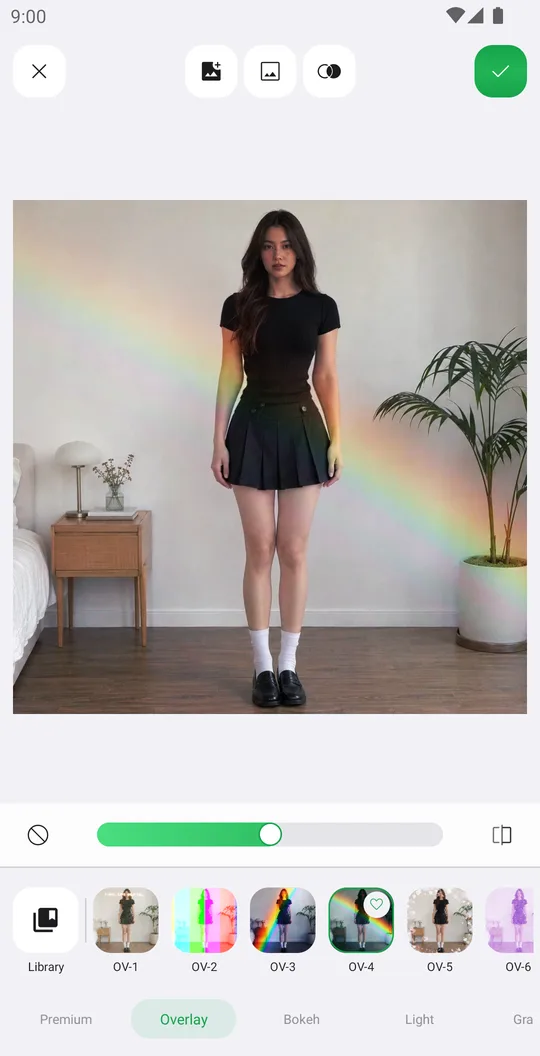
Tap a preset from the categories, or open Library for more. The add button at the top uses your own picture as an overlay.
Open the blend editor
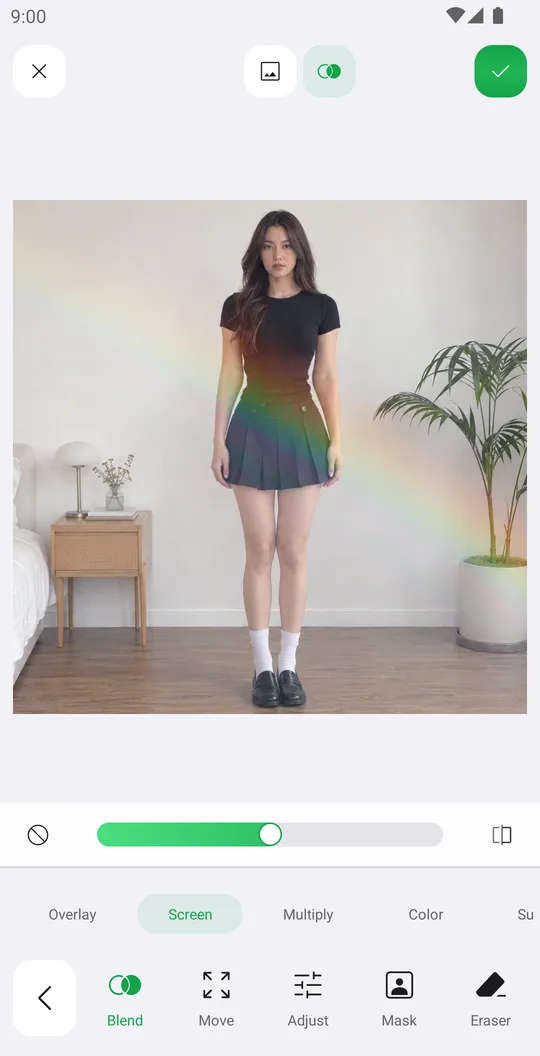
Tap the blend icon at the top. In Blend choose a mode: Screen keeps the bright parts, Multiply keeps the dark parts, Overlay adds contrast.
Adjust and place
Move places and scales the overlay. Adjust changes its Hue, Saturation, Brightness, Contrast, Blur, Shadow and Highlights. Mask fades it with Linear, Radial or Band.
Erase it from the person
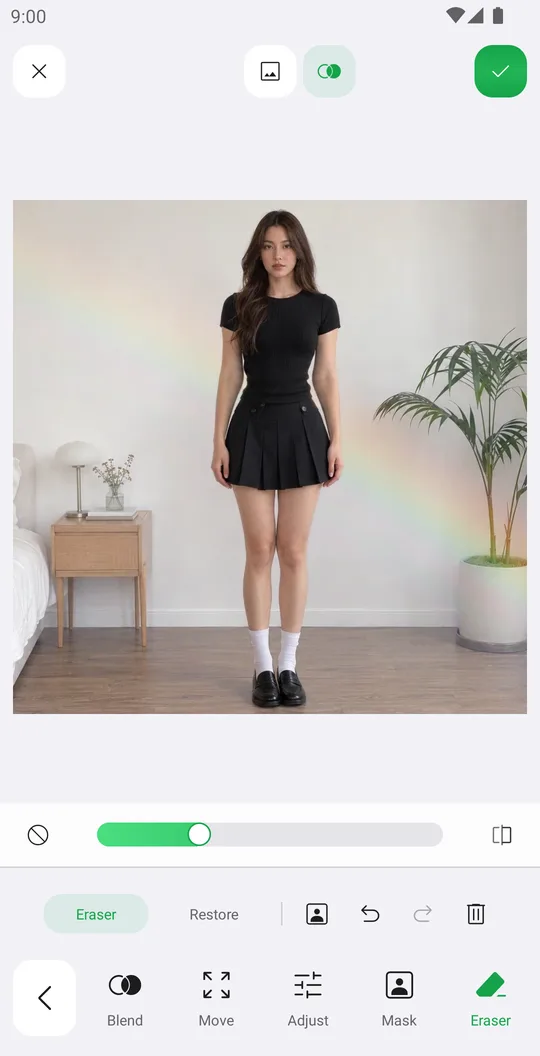
Open Eraser and tap the person button. The overlay disappears from the person in one tap. Restore paints it back where you want.
Save
Set the strength with the slider and tap the check mark.
Blend editor
- Blend
- Overlay, Screen, Multiply, Color, Subtract, Difference, Soft light, Hard light, Lighten, Darken.
- Move
- Position and size of the overlay.
- Adjust
- Hue, Saturation, Brightness, Contrast, Blur, Shadow, Highlights and reset.
- Mask
- None, Linear, Radial or Band fade.
- Eraser
- Eraser and Restore brushes, a one-tap person mask, undo, redo and clear.
Tools used in this tutorial
Related tutorials
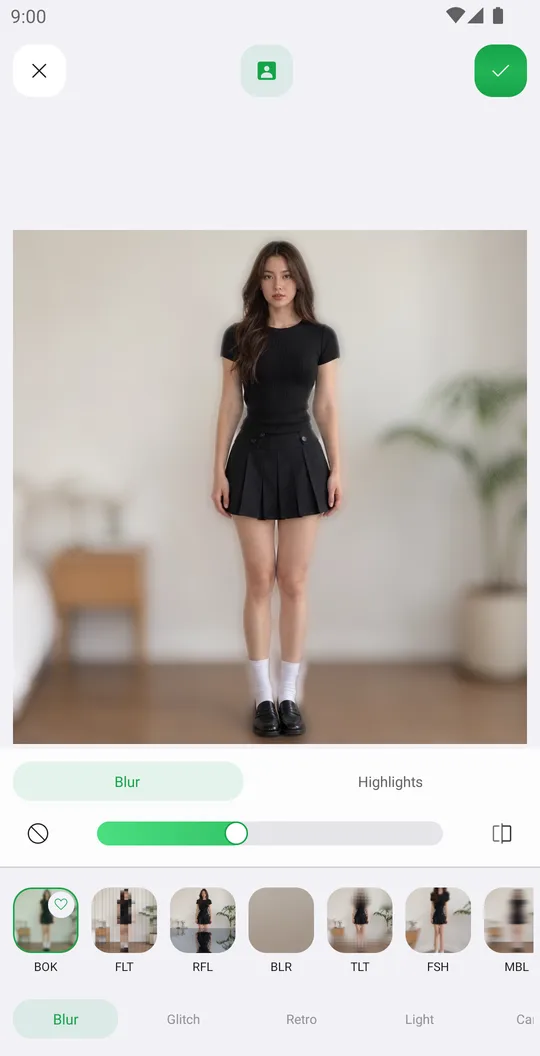
How to add effects like blur, glitch, VHS and bloom
Use 72 effects in Blur, Glitch, Retro, Light and Canvas, with their own settings, on the whole photo or only the background.
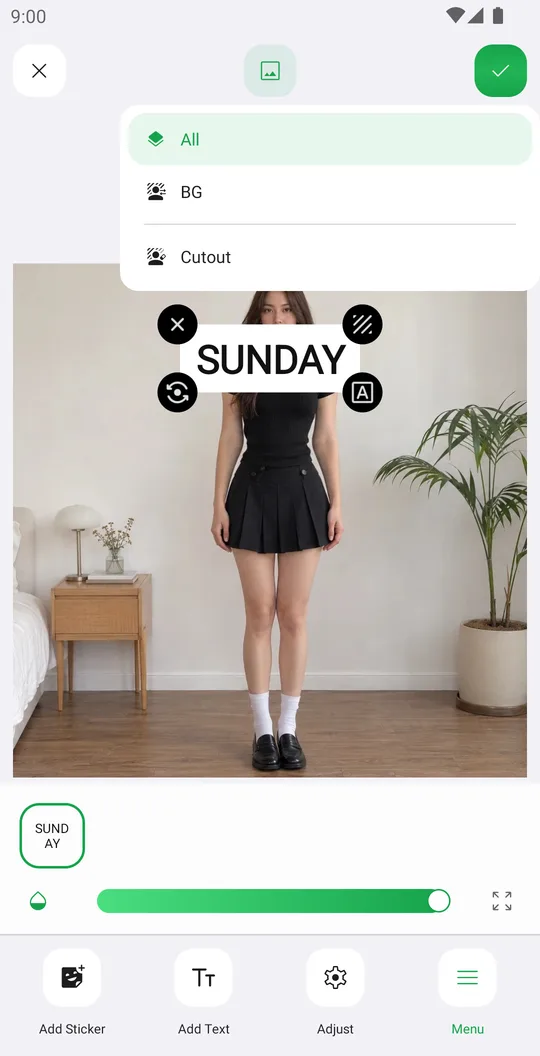
How to add stickers, even behind you
Add stickers from packs and the Library, arrange them precisely and put them behind the person.
How to add text to photos, even behind you
Write a caption, style it with fonts, outline, shadow and background, and put it behind the person.