
How to add effects like blur, glitch, VHS and bloom
Use 72 effects in Blur, Glitch, Retro, Light and Canvas, with their own settings, on the whole photo or only the background.
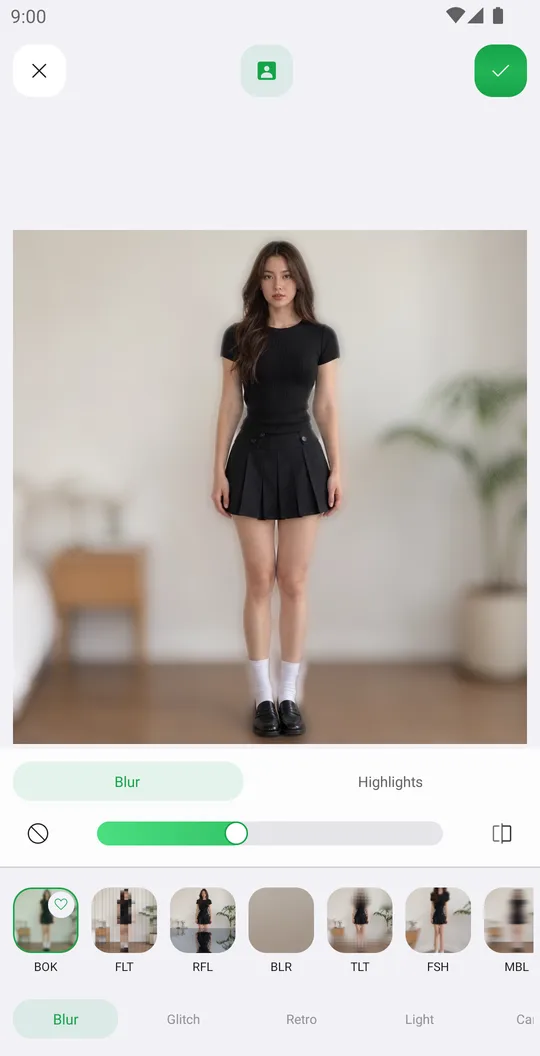
Effects change the whole look: a lens blur, a digital glitch, an old camera, light leaks or a painting. Each effect has its own settings, and layers let you keep the person sharp.
Open the photo
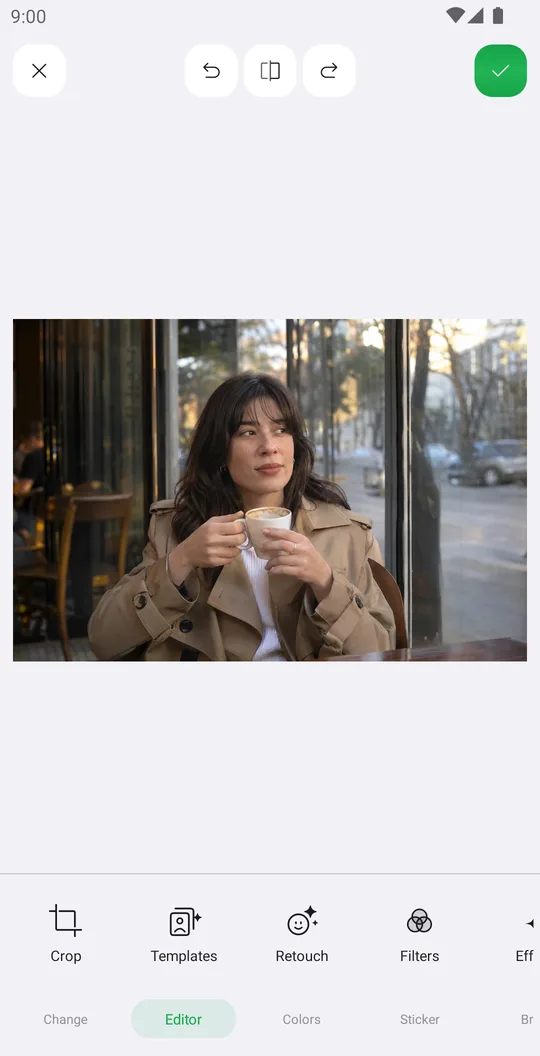
On the home screen tap Select a Photo and pick a photo. In the editor open the Editor tab at the bottom and tap Effects.
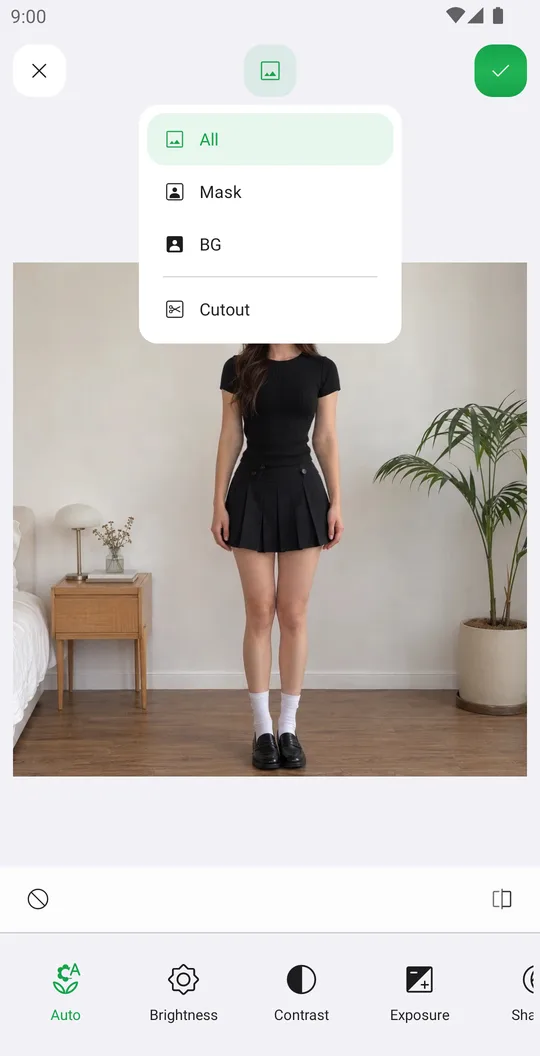
Choose where it applies
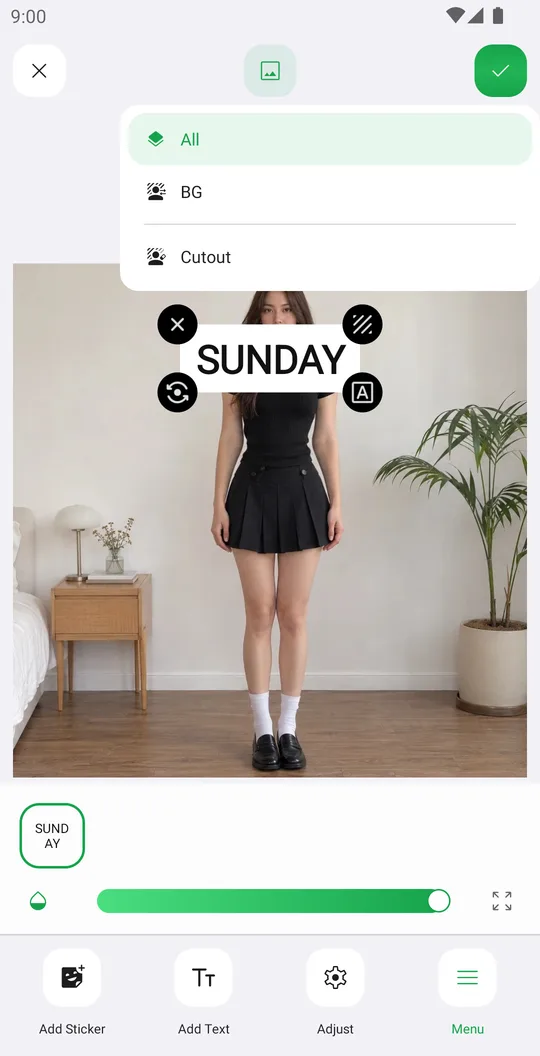
Tap the layers button at the top. All changes the whole photo, Mask changes only the person, BG changes only the background. Cutout opens Remove BG if the person mask needs a fix.
Pick an effect
Open Blur, Glitch, Retro, Light or Canvas and tap an effect. Here Bokeh on BG blurs only the background, like a portrait lens.
Use its settings
Each effect has its own tabs above the slider, for example Blur and Highlights for Bokeh, or Size, Strength and Angle for Fluted glass. Tap the heart on an effect to keep it in your favorites.
Save
Compare with the original and tap the check mark. Open Effects again to add another one on top.
Groups
- Blur
- Bokeh, Fluted glass, Reflection, Tilt-shift, Fisheye, Motion, Radial and Spin blur, Ripple, Wave.
- Glitch
- ASCII, Hologram, Matrix, Chromatic, Prism, VHS, Glitch, Dither and more.
- Retro
- Risograph, Digicam, Game Boy, CRT, Film grain, Halftone, Cyanotype, Infrared and more.
- Light
- Halation, Light leak, Sparkle, Anamorphic flare, Bloom, God rays, Fog and more.
- Canvas
- Sketch, Oil paint, Watercolor, Comic, Engrave, Banknote, Linocut and more.
Layers
- All
- The whole photo.
- Mask
- Only the person. AI finds the person for you.
- BG
- Only the background behind the person.
- Cutout
- Opens Remove BG to fix the person mask. The BG layer follows the new edge.
Tools used in this tutorial
Related tutorials
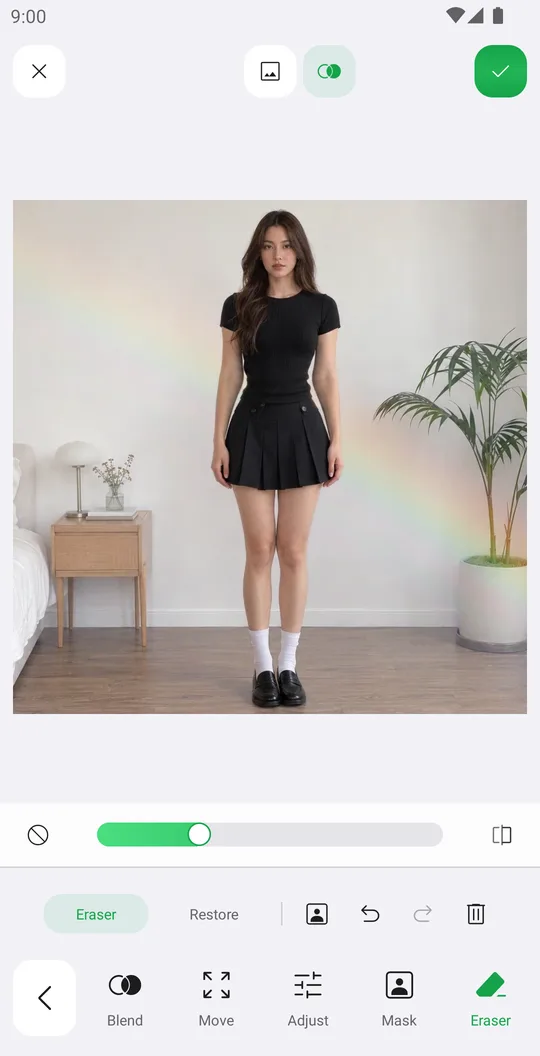
How to add overlays with blend modes
Add a light leak or texture, blend it with the photo, fade it with a mask and erase it from the person.
How to add stickers, even behind you
Add stickers from packs and the Library, arrange them precisely and put them behind the person.
How to add text to photos, even behind you
Write a caption, style it with fonts, outline, shadow and background, and put it behind the person.