
How to change the background of a photo
Put yourself on a new color, a Library background or your own picture, add an outline and fit the frame.
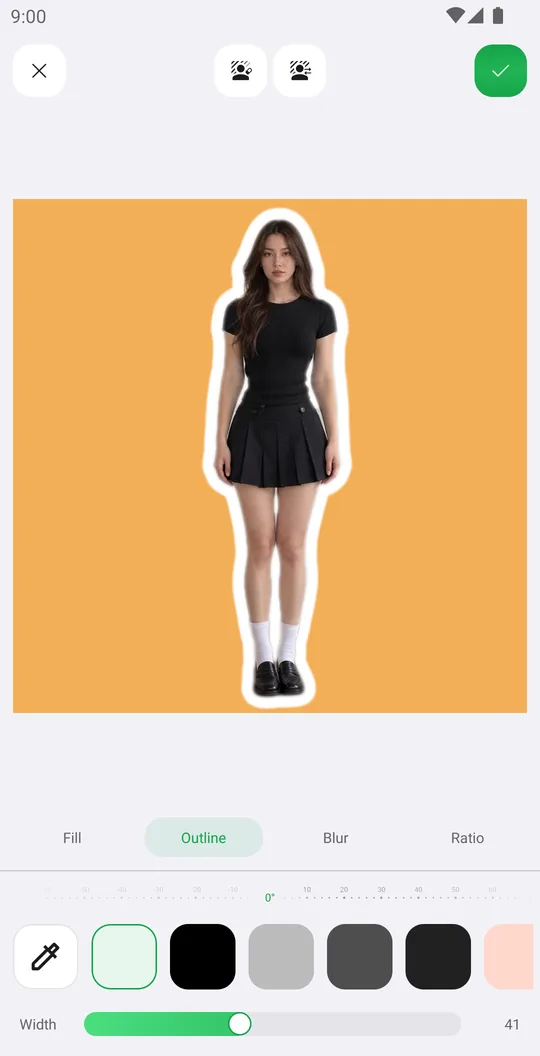
BG Change keeps the person and replaces everything behind them. You can use a plain color, a background from the Library, a blur of your own background or any picture.
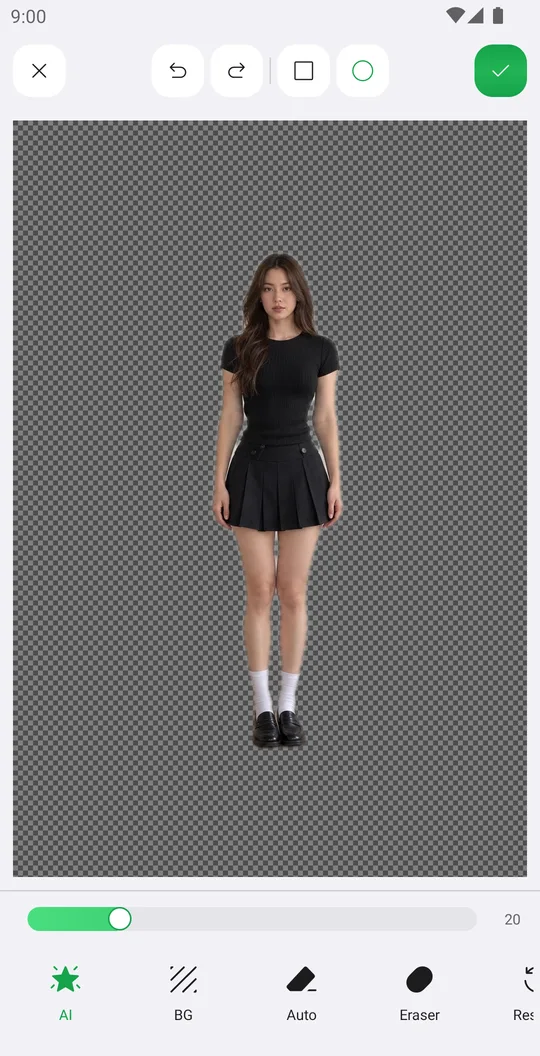
Cut out the person
Open the photo, tap Remove BG in the Editor tab and tap AI. Tap the check mark when the edges look clean.
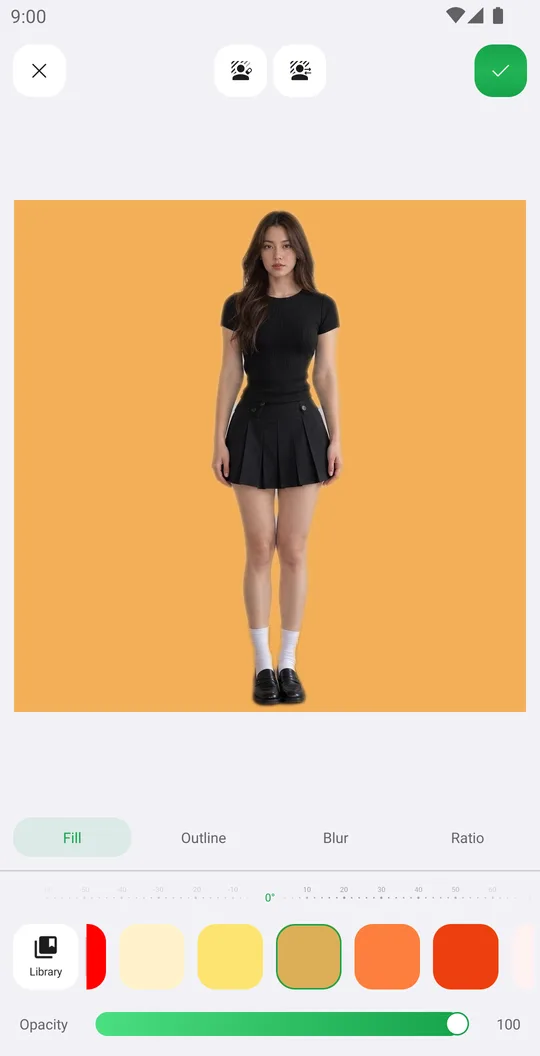
Pick a background
Tap BG Change. In Fill, choose Library for ready backgrounds or tap a color. The Opacity slider fades the new background.
Add an outline
Open Outline, pick a color and move Width. A white outline gives a sticker look.
Blur or resize
Blur softens your own background like a portrait lens. Ratio changes the frame size, for example 4:5 or 9:16.
Use your own picture
The buttons at the top let you fix the cutout or add your own background. Move and pinch your photo with your fingers to place it, then tap the check mark.
Tabs
- Fill
- Library backgrounds, colors and an eyedropper, with an Opacity slider.
- Outline
- A colored outline around the person, with a Width slider.
- Blur
- Blurs the background.
- Ratio
- Changes the size of the frame.
Related tutorials
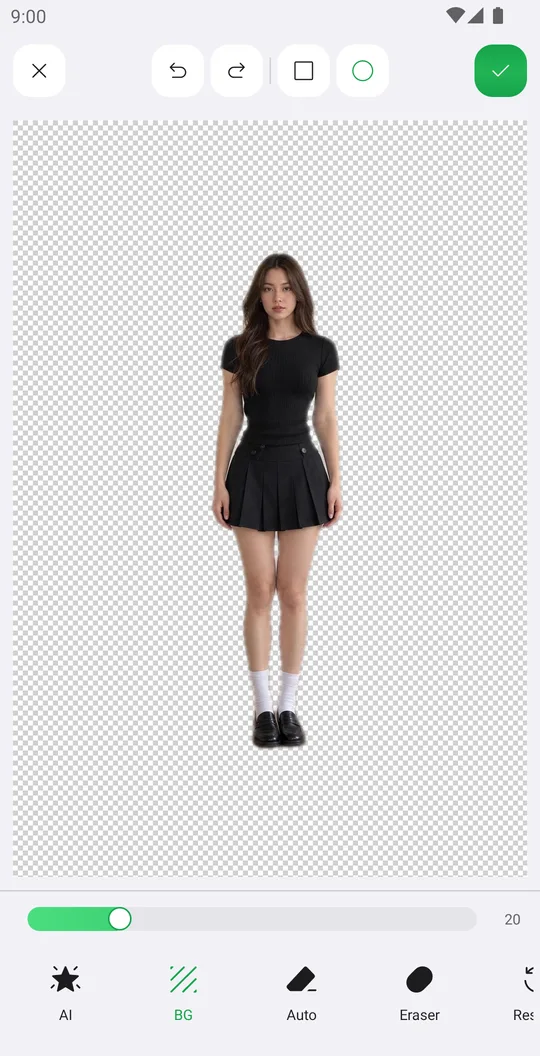
How to remove the background from a photo
Cut out a person or object with AI in one tap, clean the edges by hand and save it with a transparent background.
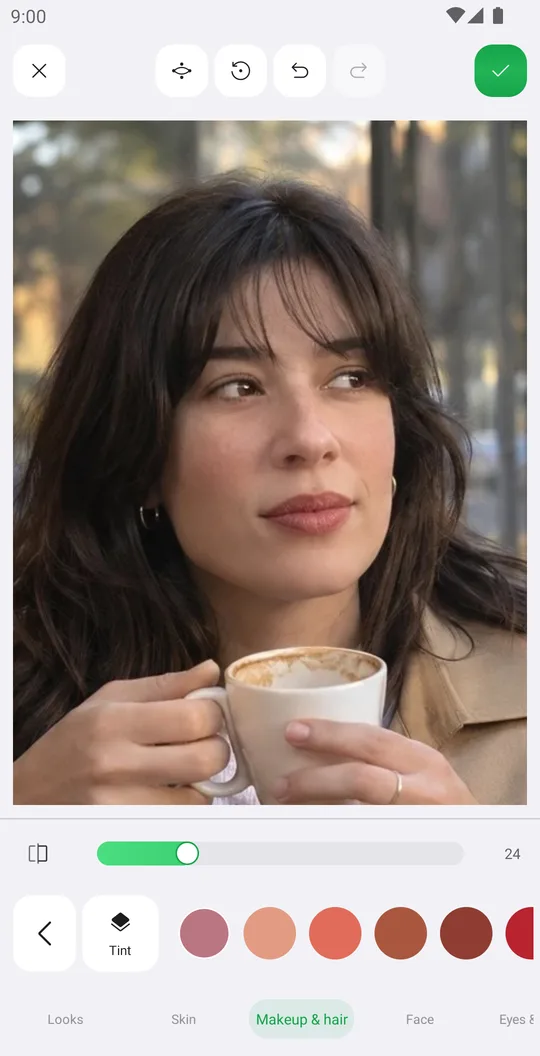
How to retouch a selfie naturally
Smooth skin, add a ready makeup look and fix single details in Retouch while keeping your real face.
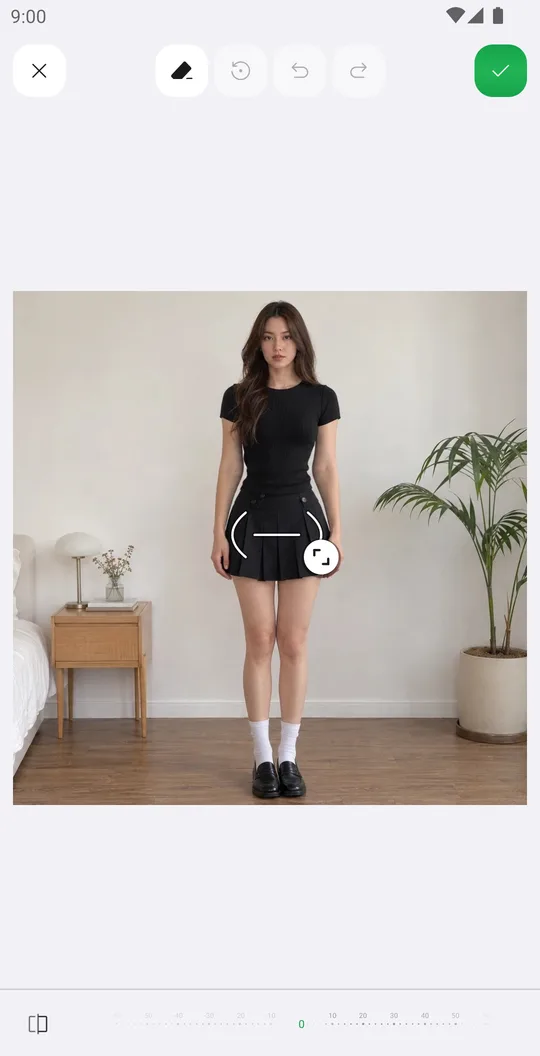
How to reshape your body in a photo
Slim the waist, shape the hips or make legs longer with Body tools that place their guides for you.