
Drawing Brushes
Paint on your photo: keep color only where you paint, hide details with blur or mosaic, or draw with paint, neon, lines, stickers and text.
What is Drawing Brushes?
Each brush paints something different. Splash turns the photo gray and brings color back only where you paint. Blur and Mosaic hide faces, plates and private details. Paint draws in any color, and Neon makes the stroke glow.
Blur and Mosaic work with Layers, so you can hide the background and keep the person sharp without careful painting.
Everything in Drawing Brushes
Brushes
Each brush has its own size.
- Splash
- Blur
- Mosaic
- Paint
- Sticker
- Text
- Line
- Splash
- Three modes. Gray paints the photo black and white, Color paints its own colors back, and Manual recolors what you paint with a color from the list, keeping light and shadow.
- Blur, Mosaic
- Paint to blur or pixelate an area. Use Layers to hit only the person or the background.
- Paint
- Draw in any color. Switch the brush type to Neon for a glowing line.
- Sticker
- Paints a trail of small stickers along your stroke.
- Text
- Writes your text along the line you draw.
- Line
- Draws clean lines.
Controls
While you paint.
- Size
- Color
- Eraser
- Undo
- Redo
- Layers
How to use Drawing Brushes in Pichype
- 1Open Brush
Pick a photo and tap Brush.
- 2Pick a brush
Choose Splash, Blur, Mosaic, Paint or another brush and set the size.
- 3Paint
Zoom in for details. Use the eraser or Undo if you go too far.
- 4Save
Save the photo.
Drawing Brushes FAQ
How do I keep color only on one thing?
Open Splash, make the whole photo gray, then switch to Color and paint over the thing that should stay in color.
How do I hide a face or a license plate?
Use Blur or Mosaic and paint over it.
Where is the neon brush?
Open Paint and switch the brush type to Neon.
Drawing Brushes tutorials
All tutorials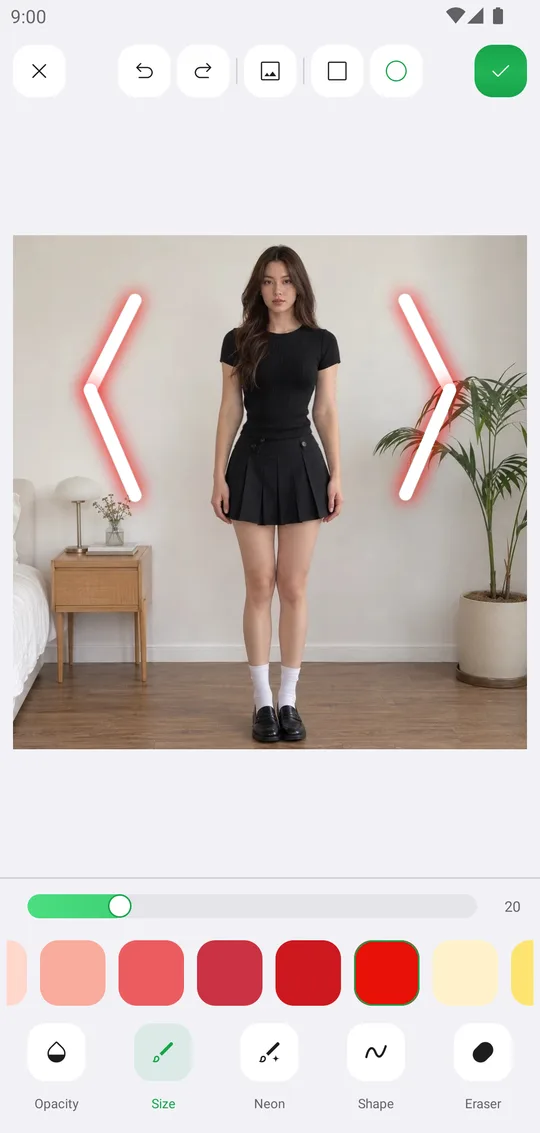
Works well with
Try Drawing Brushes for free
Free on Google Play. iOS coming soon.