
Stickers
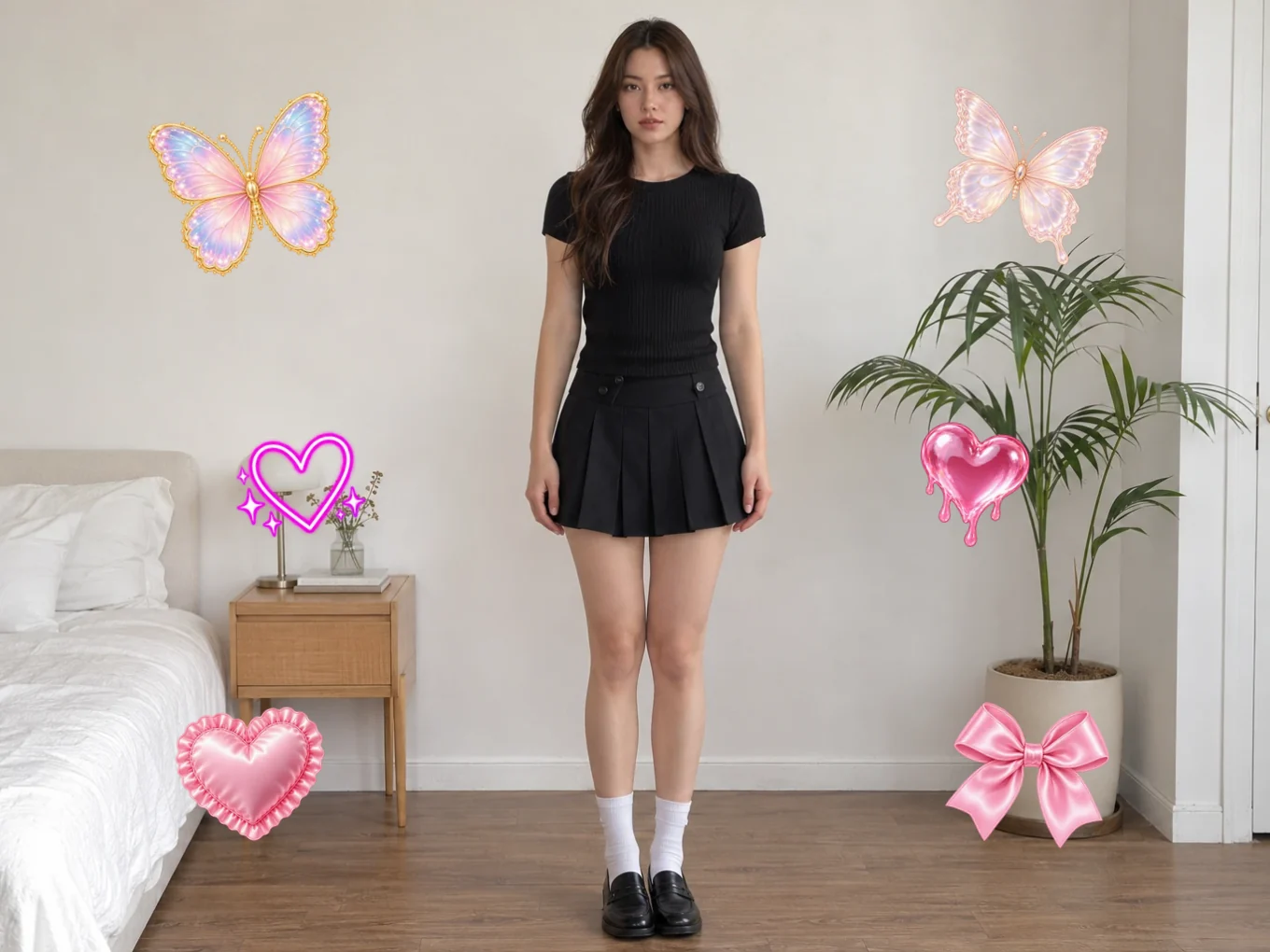
Decorate photos with stickers from the Pichype Library, smart Reminder and Calendar stickers, and put any sticker behind the person.
What is Stickers?
Add as many stickers as you like and control each one: move, resize, rotate, flip, lock, duplicate and change the order. Hundreds of stickers wait in the Library, and smart stickers add a reminder or a calendar date to the photo.
Switch Layers to BG and a sticker goes behind the person, as if it was really there. The same tools work in Text and Wrap.
Everything in Stickers
Stickers
What you can add.
- Library
- Reminder
- Calendar
- Library
- Hundreds of stickers in packs.
- Reminder, Calendar
- Smart stickers with your own note or date.
On the photo
Every sticker has its own buttons right on the photo. Drag it with one finger, pinch to resize and rotate.
- Flip
- Lock
- Rotate and zoom
- Delete
- Flip
- Mirror it left to right.
- Lock
- Pin it in place so it does not move by accident.
- Rotate and zoom
- Drag the corner handle to turn and resize with one finger.
- Delete
- Remove it from the photo.
Long-press menu
Press and hold a sticker to open the full menu.
- Lock
- Duplicate
- Bring forward
- Send backward
- Reset
- Delete
- Duplicate
- Make an exact copy with the same position and size.
- Bring forward, Send backward
- Put it in front of or behind another sticker.
- Reset
- Return it to the default position and size.
Adjust
Settings that make precise placement easy.
- Touch
- Guides
- Degree
- List
- Opacity
- Zoom
- Touch
- Switch your fingers from the stickers to the photo, so you can zoom in for detail. Turn it off to move the stickers again.
- Guides
- Show alignment lines while you move.
- Degree
- Snap the rotation to exact angles.
- List
- See every sticker you added and lock any of them.
- Opacity, Zoom
- Sliders for the transparency and size of the selected sticker.
Layers
Put a sticker behind the person for a magazine look.
- All
- BG
- Cutout
- All
- The sticker sits on top of the whole photo.
- BG
- The sticker goes behind the person, using the AI mask.
- Cutout
- If the mask is not right, tap Cutout to open Remove BG and make the mask exactly how you want it.
How to use Stickers in Pichype
- 1Open Sticker
Pick a photo and tap Sticker.
- 2Add stickers
Pick from the Library or add a Reminder or Calendar sticker.
- 3Arrange them
Drag, pinch and rotate. Long-press for duplicate, order and reset.
- 4Put one behind you and save
Switch Layers to BG for a sticker behind the person, then save.
Stickers FAQ
How do I put a sticker behind me?
Switch Layers to BG. The sticker goes behind the person. If the edge looks wrong, tap Cutout and fix the mask in Remove BG.
How do I zoom into the photo without moving the sticker?
Open Adjust and turn on Touch. Your fingers now move the photo. Turn it off to move stickers again.
How do I make a copy of a sticker?
Long-press it and tap Duplicate. The copy keeps the same size and position.
Stickers tutorials
All tutorials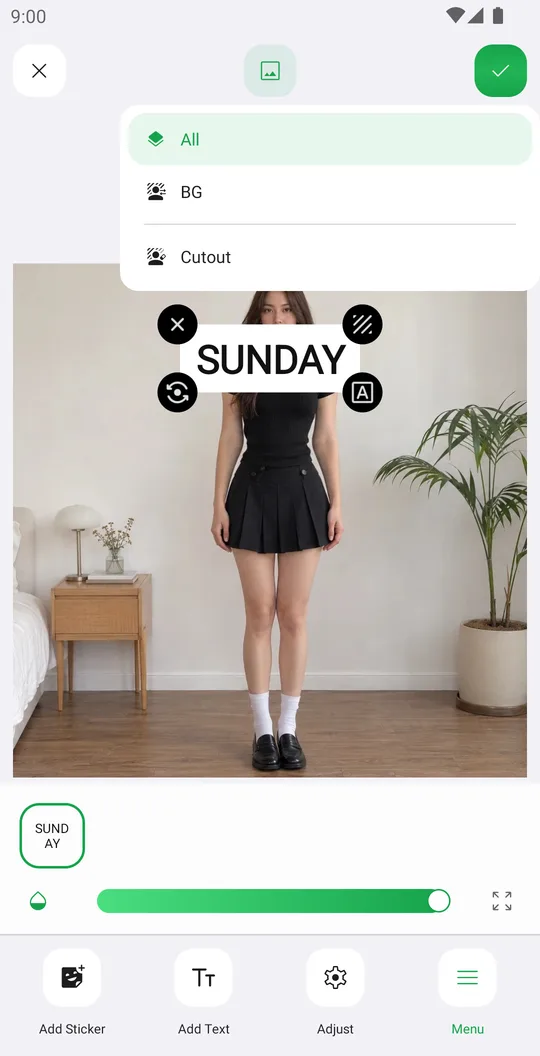
Works well with
Try Stickers for free
Free on Google Play. iOS coming soon.