
How to draw on photos with brushes
Keep color only where you paint, hide details with blur or mosaic and draw glowing neon lines.
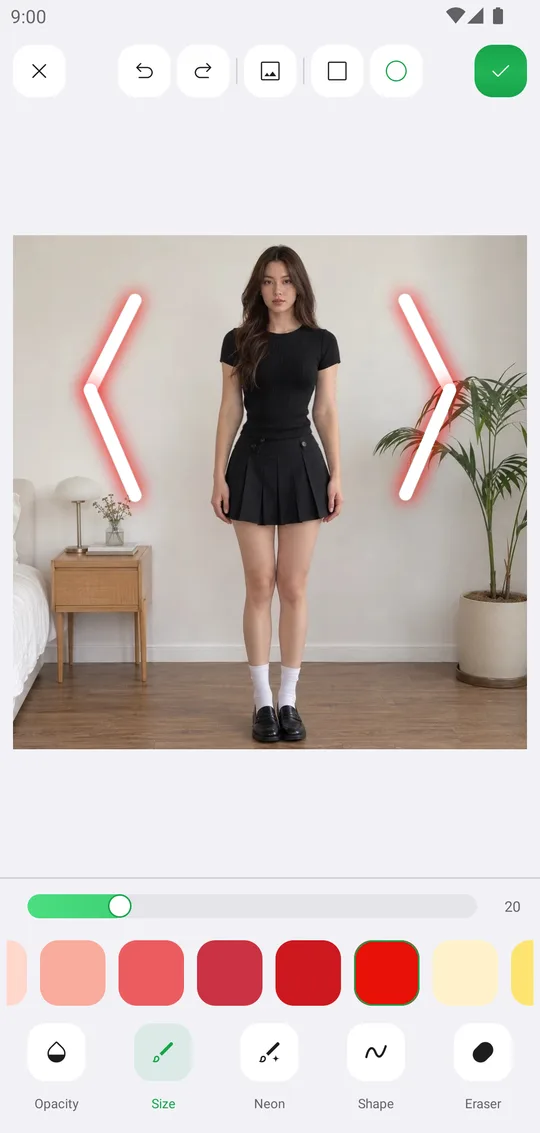
The Brush tab has Splash, Blur, Mosaic, Paint, Sticker, Text and Line. Each brush paints something different and has its own size.
Open the brushes
Pick a photo and open the Brush tab at the bottom of the editor.
Splash
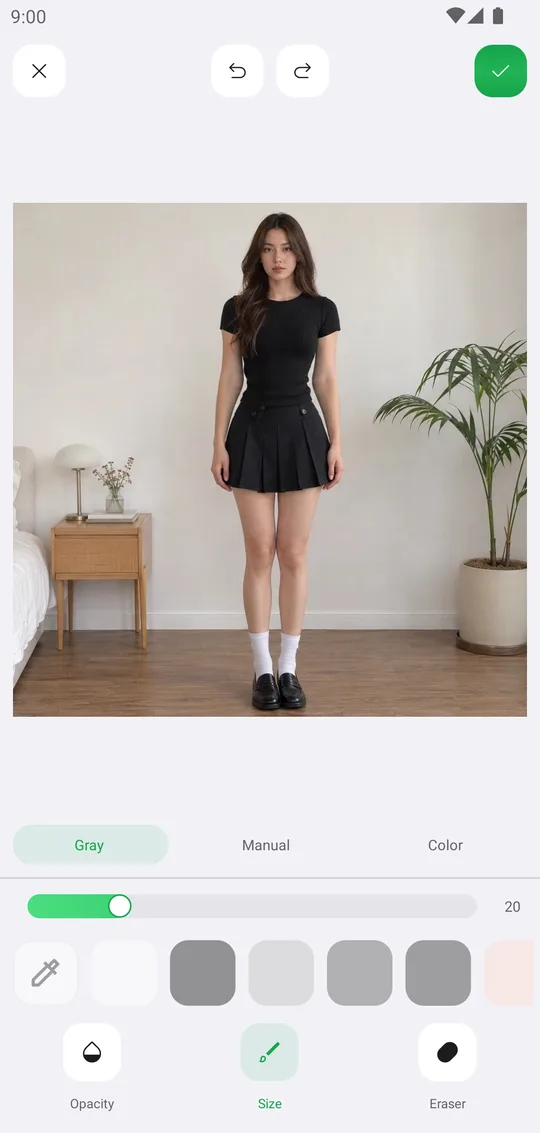
Splash has three modes. Gray paints the photo black and white, Color paints its own colors back, and Manual recolors with a color from the list while keeping light and shadow.
Paint and Neon
Open Paint, pick a color and draw. Tap Paint to switch the brush to Neon for a glowing line. Shape draws clean shapes, Eraser takes strokes away.
Blur and Mosaic
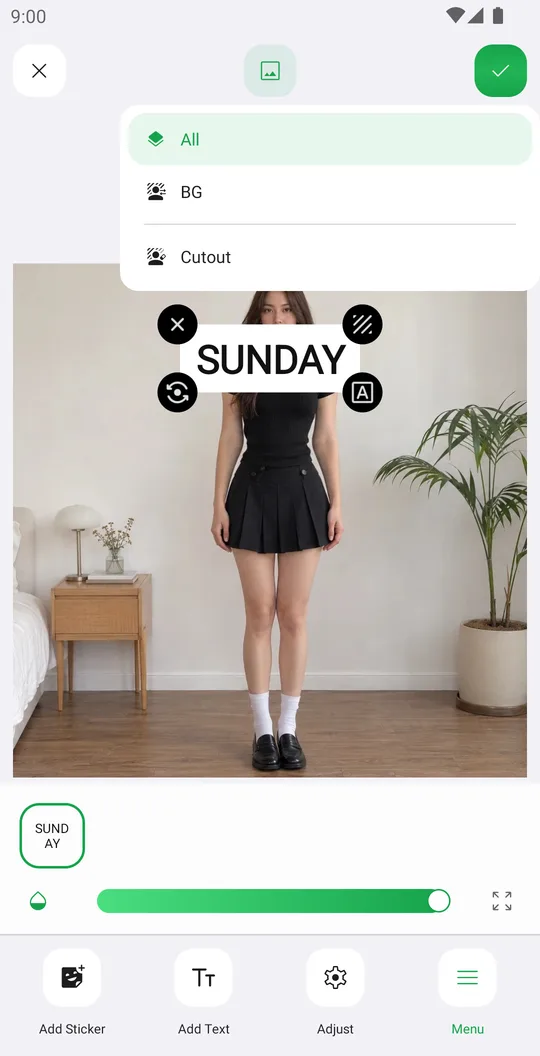
Paint over a face, a plate or a screen to hide it. Layers let you hit only the person or only the background.
Sticker, Text and Line
Sticker paints a trail of small stickers, Text writes along your stroke, Line draws lines.
Controls
- Size, Opacity
- How wide and how see-through the stroke is.
- Eraser
- Removes what you painted.
- Square, Circle
- The brush shape, at the top.
- Undo, Redo
- Step through every stroke.
Tools used in this tutorial
Related tutorials
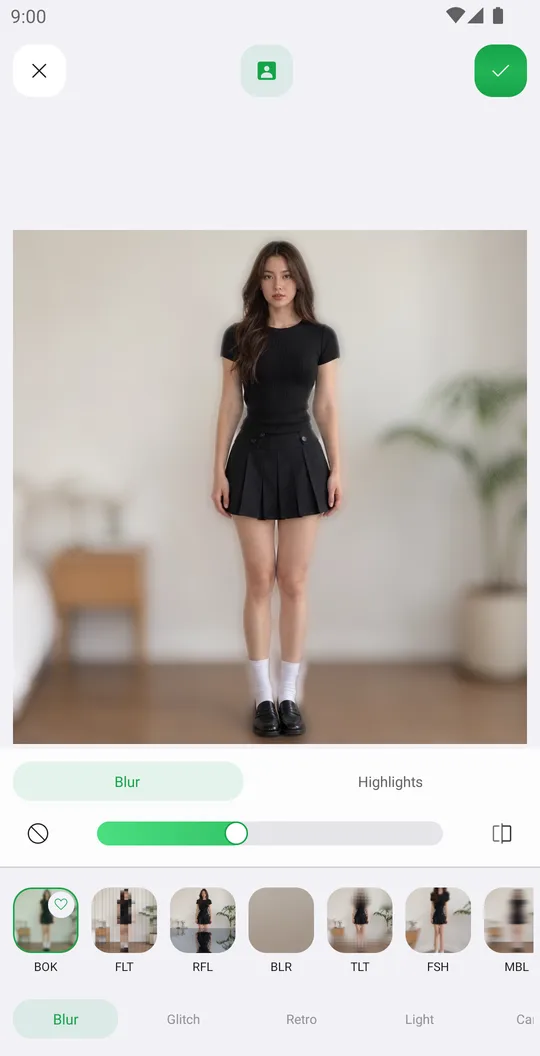
How to add effects like blur, glitch, VHS and bloom
Use 72 effects in Blur, Glitch, Retro, Light and Canvas, with their own settings, on the whole photo or only the background.
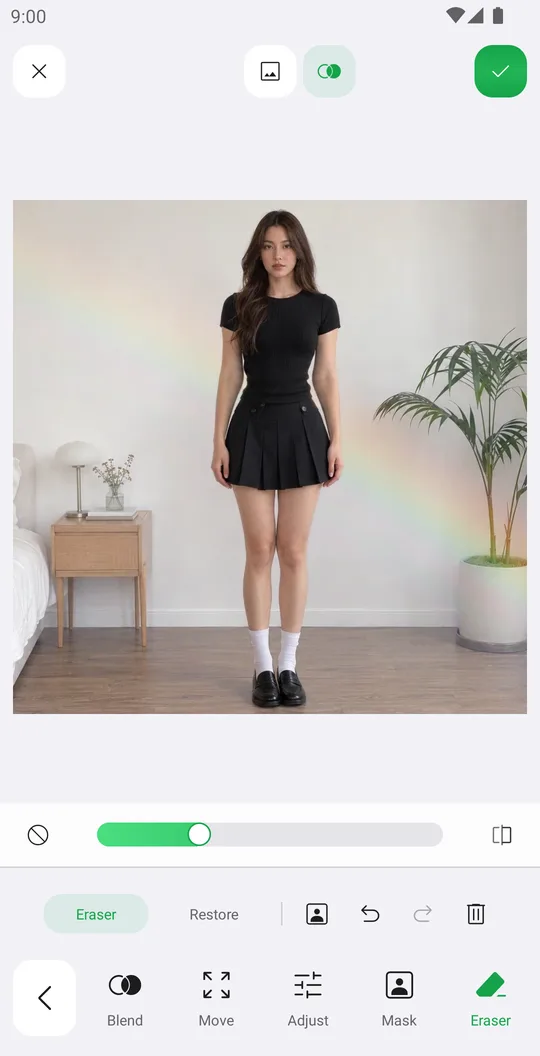
How to add overlays with blend modes
Add a light leak or texture, blend it with the photo, fade it with a mask and erase it from the person.
How to add stickers, even behind you
Add stickers from packs and the Library, arrange them precisely and put them behind the person.