
Color
Four tools for precise color work. Each color has its own slider, for the whole photo, the person or the background.
What is Color?
Hues shifts six color ranges, Balance moves the photo between red, green and blue, Selective changes one of nine colors and Tint washes the photo in a tone.
Each tool has its own set of colors, shown below as circles. Combine them with Tune and Curve and save the result in My Styles.
Everything in Color
Hues
Shift the hue of one color range at a time: turn green grass golden, make a blue sky turquoise or warm up red tones.
- Red
- Green
- Blue
- Magenta
- Yellow
- Cyan
Balance
Push the whole photo toward or away from red, green or blue to fix a color cast or build a cinematic grade.
- Red
- Green
- Blue
Selective
Pick one of nine color ranges, including whites, grays and blacks, and change only that color while the rest stays untouched.
- Red
- Green
- Blue
- Cyan
- Magenta
- Yellow
- White
- Gray
- Black
Tint
Multiply the red, green and blue channels to wash the photo in a soft color tone, from warm sepia to cool blue.
- Red
- Green
- Blue
Layers
Choose where the edit goes. AI finds the person, so you can change the whole photo, only the person or only the background.
- All
- Mask
- BG
- Cutout
- Compare
- Discard
- All, Mask, BG
- Tap the layers button at the top. All changes the whole photo, Mask only the person, BG only the background behind them.
- Cutout
- If the AI mask missed a spot, tap Cutout and fix it in Remove BG. The background layer follows your new mask by itself.
- Compare
- Hold to see the original photo, release to see your edit.
- Discard
- Reset everything you changed in this tool and start again.
How to use Color in Pichype
- 1Open a color tool
Pick a photo, open Colors and choose Hues, Balance, Selective or Tint.
- 2Choose the layer
Tap the layers button at the top: All, Mask for the person, or BG for the background.
- 3Pick a color and move it
Tap a color circle and move its slider.
- 4Compare and save
Hold Compare and save, or keep it as a style.
Color FAQ
Can I edit only the person or only the background?
Yes. Tap the layers button at the top and choose Mask for the person or BG for the background. If the edge is not perfect, tap Cutout, fix the mask in Remove BG and the edit follows the new edge.
Which tool do I use to change only the sky?
Hues or Selective on Blue or Cyan. Switch the layer to Background so the person stays the same.
How do I fix a yellow or green cast?
Use Balance and move the cast color away, or use Temperature and Tint in Tune.
Color tutorials
All tutorials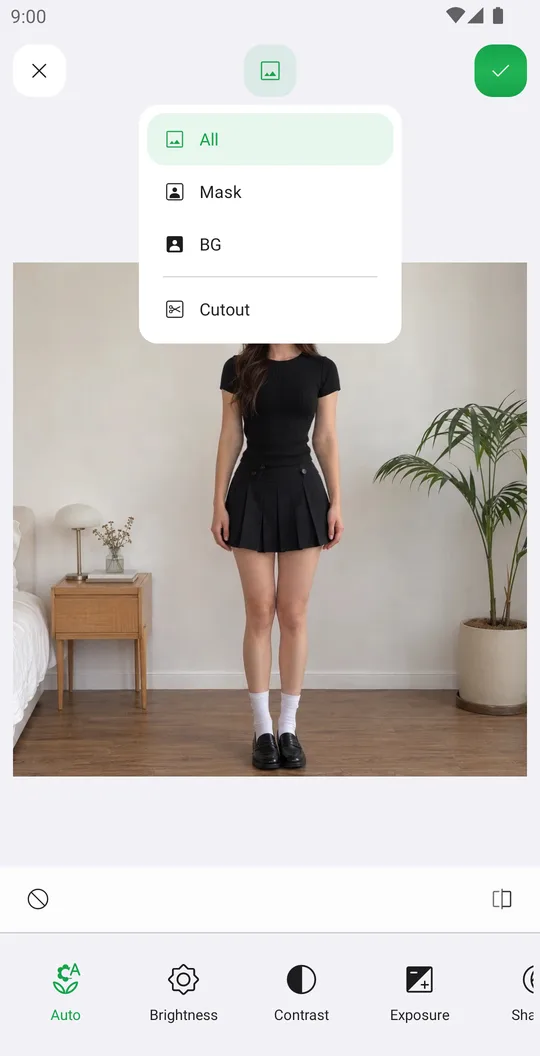
Works well with
Try Color for free
Free on Google Play. iOS coming soon.