
How to change single colors with Hues, Balance, Selective and Tint
Turn green grass golden, fix a color cast or tint the whole photo with the four color tools.

The Colors tab has four tools for precise color work. Each one has its own set of colors, shown as circles at the bottom.
Open the photo
On the home screen tap Select a Photo and pick a photo. In the editor open the Colors tab at the bottom and tap Hues.

Shift one color
Tap a color circle, for example green, and move the slider. Only that range of colors changes, the rest stays as it was.
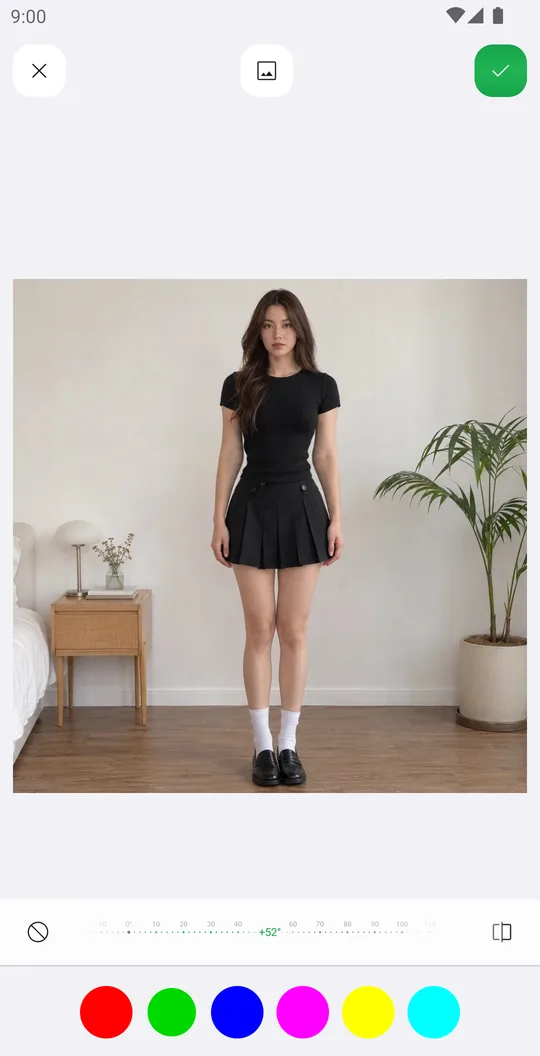
Fix a color cast with Balance
Open Balance and move red, green or blue to push the whole photo away from a cast or toward a grade.
Change one exact color with Selective
Selective has nine colors, including white, gray and black. Use it to clean whites or deepen blacks without touching the rest.
Wash the photo in a tone with Tint
Tint multiplies red, green and blue for a soft overall tone, from warm sepia to cool blue.
Choose where it applies
Tap the layers button at the top. All changes the whole photo, Mask changes only the person, BG changes only the background. Cutout opens Remove BG if the person mask needs a fix.
Colors in each tool
- Hues
- Red, green, blue, magenta, yellow and cyan.
- Balance
- Red, green and blue.
- Selective
- Red, green, blue, cyan, magenta, yellow, white, gray and black.
- Tint
- Red, green and blue.
Layers
- All
- The whole photo.
- Mask
- Only the person. AI finds the person for you.
- BG
- Only the background behind the person.
- Cutout
- Opens Remove BG to fix the person mask. The BG layer follows the new edge.
Tools used in this tutorial
Related tutorials
How to crop, rotate and straighten a photo
Crop for any post size, level a tilted horizon and fix leaning walls with Crop.
How to fix light and color with Tune
Brighten a dark photo, warm up the colors and darken only the background with Tune and layers.
How to use Curves for tone and color
Add contrast with a preset or your own points, and grade colors channel by channel.