
Templates
Browse ready-made edits with a preview of each one and apply a template to your photo in one tap.
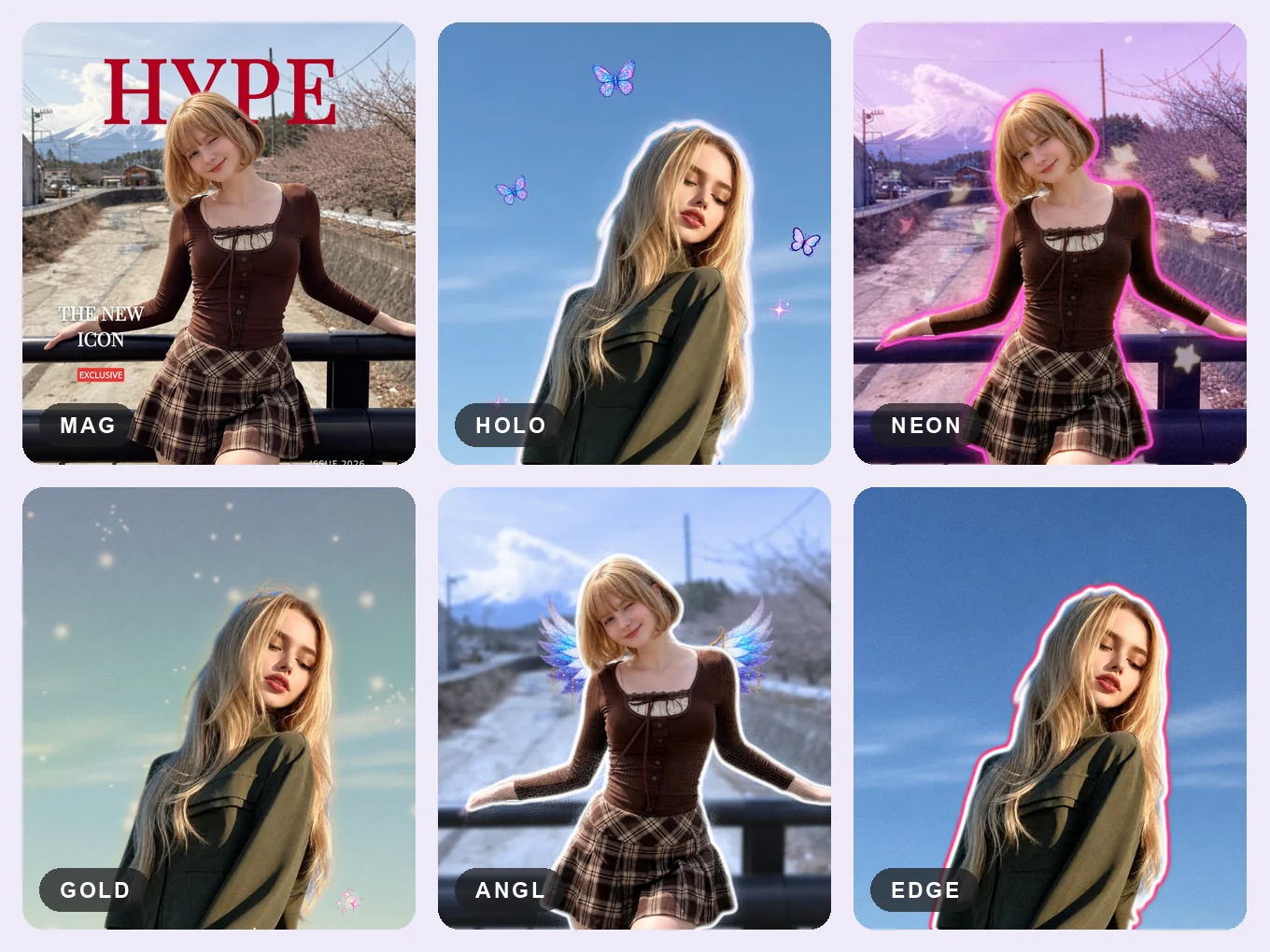
What is Templates?
A template is a full design made for you: color, text, shapes and effects. Browse the previews and apply one to your photo in a tap.
Some templates use the person mask, for example text behind you. If the mask is not right, tap the button at the top to fix it. Frame templates with several windows show an icon at the top where you add your own photos.
Everything in Templates
What you can do
A finished look in seconds.
- Previews
- One-tap apply
- Fix the mask
- Add photos
- Save
- Fix the mask
- For templates that use the person, the top button opens the mask so you can correct it.
- Add photos
- Collage frame templates show an icon at the top to put your photos in each window.
How to use Templates in Pichype
- 1Open Templates
Pick a photo and tap Templates.
- 2Choose a template
Look through the previews and tap the one you like.
- 3Fix the mask or add photos
Use the buttons at the top if the template uses the person or several photos.
- 4Save
Save the photo, or keep editing in other tools.
Templates FAQ
Text in the template covers my face.
Tap the mask button at the top and fix the person mask.
Can I put several photos in one template?
Yes. Frame templates with several windows have an icon at the top to add your photos.
Templates tutorials
All tutorials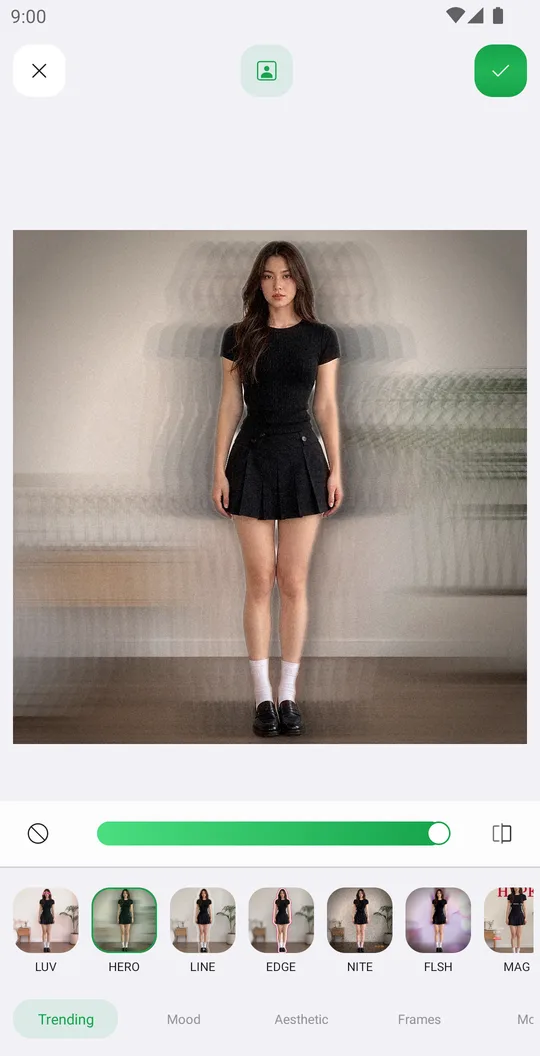
Works well with
Try Templates for free
Free on Google Play. iOS coming soon.