
How to edit a photo with templates
Apply a ready design in one tap, set its strength and fix the mask or add photos.
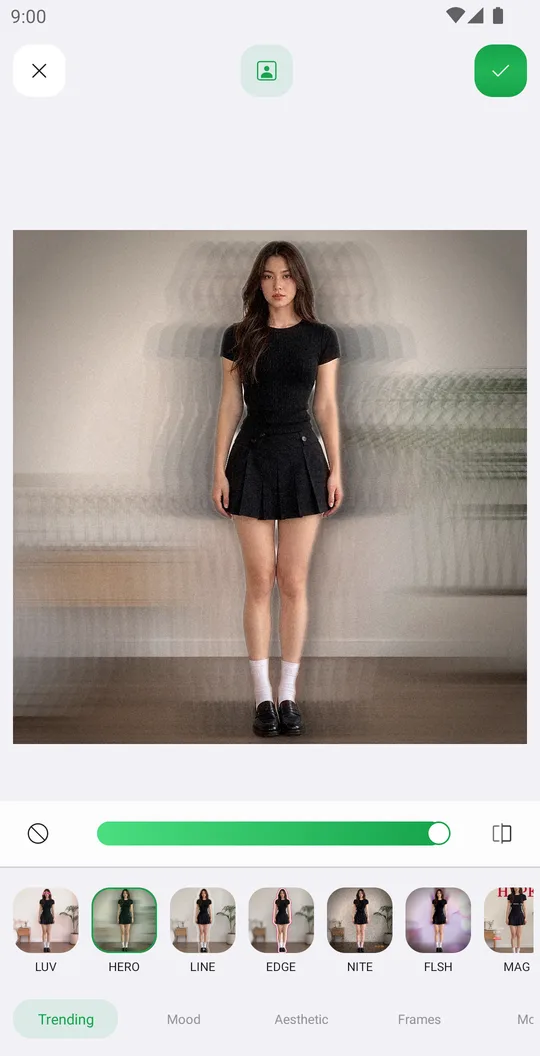
A template is a full design made for you: color, effects, text and shapes. Many templates use the person mask, for example for text behind you.
Open the photo
On the home screen tap Select a Photo and pick a photo. In the editor open the Editor tab at the bottom and tap Templates.
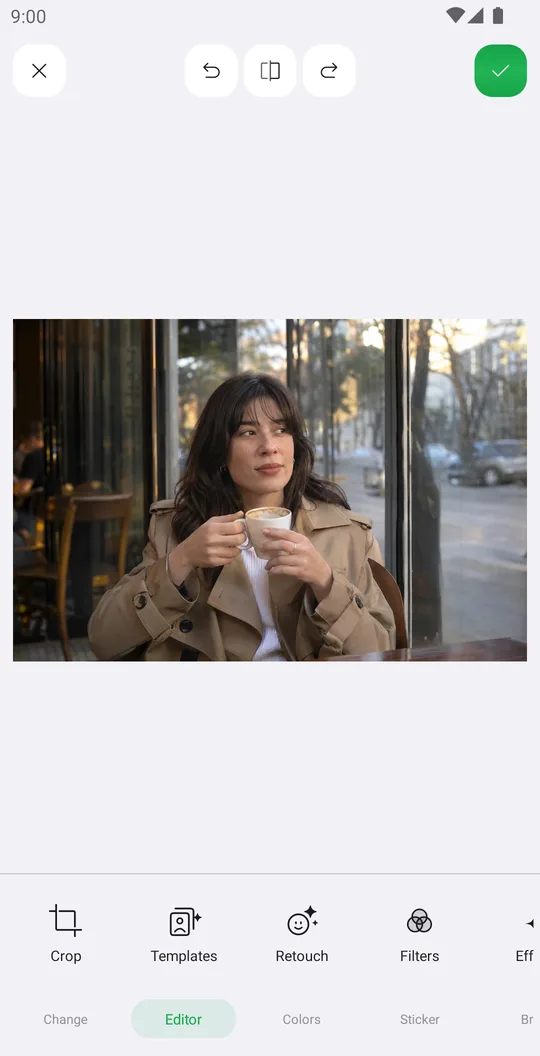
Pick a template
Browse Trending, Mood, Aesthetic, Frames and more, and tap one. The slider sets how strong it is.
Fix the mask
If the template uses the person and the edge is wrong, tap the mask button at the top and fix it.
Add your photos
Frame templates with several windows show a button at the top to put your photos in each window.
Save or keep editing
Tap the check mark and continue with any other tool.
Tools used in this tutorial
Related tutorials
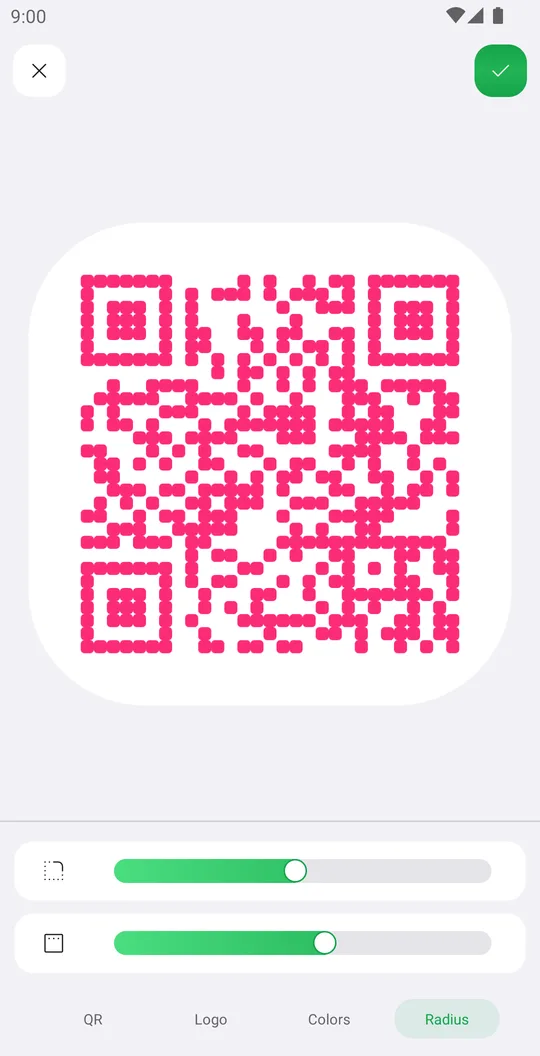
How to create a custom QR code
Make a QR code for a link, text, Wi-Fi, an event or a place, with your colors, logo and rounded corners.
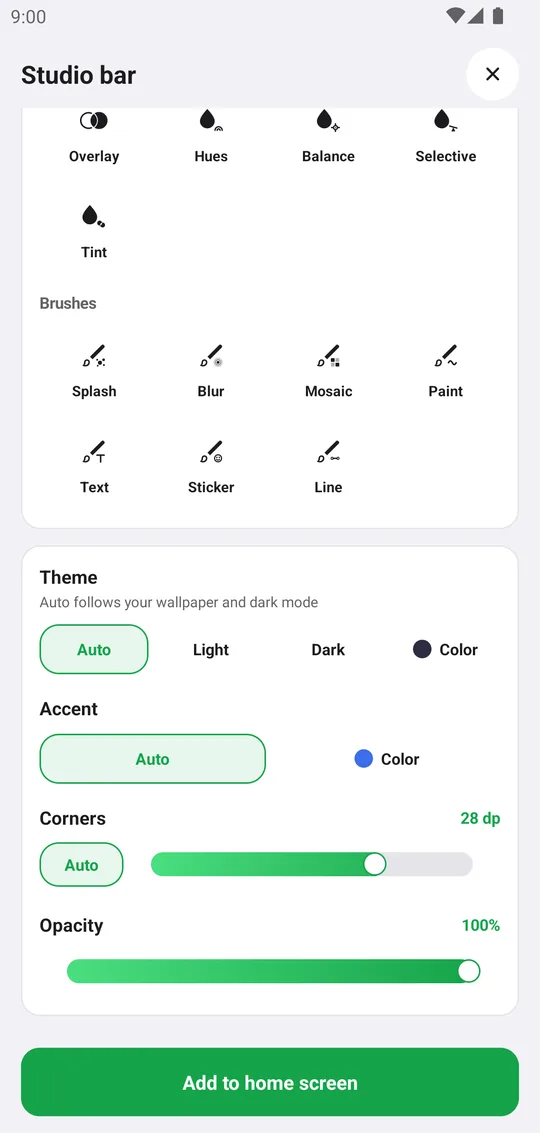
How to add Pichype widgets to your home screen
Add photo, note, streak, challenge and tool widgets and style them to match your home screen.
How to retouch a selfie naturally
Smooth skin, add a ready makeup look and fix single details in Retouch while keeping your real face.