
How to fix light and color with Tune
Brighten a dark photo, warm up the colors and darken only the background with Tune and layers.
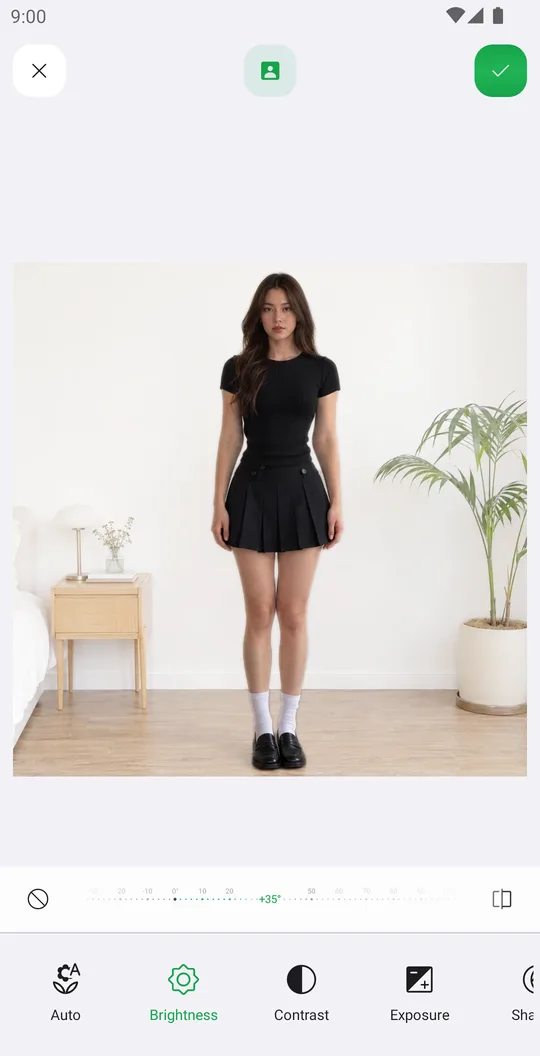
Tune has every basic adjustment: light, color and detail. With layers you can also change the person and the background separately, for example keep the person bright and make the background a little darker.
Open the photo
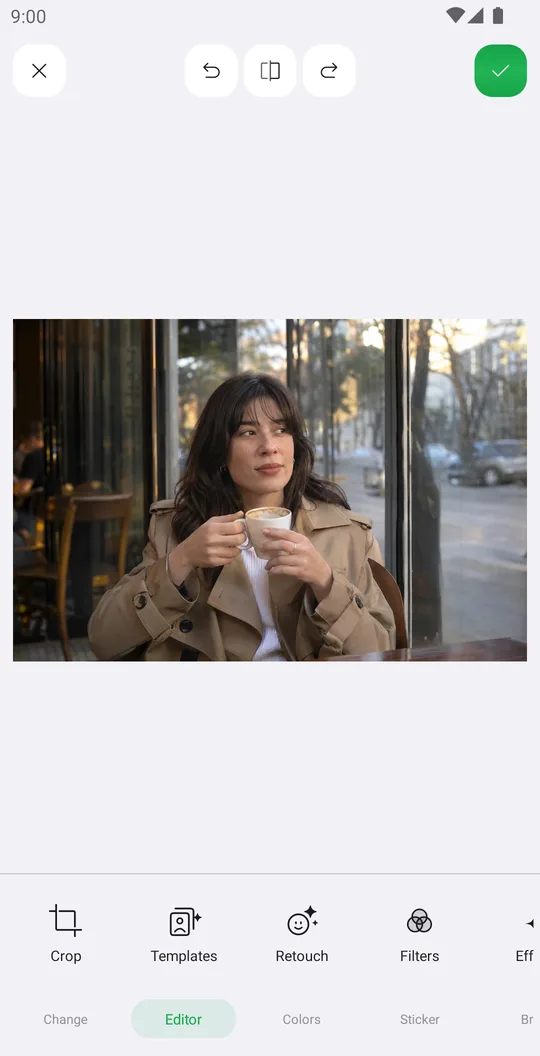
On the home screen tap Select a Photo and pick a photo. In the editor open the Colors tab at the bottom and tap Tune.
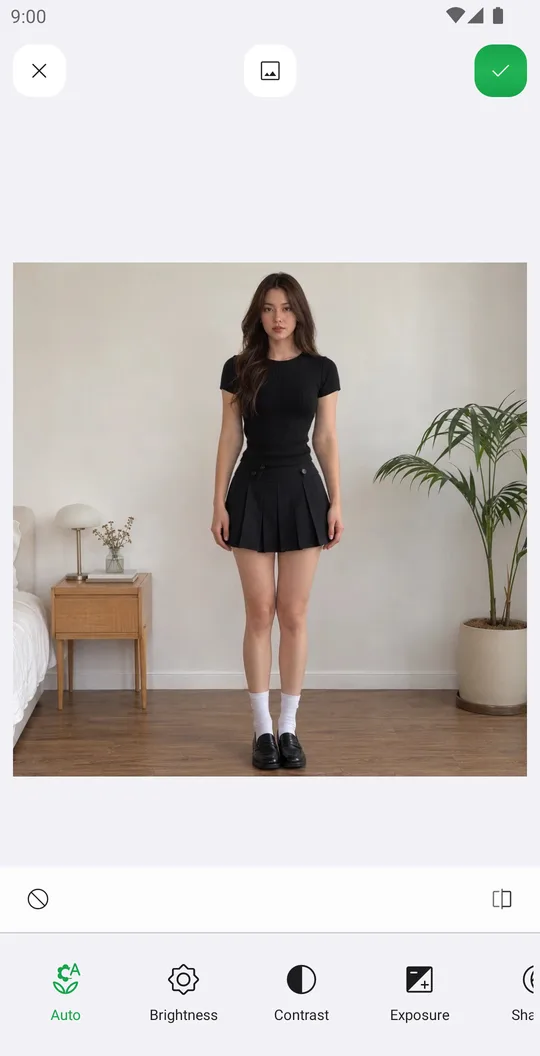
Start with Auto
Tap Auto for a quick fix of light and color, then check the result with the compare button.
Choose where it applies
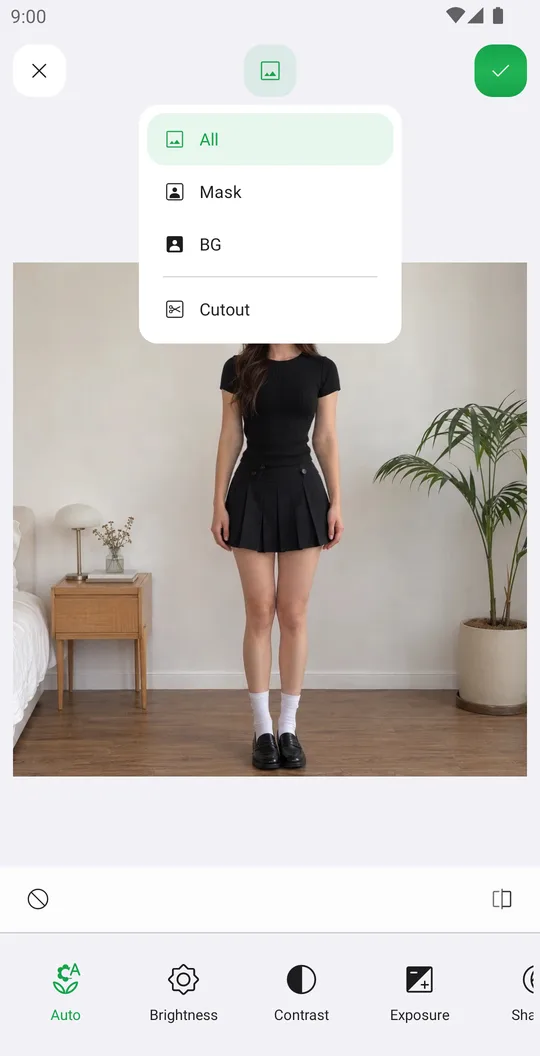
Tap the layers button at the top. All changes the whole photo, Mask changes only the person, BG changes only the background. Cutout opens Remove BG if the person mask needs a fix.
Adjust one thing at a time
Tap Brightness, Contrast, Exposure, Shadow, Levels, Saturation, HSL, Whitebalance, Sharpen or Vignette and move the slider. Here only the background got darker.
Save
Tap the check mark, or keep the settings as a style in My Styles.
Layers
- All
- The whole photo.
- Mask
- Only the person. AI finds the person for you.
- BG
- Only the background behind the person.
- Cutout
- Opens Remove BG to fix the person mask. The BG layer follows the new edge.
Controls
- Exposure, Brightness
- Exposure works like the camera setting, Brightness lifts the middle tones.
- Shadow
- Opens up dark areas and brings back bright ones.
- Levels
- Sets the dark point, the light point and the gamma.
- Whitebalance
- Temperature and tint: warmer or cooler, greener or more magenta.
- Vignette
- Darkens or lightens the corners.
Tools used in this tutorial
Related tutorials
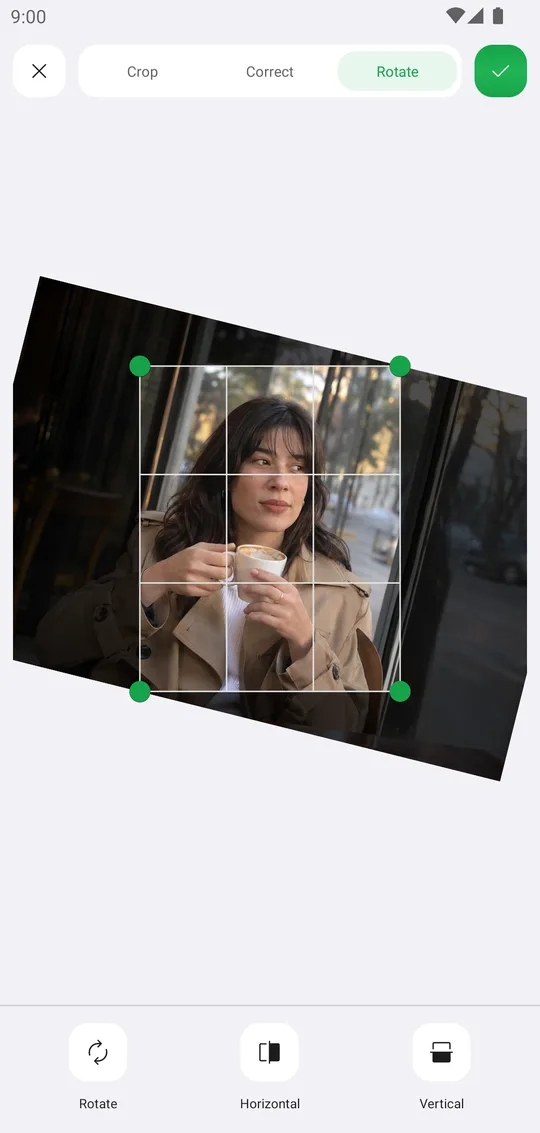
How to crop, rotate and straighten a photo
Crop for any post size, level a tilted horizon and fix leaning walls with Crop.
How to use Curves for tone and color
Add contrast with a preset or your own points, and grade colors channel by channel.
How to change single colors with Hues, Balance, Selective and Tint
Turn green grass golden, fix a color cast or tint the whole photo with the four color tools.