
How to add text to photos, even behind you
Write a caption, style it with fonts, outline, shadow and background, and put it behind the person.
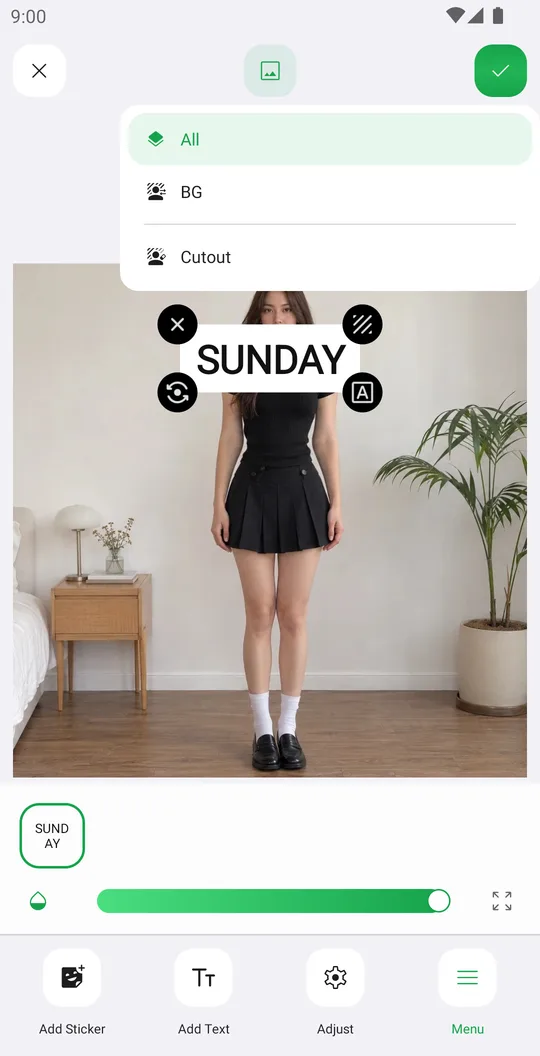
Text works like stickers, with a full style editor on top. Load your own font or texture when the built-in ones are not enough.
Open the photo
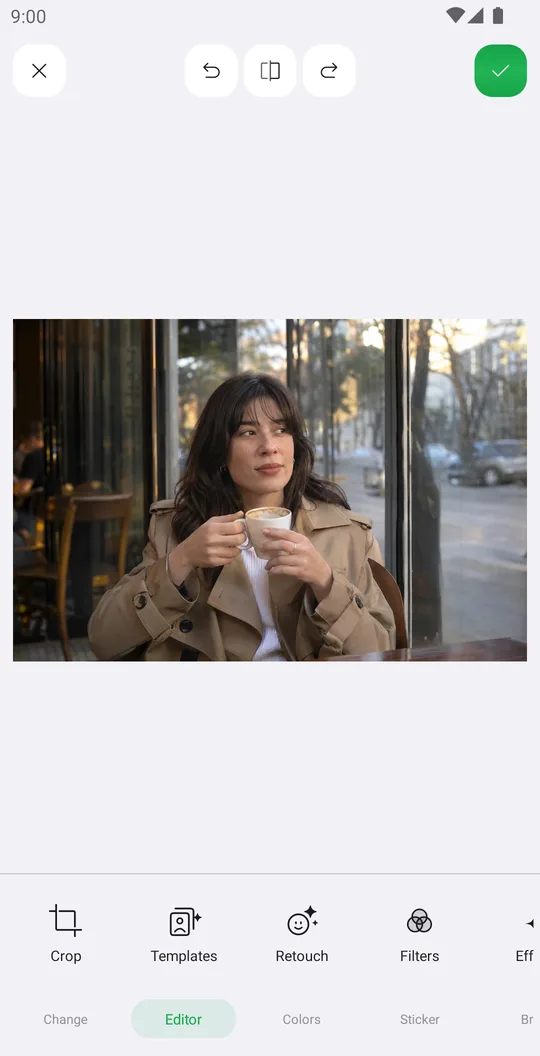
On the home screen tap Select a Photo and pick a photo. In the editor open the Sticker tab at the bottom and tap Text.
Type and style
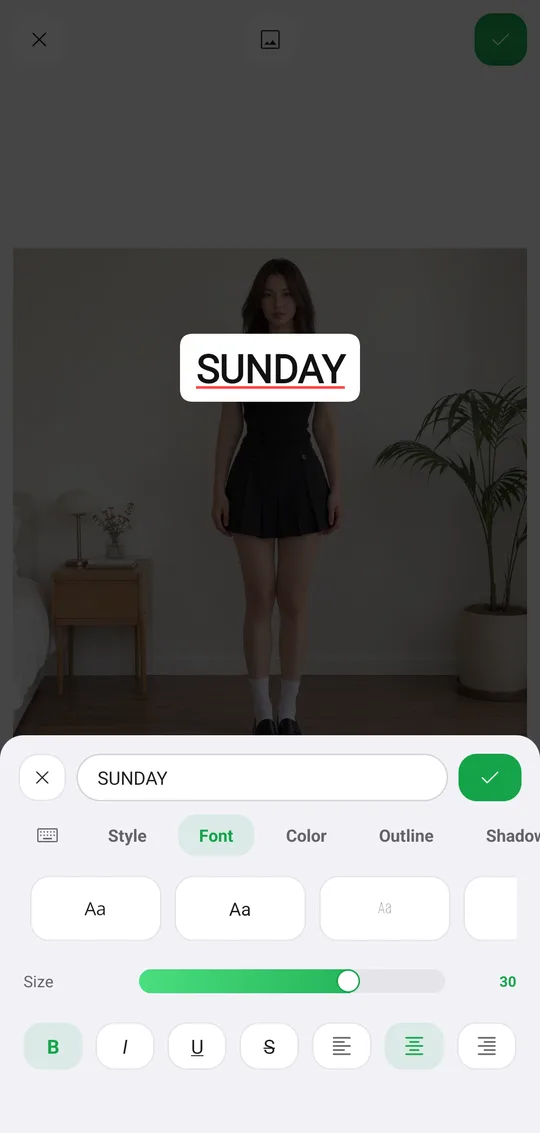
Type your text and tap a ready style, or build your own. Font has the fonts, Size, bold, italic, underline, strike and alignment.
Finish the look
Color, Outline, Shadow, BG and Spacing are in the next tabs. Shadow has Soft, Medium, Hard and Glow. BG adds a colored box behind the text.
Place it
Tap the check mark, then drag, pinch and rotate the text. Long-press for duplicate and order.
Put it behind you
Tap the layers button and choose BG. The text goes behind the person like a magazine cover.
Style tabs
- Style
- Ready text styles and your own.
- Font
- Fonts, Size, B, I, U, S and alignment.
- Color, Outline
- Text color and an outline around the letters.
- Shadow
- Soft, Medium, Hard or Glow, with intensity and angle.
- BG, Spacing
- A box behind the text, and the space between letters and lines.
Tools used in this tutorial
Related tutorials
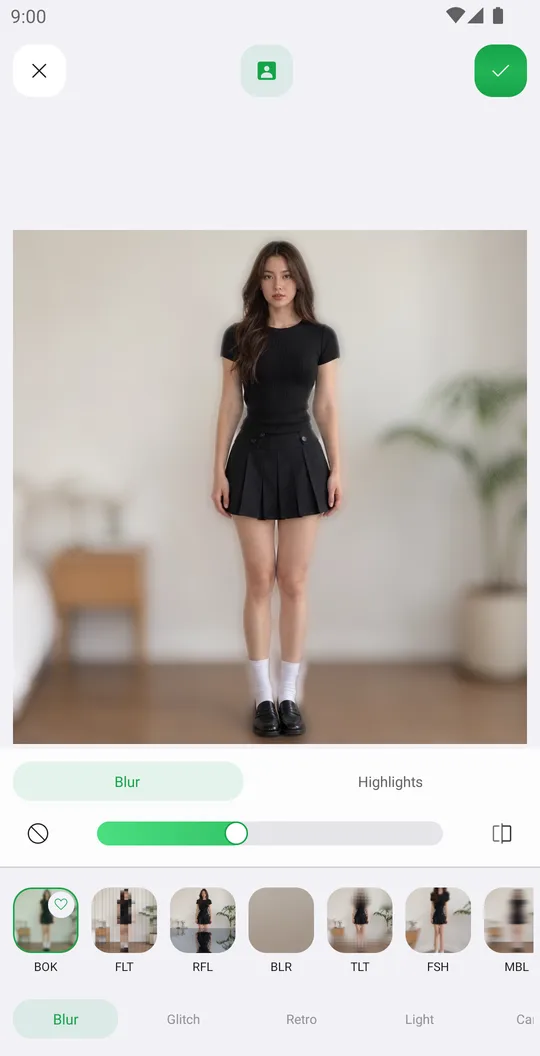
How to add effects like blur, glitch, VHS and bloom
Use 72 effects in Blur, Glitch, Retro, Light and Canvas, with their own settings, on the whole photo or only the background.
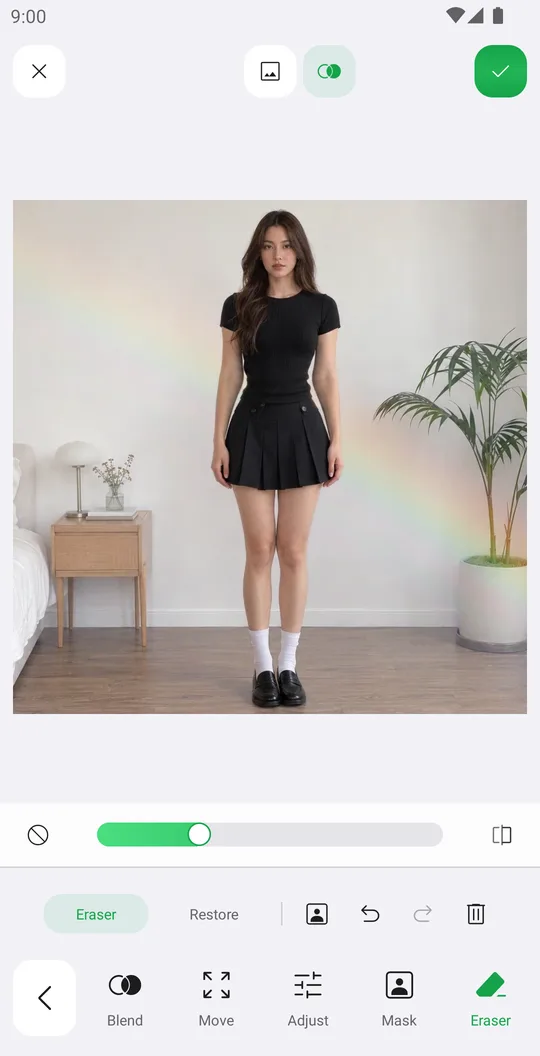
How to add overlays with blend modes
Add a light leak or texture, blend it with the photo, fade it with a mask and erase it from the person.
How to add stickers, even behind you
Add stickers from packs and the Library, arrange them precisely and put them behind the person.